
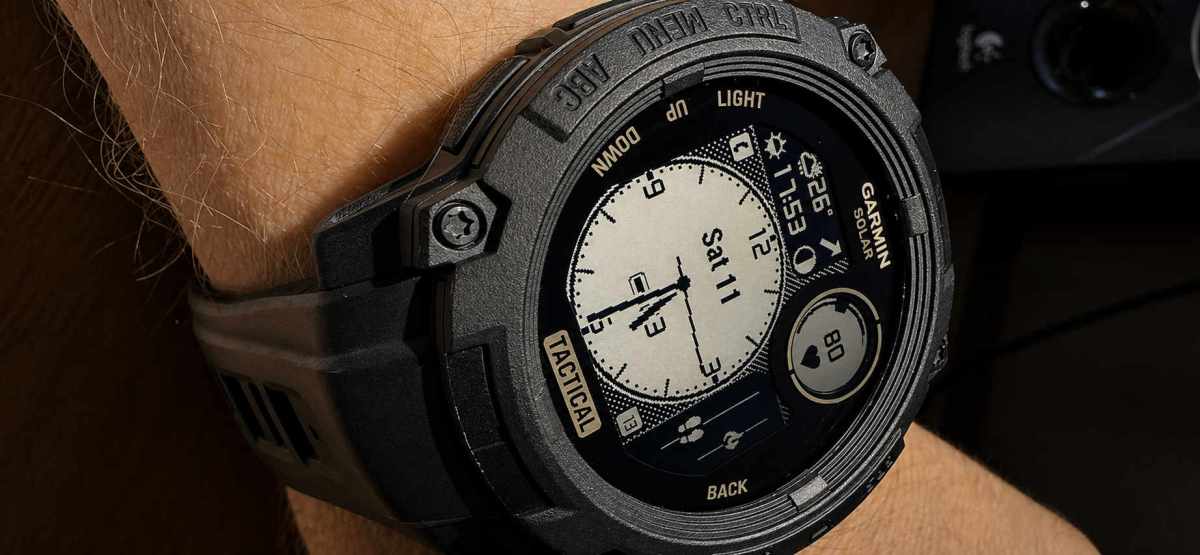
Note
The features available in this watch face depend on the device. If you can’t see some options described in this document, it means they are currently not available on your watch.
Contents
- Features
- Premium features
- Layout
- Background color
- Dial style
- Available data
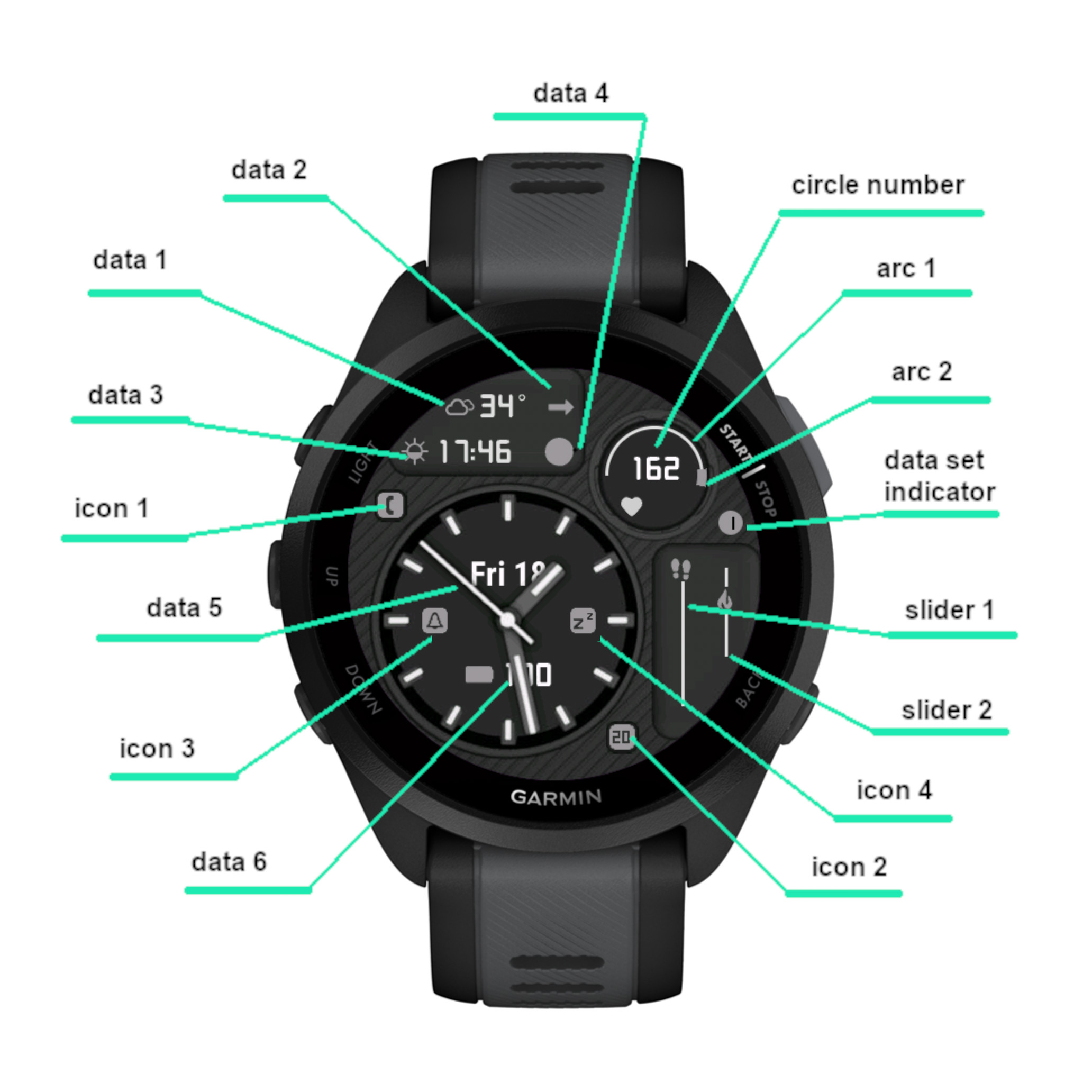
- Data fields
- Data update frequency
- Circle area
- Line gauges
- Status icons
- Data sets
- Switching data sets
- Launching widgets
- Seconds
- Active bar vs Move bar
- Date
- Weather
- GPS location
- Power save
- Battery drain
- Colors
Features
- 7 data fields with up to 50+ options each
- 2 sliders and 2 arc gauges showing level/progress of up to 25 data choices
- 4 configurable status icons (phone, notifications, alarms, do not disturb)
- 4 configurable datasets switchable by screen touch, gesture, watch face ‘customize’ menu, or the Connect IQ app
- Battery saving options
- 10 customizable color themes, with separate colors for AOD mode
- Choice of Garmin* or OWM weather
- Always on second hand*
- Live HR and solar charging options for circle number and arc 2*
- Mini world map with current coordinates
- Digital clock with LCD font
*On compatible devices
Premium features
All the functions of this app can be accessed without payment.
However, some features are designated as ‘Premium’ and identified by a ‘star icon’ 🌟 next to them in the settings.
If any of these is selected without a valid unlock key, a floating padlock will appear on gesture.
If you don’t want to see the padlock, there are 2 options:
1) Make sure that no option with ‘star icon’ is selected, or
2) Purchase an unlock key here: https://reed.works/instinctana-unlock/
Layout
Background color
On some devices it is possible to select different black/white combinations for the dial background:
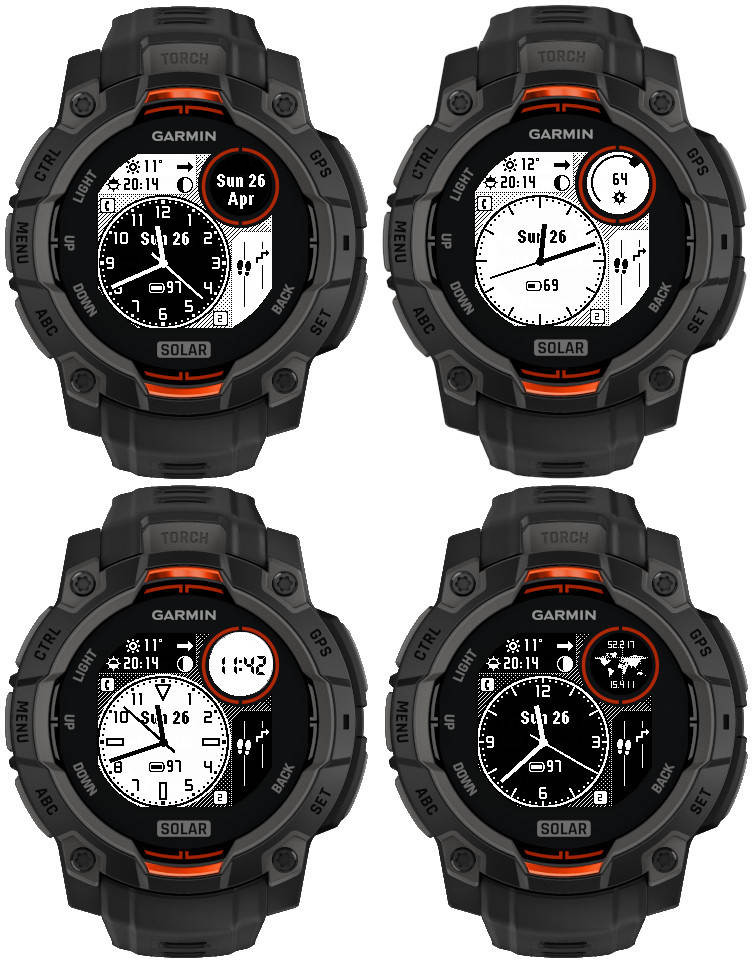
There is a separate choice of the background for the day and for the night.
Dial style
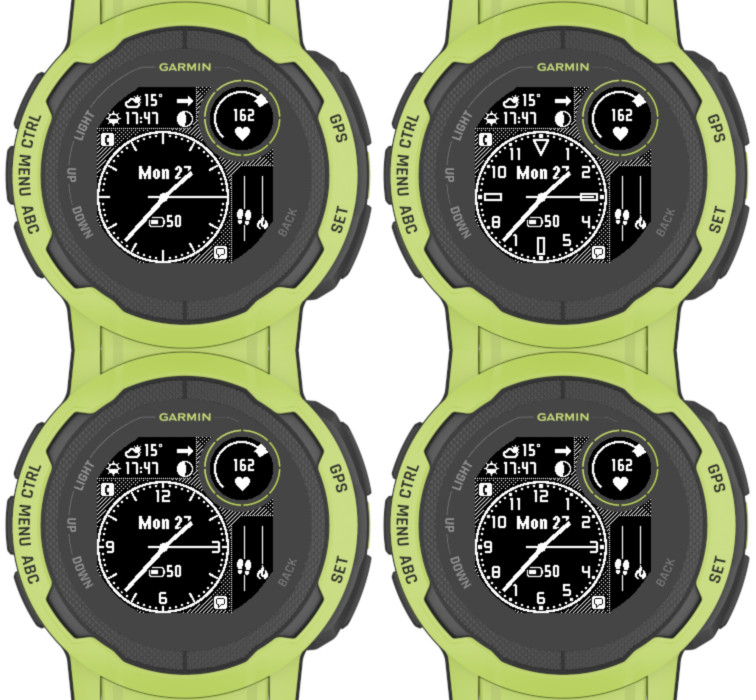
Besides the basic one, on Instinct devices there are 4 premium dial style options:
Available data
Below is the complete list. The availability of a particular option depends on device capabilities. Also, some options are only available in certain data fields.
- custom text
- battery icon only
- battery level in %
- battery days remaining
- battery % + days
- solar charging level
- solar charging level live
- move bar
- activity bar
- steps/pushes
- steps/pushes goal
- floors climbed
- weekly run activity distance
- weekly bike activity distance
- training status
- training effect
- daily distance
- weekly distance
- calories
- active calories
- daily active minutes
- weekly active minutes
- active bar (grows when active)
- move bar (grows when inactive)
- heart rate
- live / real time heart rate
- heart rate range within a specified period (up to 360 minutes)
- resting heart rate
- altitude
- barometric trend (icon only)
- barometer
- internal sensor temperature (1 or 0.1 degree accuracy)
- body battery
- stress
- oxygen saturation (SpO2)
- respiration
- time to recovery
- VO2 Max (running)
- VO2 Max (running + cycling)
- next sun event (sunrise/sunset)
- 2nd next sun event
- moon (icon only)
- moon age (days since last new moon)
- moon illumination
- moon age + illumination
- UTC 24h time
- alternate time (adjustable for any zone, including 30 min offsets)
- date (fully configurable)
- digital clock
- coordinates with a position mark on a world map
- weather (Garmin or Open Weather)
- temperature range
- wind speed (m/s, kph, mph, knots, BFT) and direction
- humidity
- humidity + dew point (OWM only)
- chance of precipitation
- precipitation volume (OWM only)
- UV Index (OWM only)
- Air Quality Index (OWM only)
- weather location
- last weather update time
- phone connection status
- notifications counter
- alarm(s) set indicator
- Do Not Disturb status
Data fields
Data fields 1 – 6 allow to select most data supported by this app. But this makes it possible for neighboring fields to overlap when there is not enough space to accommodate them. This is a deliberate design choice to allow maximum flexibility in data placement (or to choose left/right alignment), but then it is up to the user to find the optimal layout that does not overlap. The same data can have a very different length in different situations, for example the weather location, the altitude or the date, so what works for one user might not work for another.
On some devices, Instinct Analog tries to reduce the data font size when the data is long, but it may not always solve the overlapping, so you may need to do some experiments to define your perfect data layout.
Data update frequency
There are 2 choices:
‘Gesture’ – displayed data is updated every second for about 10 seconds on wrist gesture and on every full minute.
‘1 min’ – displayed data is updated once a minute.
Circle area
There is one numerical data field in it, which can show similar choices as data 1 – 6, two arc indicators that can be configured to represent different parameters ranging from 0 to 100%.
Circle number and Circle arc 2 are the only locations allowing the display of ‘live/real time’ HR or solar charging level.
Also, Circle number is the only location that allows displaying digital time and world coordinates. When any of these two is selected, the arcs will be hidden.
Slider gauges
Slider gauges move up or down corresponding to the level or progress of the data they represent.
The data choices are the same as for the circle arcs, with the exception of live HR and live solar intensity.
Status icons
Status icons can be configured individually and allow the following choices:
– phone connected (shows when there is an active Bluetooth connection, disappears when there is no connection)
– notifications (shows when there are pending notifications, disappears when the notifications are cleared). The counter of pending notifications can be selected as an option for the circle or right data fields.
– alarms (shows when there is at least one active alarm set on the watch)
– do not disturb (shows when the watch is in the Do Not Disturb mode)
Data sets
The ‘Dataset’ option allows quick changing of the displayed data configuration, with up to 4 sets available. Each set keeps the choices for the main data fields, circle and sliders.
When you choose a dataset that was not used before, it will begin with the default settings. Then you can can select the data that you want in this set and save the settings.
The next time you switch to this set from another, your configuration will be restored.
On some devices, each of the 4 data sets comes with a predefined configuration (1-generic, 2-activity, 3-health, 4-weather). On other devices, all 4 data sets look the same after installation.
Switching data sets
You can choose how many datasets you want to switch by screen touch or gesture (from 0 to 4).
Switching by screen touch is the fastest option, just press the hour marks to switch. 12 hours selects set 1, 3 hours selects set 2, 6 hours selects set 3 and 9 hours selects set 4.
You can see the currently selected set number in the data set indicator field. This indicator appears only when ‘Data sets switched by touch or gesture’ is not ‘Off’.
Switching datasets by gesture requires double gesture, to minimize unintended switches when you move your hand for other reasons than looking at your watch.
The double gesture movement must be completed within the ‘Gesture timeout’ (in milliseconds) defined in the settings. If you find it difficult to get the dataset to switch, try making the timeout longer.
Note that double gesture is required to cycle to the next data set. If you want to move further, only one additional gesture is needed for one set increment. So for example, to move from set 3 directly to set 1 you need to move your wrist 3 times.
Besides that, it is possible to switch between the data sets in the watch face ‘Customize’ menu, and in the Instinct Analog settings in the Garmin Connect IQ app. When any of these methods is used, the number of sets to be switchable by touch or gesture does not apply, any of the 4 sets can be selected.
Launching widgets
On devices with touch screen capability, a screen press will invoke a system widget, if one corresponding to the displayed data can be found.
The areas sensitive to this are:
– icons of the top 4 data fields (Data 1 – Data 4)
– Data 5 and Data 6
– status icon fields
– circle number
– top of the sliders
Seconds
The seconds can be set to ‘Off’, ‘On’, ‘Gesture’ or ‘Gesture 20s’. On AMOLED devices, the effect of these options is limited by the full display timeout setting, and on the currently existing devices it is not possible to have the seconds always on (there is no support for 1Hz screen refresh in AOD mode).
Active bar vs Move bar
These two are the opposites of one another. Move bar grows when you remain inactive and goes down to zero when you start moving. Active bar is 100 when you keep moving, but when you stop it will gradually go down to zero.
Date
Date is fully configurable, using the ‘Date format’ field in the settings.
To configure the date, you need to enter any of the following letters in the ‘Date format’ setting:
d = day number without leading zero
D = day number with leading zero
m = month number without leading zero
M = month number with leading zero
y = 2-digit year
Y = 4-digit year
n = day name
c = day name in all caps
N = month name
C = month name in all caps
w = ISO week number
a = AM/PM indicator
| = separates the format for date top and bottom components
= = escape character
Any other character (e.g. – / : . []) will be displayed if it is available on the watch.
The equals sign (escape character) has a special purpose to allow displaying the characters that normally are substituted by the date components they represent. You can use it to put arbitrary text in the date field. For instance you can use it to display ‘am’ or ‘pm’ instead of ‘a’ or ‘p’.
Below are some examples:
“n N d” → Fri Aug 24
“n D.M” → Fri 24.08
“d/m [w]” → 24/8 [34]
“d/m =ww” → 24/8 w34
“YMD” → 2018824
“m-d-y” → 8-24-18
“c D (w)” → FRI 28 (34)
“n D a=m” → Fri 13 am
The date format is composed of two components, separated by the “|” symbol. The format after the “|” symbol allows to display a second line of date information in the circle. At the time of writing, this is the other way round on non-Instinct devices, it will be corrected in the coming update.
Weather
On compatible devices, weather source can be selected between Garmin (default) and Open Weather (OWM). Compatible means most devices that run Connect IQ (CIQ) version 3.2.0 or higher. You can check this in your watch System/About menu.
Notably, the fēnix® 5 Plus family and vívoactive® 3 do not support Garmin weather and the only option is to use OWM.
For the OWM weather you need to supply your own API key.
OpenWeather key validity
Please note that OpenWeather changed their free key policy and API keys created with “Current weather and forecasts collection” will not work with Instinct Analog.
You can subscribe to “One Call by Call” subscription plan for One Call API 3.0. This subscription comes with 1,000 API calls per day for free, and Instinct Analog will not exceed 300 calls per day (3 calls every 15 minutes).
How to get OpenWeather API key
Go to https://openweathermap.org/api and subscribe to One Call API 3.0 (1,000 API calls per day for free).
Update frequency
Garmin weather updates as often as Garmin decides to refresh it – it seems that it can be anything between 10 minutes to 1 hour.
OWM weather updates every 15 minutes. Note that this is the frequency at which Instinct Analog queries new weather data, but it does not guarantee that OWM will update the data at their end within that period.
Temperature range
When Garmin weather is selected, this shows the forecasted high and low temperatures for the day.
When OWM weather is selected, this shows the forecasted high and low temperatures for the next 3 hours. At the moment it does not seem possible to have the full day temperature range forecast using a free API key.
GPS location
GPS location is necessary for the app to display correct data for all l0cation-dependent data such as weather, sun events or moon phase.
Instinct Analog tries to retrieve the location automatically, but this may not always be possible. If you see ‘GPS?’ displayed instead of the data you selected in one of the fields, this means that you may need to update the location manually.
To do this, switch to the start screen of any activity that uses location, for instance ‘Run’ or ‘Bike’. You should be able to see a GPS acquisition progress indicator there. Wait until it completes or until something like ‘GPS ready’ is shown. Then go back to the watch face and the ‘GPS?’ should be gone.
Power save
Power save mode reduces the display to time only.
It can be activated permanently, or when the watch is in the Do not Disturb mode.
If ‘Full on gesture’ is set to ‘On’, wrist movement with cause full display to appear for about 10 seconds on MIP devices or the gesture timeout duration set on AMOLED devices.
Battery drain
The battery drain depends a lot on how large screen area is refreshed every second.
So it is likely that if you use ‘Always on’ second hand and ‘Live’ HR and/or Solar charging level, you will see higher battery drain than when these features are turned off.
Colors
There are 10 predefined switchable color themes (Off, Red, Orange, Yellow, Lime, Green, Aqua, Blue, Sapphire, Pink). For more advanced customization, you can edit the ‘Color setup’ text parameter in the settings for each theme. To define custom colors, use the following numbering:

The custom color text defines the colors in the order shown below:
- Top data fields / sliders icons
- Top data fields / sliders icons (AOD)
- Top data fields text / sliders guide line
- Top data fields text / sliders guide line (AOD)
- In-the-dial data fields icons
- In-the-dial data fields icons (AOD)
- In-the-dial data fields text
- In-the-dial data fields text (AOD)
- Circle number icon
- Circle number icon (AOD)
- Hour hand
- Hour hand (AOD)
- Minute hand
- Minute hand (AOD)
- Second hand
- Second hand (AOD)
- Hand accent
- Hand accent (AOD)
- Hour marks accent
- Hour marks accent (AOD)
Each element has two entries, one for full active mode and one for AOD. The AOD entry has no effect on MIP devices. The numbers must be separated by commas.