
Contents
- Features
- Available data
- Data font size
- Gauges
- Status icons
- Data sets
- Switching data sets by gesture
- Changing settings on the watch
- Seconds
- Date format
- Weather
- GPS location
- Power save / AOD
- Colors
Features
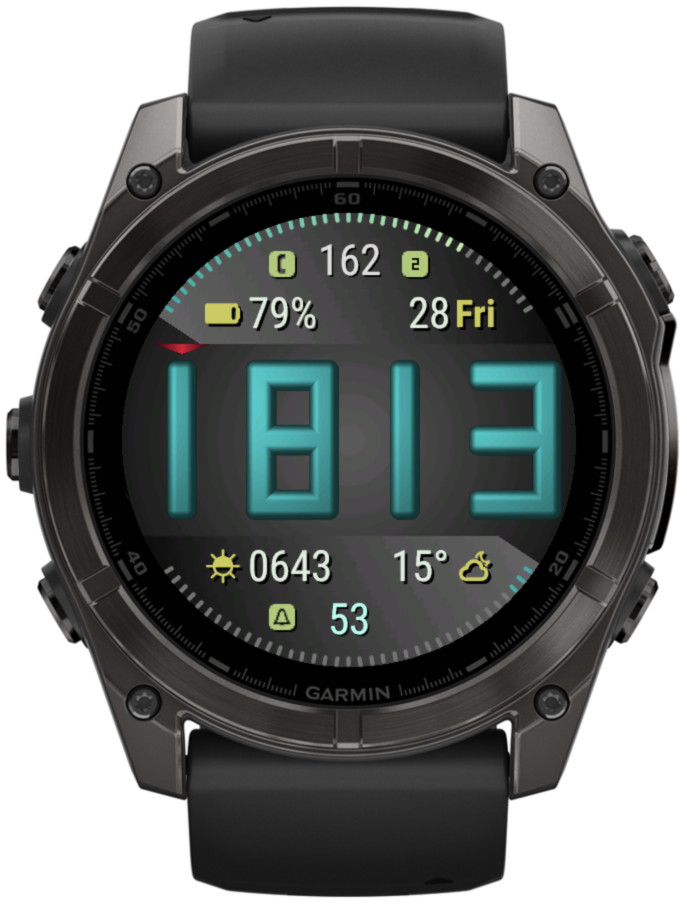
- designed for readability
- adjustable data font size
- 70+ data choices
- 4 customizable data sets (easily switchable by touching time digits)
- 6 data fields
- 2 gauges
- 4 customizable status icons (phone, notifications, alarms, do not disturb)
- 15 customizable color themes
- 5 AOD modes (including a customizable one)
- adjustable AOD brightness
- basic settings available directly on the watch
- fully customizable date format
- choice of Garmin or OWM weather
- launching system widgets by touch
Available data
Below is a complete list. The availability of a particular option depends on device capabilities. Also, some options may only be available in certain data fields.
- off
- custom text
- battery level in %
- battery days remaining
- battery % + days
- steps / wheelchair pushes
- steps / pushes goal
- floors climbed
- meters or feet climbed
- weekly activity distance (run, bike, swim, walk)
- last 7 days activity distance (run, bike, swim, walk)
- monthly activity distance (run, bike, swim, walk)
- daily total walk/run distance
- weekly total walk/run distance
- total calories
- active calories
- body weight
- daily active minutes
- weekly active minutes
- training status
- training effect
- acvtivity bar
- inactivity bar
- active bar (grows when active)
- move bar (grows when inactive)
- wrist heart rate
- resting heart rate
- altitude
- barometer
- internal sensor temperature (1 or 0.1 degree accuracy)
- body battery
- stress
- oxygen saturation (SpO2)
- respiration
- time to recovery
- VO2 Max (running)
- VO2 Max (running + cycling)
- next sunrise/sunset
- 2nd next sunrise/sunset
- next dawn/dusk
- moon age (days since last new moon)
- moon illumination
- moon age + illumination
- UTC 24h time
- alternate time (adjustable for any zone, including 30 min offsets)
- date (fully configurable)
- next calendar event
- weather (Garmin or Open Weather)
- current temperature and feels like temperature
- temperature range
- wind direction and speed (m/s, kph, mph, knots, BFT)
- wind direction and speed (m/s, kph, mph, knots, BFT) with unit
- wind (aviation style)
- humidity
- humidity + dew point (OWM only)
- chance of precipitation
- precipitation volume (OWM only)
- UV index (OWM only)
- AQ index (OWM only)
- weather location
- last weather update time
Data font size
The font size used to display the data fields can be selected from the range 1 – 5. If this causes particular data to exceed its allowed size, the font will be automatically reduced to make it fit as much as possible. Some long data may still not fit when no further size reduction is possible.
Gauges
The gauges allow choices of data that moves within a defined range, so it can be represented as a bar growing clockwise from 0 to 100%.
Status icons
There are 4 status icons locations that can be set to any of:
– off
– phone connected (shows when the watch is connected to the Connect app on the phone, disappears when there is no connection)
– notifications (shows when there are pending notifications, disappears when the notifications are cleared). If there is more than 1 notification, the number of pending notifications will be shown.
– alarms (shows when there is at least one active alarm set on the watch)
– do not disturb (shows when the watch is in the Do Not Disturb mode)
Data sets
The ‘Data set’ option allows quick changing of the displayed data configuration, with 4 sets available. Each set keeps the choices for the main data fields, the icons and the gauges.
When you choose a dataset that was not used before, it will begin with the default configuration. Then you can can select the data that you want in this set and save the settings.
The next time you switch to this set from another, your configuration will be restored.
The default data set configuration are predefined with the focus as follows:
1 – general
2 – activity
3 – health
4 – weather
There are several ways to switch the data sets:
1) In the app settings in Garmin Connect
2) Using the watch face ‘Customize’ menu
3) By touching digits of the main time
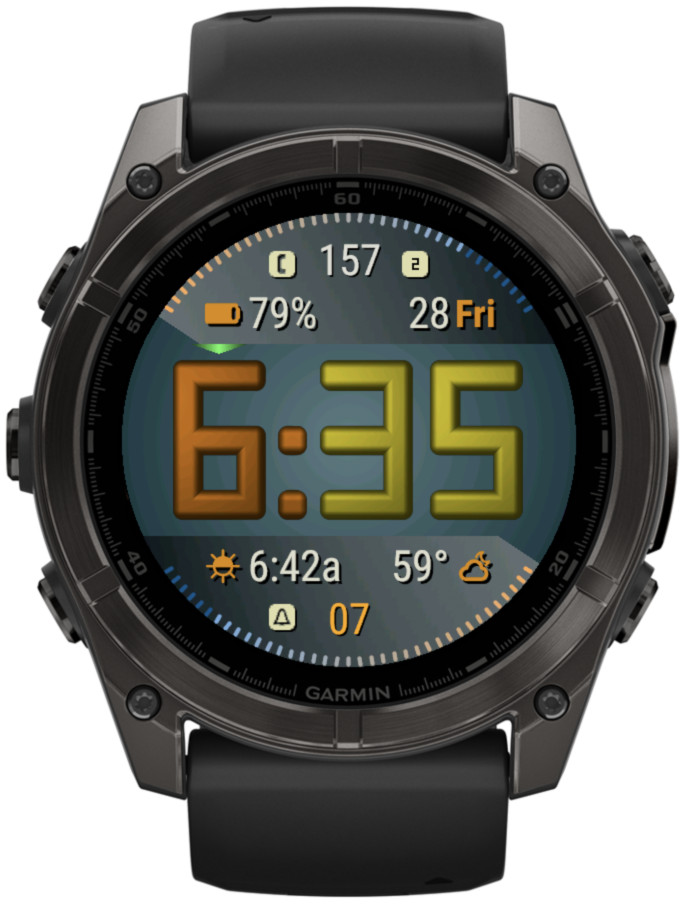
If switching by touch is enabled, the currently selected data set is identified by an indicator showing above the main time. The location of the indicator corresponds to the currently selected data set, arranged left to right.
Note that when 12h time format is used, you press the digit on the left side of the colon to access data set 1 and the colon to access data set 2.
Besides data sets 1 – 4, there is an additional choice called ‘Power save / AOD’. It can only be switched to using Garmin Connect and its purpose is to configure the set of data you want to see when you use the ‘Custom’ Power save / AOD mode.
PLEASE NOTE: If you use Garmin Connect to change the data set, you can’t change the dataset in the settings and modify it at the same time. You need to save the settings first, then open again and start the modifications. Otherwise all your changes will apply to the previous dataset. This is how Garmin Connect IQ settings system works.
Changing settings on the watch
Changing some basic settings can be done conveniently on the watch, without the need to reach for the phone.
When you go to the watch face selection menu on your device, besides the ‘Apply’ option, you will see ‘Customize’ if your device supports it.
This ‘Customize’ menu allows to:
– change Data set
– change Color theme
– change Data font size
– change AOD mode
– change AOD brightness
– change Time format
Seconds
On AMOLED devices it is not possible to update the screen continuously every second, so even when the seconds are set to ‘On’, they will only be shown for the duration of the full power display.
Seconds are not shown in AOD modes. Instead ‘Bottom data’ will be displayed.
Date
Date is fully configurable, using the ‘Date format’ field in the settings.
To configure the date, you need to enter any of the following letters in the ‘Date format’ setting:
d = day number without leading zero
D = day number with leading zero
m = month number without leading zero
M = month number with leading zero
y = 2-digit year
Y = 4-digit year
n = day name (according to system language)
c = day name in all caps
N = month name (according to system language)
C = month name in all caps
w = ISO week number
a = AM/PM indicator (lower case)
A = AM/PM indicator (upper case)
| = separates the format for ‘Date icon’ field and ‘Date text’ field
= = escape character
Any other character (e.g. – / : . []) will be displayed if it is available on the watch.
The equals sign (escape character) has a special purpose to allow displaying the characters that normally are substituted by the date components they represent. You can use it to put arbitrary text in the date field. For instance you can use it to display ‘am’ or ‘pm’ instead of ‘a’ or ‘p’.
Below are some examples:
“n N d” → Fri Aug 24
“n D.M” → Fri 24.08
“d/m [w]” → 24/8 [34]
“d/m =ww” → 24/8 w34
“YMD” → 2018824
“m-d-y” → 8-24-18
“c D (w)” → FRI 28 (34)
“n D a=m” → Fri 13 am
The date format is composed of two components, separated by the “|” symbol. The format before the “|” symbol goes in the place when an icon is shown for most other data.
Weather
Weather source can be selected between Garmin (default) and Open Weather (OWM).
For the OWM weather you need to supply your own API key.
OpenWeather key validity
Please note that to use the OWM weather, you must subscribe to “One Call by Call” subscription plan for One Call API 3.0. This subscription comes with 1,000 API calls per day for free, and this app will not exceed 300 calls per day (up to 3 calls every 15 minutes).
How to get OpenWeather API key
Go to https://openweathermap.org/api and subscribe to One Call API 3.0 (1,000 API calls per day for free).
Update frequency
Garmin weather updates as often as Garmin decides to refresh it – it seems that it can be anything between 10 minutes to 1 hour.
OWM weather updates every 15 minutes. Note that this is the frequency at which the app queries new weather data, but it does not guarantee that OWM will update the data at their end within that period.
Temperature range
When Garmin weather is selected, this shows the forecasted high and low temperatures for the day.
When OWM weather is selected, this shows the forecasted high and low temperatures for the next 3 hours. At the moment it does not seem possible to have the full day temperature range forecast using a free API key.
Precipitation
When Garmin weather source is selected, the chance of precipitation is derived from the ‘current condition’ (and not a forecast).
When OWM weather source is selected, the chance of precipitation and the volume in mm is a 3 hour forecast.
GPS location
GPS location is necessary for the app to display correct data for all l0cation-dependent data such as weather, sun events or moon phase.
The app tries to retrieve the location automatically, but this may not always be possible. If you see ‘GPS?’ displayed instead of the data you selected in one of the fields, this means that you may need to update the location manually.
To do this, switch to the start screen of any activity that uses location, for instance ‘Run’ or ‘Bike’. You should be able to see a GPS acquisition progress indicator there. Wait until it completes or until something like ‘GPS ready’ is shown. Then go back to the watch face and the ‘GPS?’ should be gone.
Power save / AOD
This setting defines what is shown when the watch is in AOD mode.
The available choices are:
– Full (all data will be shown)
– Custom (the data configured in the ‘Power save / AOD’ data set will be shown)
– Time only
– Time outline
– Off
The selected AOD mode kicks in as soon as the watch enters the AOD state. Note that for this to work, AOD must be enabled in the watch display settings.
Colors
There are 15 predefined color themes that can be selected in Garmin Connect IQ or using the watch face ‘Customize’ menu on the watch itself (if supported by the device).
Each theme can be adjusted by entering the desired colors for different screen elements in Garmin Connect IQ.
The colors are entered in hexadecimal RGB format which stands for Red, Green and and Blue color components. So each color is composed of 6 hexadecimal digits RRGGBB, where RR is the level of the red component, GG is the level of the green and BB is the blue.
By setting each color component to a hex number ranging from 0 to 255 (ff) you define the color that results from the combination of these three components.
In practice, the granularity of the color palette on a particular device might be such that not every change in the color definition will produce a visible change in the displayed color. This is especially true for the MIP devices.
For a rough guide to RGB hex color codes, you can refer to the map below.
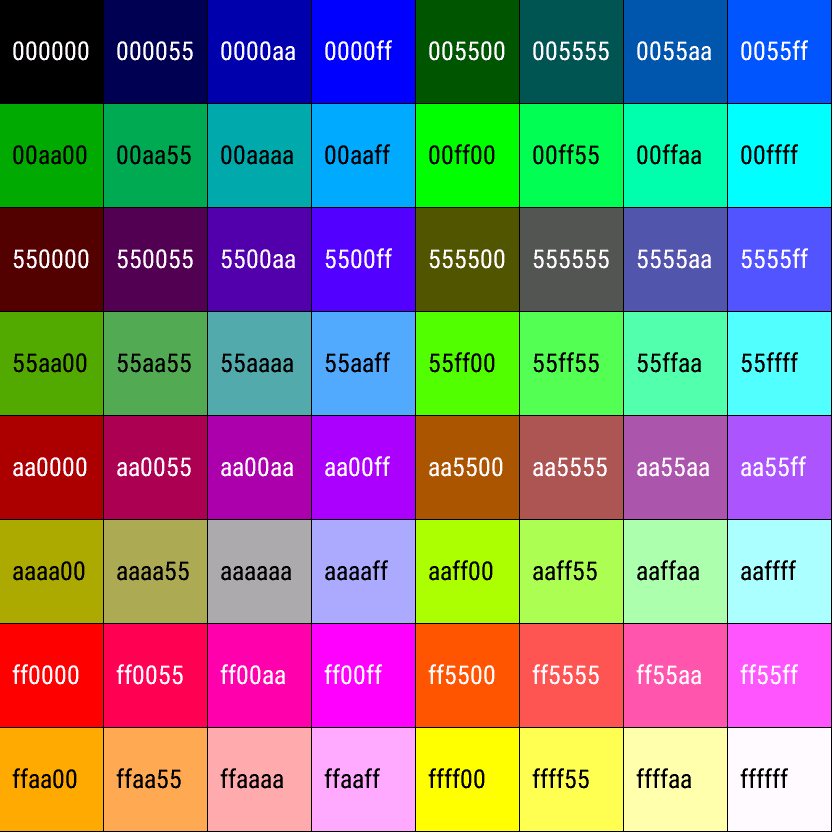
The new colors that you enter to modify the theme will be kept with the theme after saving the settings. So if you make changes to the themes, when you switch between them your changes will be preserved.
However, please be aware that you can’t switch the theme and try to customize it at the same time. You must save the settings after switching the theme, only then open again to make theme adjustments. Otherwise your themes will get messed up. This is a limitation of how the Garmin settings system works and as of the time of writing, there is no way around it.
If your themes get messed up anyway, you can always bring them back to the default by activating the ‘Reset colors’ switch and saving the settings. This will only have effect on the currently selected theme.
NOTE: The option to change the background color is not available on AMOLED devices.