
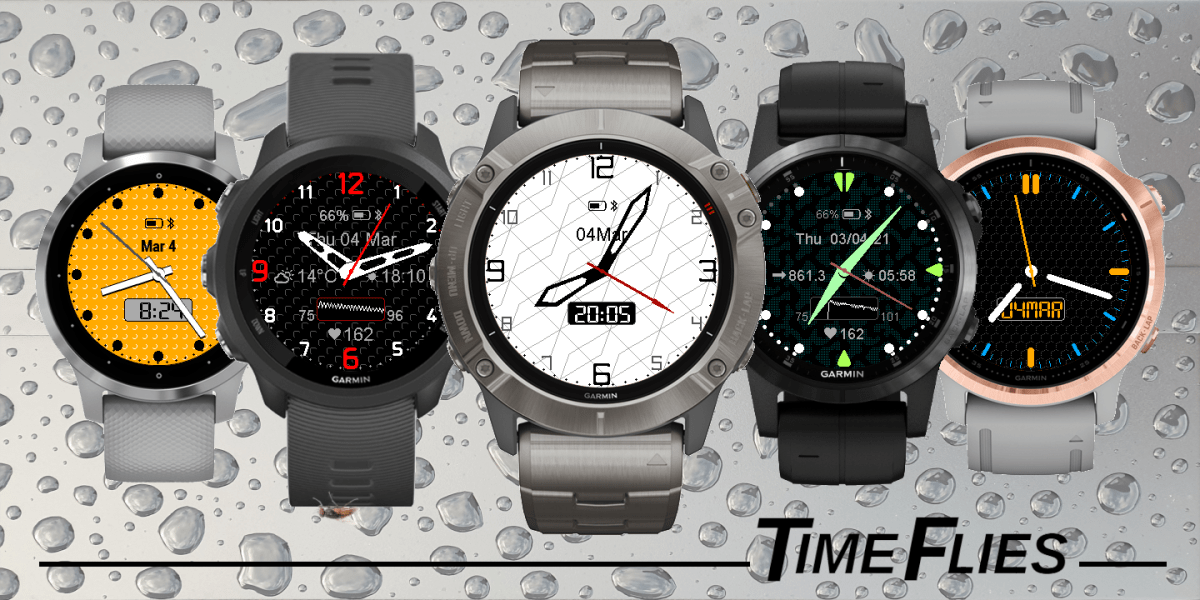
Clean and easy to read analog face with plenty of options to customize the look and displayed data.
If you are wondering where its name comes from – this watch face has a special feature. If you think the standard ‘move bar’ is boring, you can enable flies that will come and annoy you when you don’t move for too long.
- 6 customizable layouts
- 8 customizable color themes, switchable on the watch
- 64 color options for screen elements
- 18 optional face background patterns
- 2 background texture options
- 10 hand shape options with adjustable width and length
- 7 analog second options with adjustable size
- Dynamic hands option to reveal information underneath on gesture
- Choice of hash, triangle, round or 3 styles of numeric hour marks
- 2 perimeter data gauges:
- steps, floors, calories (total and active), daily or weekly intensity minutes goal completion
- stress
- body battery
- move bar
- battery level
- Gauges can be shown as solid arcs or double as hash or dots minute marks
- 2 size options for main marks and 3 size options for gauges
- Configurable status icons
- 4 configurable data fields:
- battery %
- date
- alternate or UTC time
- steps
- floors
- distance
- calories or active calories
- daily or weekly intensity minutes
- Wrist HR
- SpO2
- stress
- body battery
- respiration rate
- time to recovery
- VO2 Max (running & cycling)
- altitude
- next sun event
- moon age (days since last new moon)
- barometric pressure and trend
- weather
- wind speed and direction
- relative humidity
- temperature range
- precipitation change
- weather observation time
- Digital box options:
- battery %
- current, alternate zone or UTC time
- date
- notifications counter
- steps counter
- HR, barometric or elevation graph
- steps goal completion graph
- wrist HR
- SpO2
- stress
- body battery
- Digital box content switchable by gesture
- Double gesture option for better switching control
- Adjustable data font size
- Fully flexible date format
- Power saving modes:
- blank / full on gesture
- reduced / full on gesture
- can be activated for the night or by DND
NOTE: The available options depend on the device.
Hello,
Thank you for your message.
I think it is explained in the FAQ: https://reed.works/common-problems/
Look in the watch system settings to define the units you like.
Kind regards,
Reed
Hi, not sure if I have missed it somewhere. But tried to look in to the ‘Time flies manual’ as well. But is there an option to have celcius instead of farenheit for the weather? And also meter/kilometer instead of miles for the distance?
Thank you! Please see the FAQ on the main page.
Hi. This watch face is amazing. I’m using layout 1, theme 3. Is there anyway to get the digital time in 24hr format rather than 12hr??
Thanks. Great work!!!!
Hello. Thank you for your comment. Would it work for you if I replaced the custom color setup as numbers 0 – 63 by RGB or even possibly RGBA?
I use an epix 2X Pro. Would it be possible to get more color settings? More gradations for e.g. gray, black or blue would be really great.
Then you could get closer to classic analog watches in terms of design.
Hello,
Thank you for your comment. It is explained in the ‘What’s new’ section on the download page.
It was not feasible to add new features and retain full backward compatibility.
You may want to download the free Time Flies Legacy instead.
Best regards,
Reed
I have a Vivoactive 3. When I opened My Device, release 5.1.0 started downloading. When the download was finished, ALL my settings had been REPLACED by some default settings. Now clue how to get back my customised setting e.g. white background
This is one of, if not the best watch face I have seen or used. The amount of work the author has put into not only the face and customisations but also the user manual fully justifies his asking for a small payment. There are so many faces out there that clutter the screen, to use one that is simplistic in looks , but also looks fantastic is brilliant. Haven’t got my head around all the customisations yet and probably won’t as it looks great the way it is.
Well done to you and keep up the good work.
Thank you for your comment. I’m sorry about this inconvenience, but it was necessary for the future of this app.
It is all explained on the download page in the ‘What’s new’ section.
I have a Vivoactive 3. When I opened My Device, release 5.1.0 started downloading. When the download was finished, ALL my settings had been REPLACED by some default settings. This is extremely annoying as it has taken me 1 hour to get my settings back. Now the analog second hand disappears unless I make a gesture. Before my settings were wiped out, the analog second was always on, except in power save. How do I get the second hand to stay on all the time. The hand setting is set to solid.
Thanks for the quick response. Changing it to option 2 did the trick.
Thank you for your comment! Marks font has the icon next to the title, which means any change from the default is considered premium. But this is not optimal, because after you make the change, you won’t see what was the non-premium choice. I need to improve on that. The non-premium mark font is Opt 2. If you choose it and still get the padlock icon, then there must be some other premium thing active.
This is a great watchface. I haven’t had a chance to play with all of the settings yet, but in the meantime the trial period ended and I’m getting the lock icon on the watch. I’m trying to remove any premium features I have enabled to remove that, but “marks font” seems to be a setting that I can’t disable or revert (I’ve tried all three). Am I doing something wrong?
Hello, thank you for your comment. If you are referring to the extra hand, it is a 24 hour hand.
It is explained in the documentation, but unfortunately not made obvious in the settings. I will fix it in the next update.
Hello,
Love the update and watch faces. However the UTC tone is incorrect for me. I am at +5 and I had to set it at -8.3 to display properly as a workaround. Not sure if there is a way this can be fixed
FENIX 7X
Thanks
Hi!
Thank you for your comment and suggestion.
I think it could be done easily when the icons are shown around the screen perimeter.
Not sure if it is practical to try when they are shown in one line on top, I will try if sufficient tapping accuracy could be achieved there so that you don’t end up launching wrong widgets.
Hi!
many thanks for the great update. Is it possible, to enable widget to launch for statusicons too, like in Rails. It would helps a lot.
Thanks in advance
Hi!
Thank you for your comment.
Unfortunately it turns out that I forgot to enable the launch function on some devices.
An update correcting this will be uploaded soon.
I am sorry for this inconvenience.
Hi!
after update to Ver. 5.0.0
How to activate new feature “Widget to launch”?
Device Fenix 7
Thanks in advance for reply.
Thank you for your message.
This is a system thing. A watch face has no awareness of the buttons state and can not do anything to react to them.
It depends on the device, but usually there is an option to define a hot key which when pressed switches to the currently selected Connect IQ face.
Have you tried that?
Hi.
I use a Forerunner 55. Time flies watch face is great.
But when using another feature or app on the watch, the back button does not take me back to the watch face.
The button is working in other areas of the watch.
Please can you look into this.
Thanks
Thank you! It is planned for the next big update currently in the works.
Hi. Thank you for your comment. What happens if you use another Connect IQ watch face – do you get the same behavior, or different?
Hi. I have a Forrunner 55. I have found that when using another feature in the watch, the back button does not take me back to the watch face. I have to wait for the watch to take me back to the face automatically. Please could you kindly look into this issue.
I absolutely love this face, thank you. It ticks all the boxes for what I’ve been looking for and has been my first Garmin purchase. If I could make one request for any future updates it would be for an optional 24 hour GMT hand (either for UTC or optional Alt time) which would work with the 24 hour markings on my watch bezel. That way I would never need to switch faces when I go abroad. Brilliant work though!
To get the battery %, please look for ‘Icons selection’ in the settings. The default is bpdan, change it to Bpdan.
It is explained in detail here: https://vgfsyhcxft.com/time-flies-user-manual/#anchor_status_icon_line
To show more data, adjust the Opt 2 – Opt 4 settings:
https://vgfsyhcxft.com/time-flies-user-manual/#anchor_optional_data
I have the Penix 6X Saphire, the picture shows that I can have the battery % beside the Battery Icon at the top, but how do I select this please?
Also the pic shows more fields both Left & Right – how do I select these?