
Note
This manual covers all devices that Instinct Pro runs on. Since different devices have different capabilities, not every feature described below may be available on your device.
Contents
- Features
- Premium features
- Layout
- Available data
- Data fields
- Graphs
- Data update and duration
- Circle area
- Line gauges
- Status icons
- Data sets
- Switching data sets by gesture
- Changing settings on the watch
- Seconds
- Active bar vs Move bar
- Activity distance summary
- Date
- Weather
- Tide data
- GPS location
- Power save
- AOD
Features
- 12 configurable numeric data fields
- 3 graphical indicators
- 80+ data options
- Status icons (phone, notifications, alarms, do not disturb)
- Battery saving options
- Adjustable AOD content and brightness
- 4 time font options
- 7 data font options
- Fully customizable date format
- 8 background black/white combinations
- Automatic switching of background colors for day / night
- 3 circle highlight levels*
- Choice of Garmin or OWM weather
- stormglass.io tide information
- Customizable color accent options on compatible devices
*Not available on AMOLED devices
Premium features
All the functions of this app can be accessed without payment.
However, some features are designated as ‘premium’ and marked by a ‘star icon’ next to them in the settings.
If any of these is selected without a valid unlock key, a floating padlock icon (or a blinking key icon on Instinct non-AMOLED devices) will appear on gesture.
If you don’t want to see the padlock/key icon, there are 2 options:
1) Make sure that no option marked with ‘star icon’ is selected, or
2) Help to support my work by purchasing an unlock key here: https://reed.works/instinctpro-unlock/
Layout
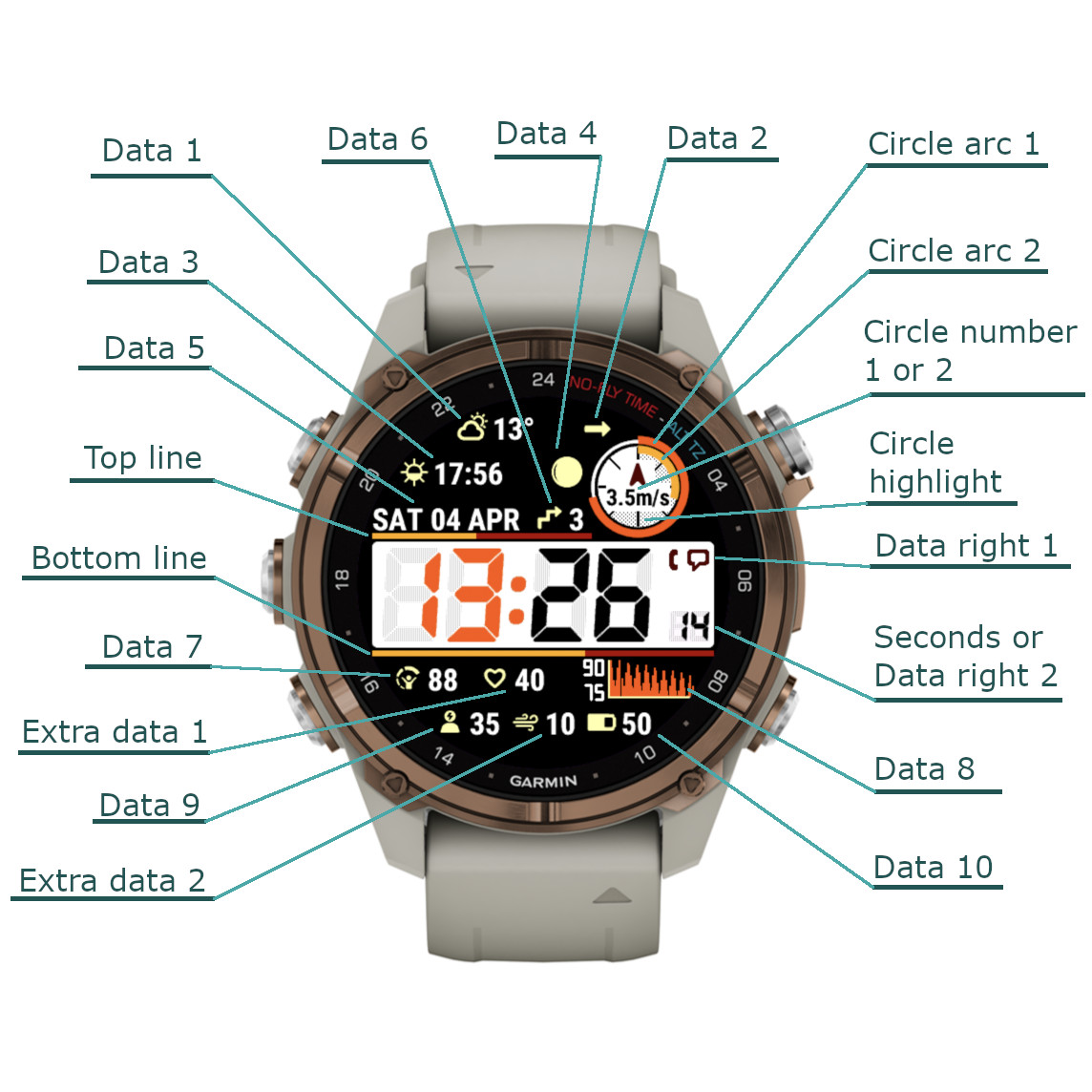
NOTE:
1. The layout may look slightly different depending on the device
2. The end point of the Top line is at the beginning of the circle on round devices and at the right edge of the screen on rectangular devices
3. Extra data 1 and 2 are not available on devices with smaller screens
4. This watch face allows great flexibility of data placement where you want it. But as a consequence, it is possible that the data you chose is too wide and will overlap. So you need to experiment what layout works best for you. You may also consider choosing a smaller data font, or utilizing multiple data sets, which are easy to switch between, especially on devices with a touch screen.
Available data
Below is a complete list. The availability of a particular option depends on device capabilities. Also, some options are only available in certain data fields.
- battery icon only
- battery level in %
- battery days remaining
- battery % + days
- solar charging
- solar charging live
- move bar
- activity bar
- steps
- steps goal
- wheelchair pushes
- wheelchair pushes goal
- floors climbed
- meters or feet climbed
- daily distance (with or without unit)
- weekly distance (with or without unit)
- weekly activity distance (run, bike, swim, walk)
- last 7 days activity distance (run, bike, swim, walk)
- monthly activity distance (run, bike, swim, walk)
- calories
- active calories
- daily active minutes
- weekly active minutes
- active bar (grows when active)
- move bar (grows when inactive)
- heart rate
- live / real time heart rate
- resting heart rate
- altitude
- barometric trend (icon only)
- barometer
- ambient pressure
- internal sensor temperature (1 or 0.1 degree accuracy)
- external Tempe sensor temperature (0.1 degree)
- body battery
- stress
- oxygen saturation (SpO2)
- respiration
- time to recovery
- VO2 Max (running)
- VO2 Max (running + cycling)
- body weight
- training effect
- training status
- next sunrise/sunset
- 2nd next sunrise/sunset
- next dawn/dusk time
- 2nd next dawn/dusk time
- time until sunrise/sunset
- Garmin sunrise
- Garmin sunset
- moon (icon only)
- moon age (days since last new moon)
- moon illumination
- UTC 24h time
- alternate time (adjustable for any zone, including 30 min offsets)
- date (fully configurable)
- military Date Time Group (DTG)
- next calendar event
- weather (Garmin or Open Weather)
- current temperature and feels like temperature
- temperature range
- wind speed (m/s, kph, mph, knots, BFT) and direction
- humidity
- dew point
- chance of precipitation
- precipitation volume (OWM only)
- UV index
- Air Quality index
- weather location
- last weather update time
- next tide (stormglass.io)
- 2nd next tide (stormglass.io)
- tide location (stormglass.io)
- status icons
- notifications counter
- day of month
- HR graph
- body battery graph
- stress graph
- altitude graph
- barometer graph
- thermometer graph
- SpO2 graph
- Solar charge graph
- 24 hours tide graph (stormglass.io)
Data fields
The data fields 1 – 10 allow to select most data supported by this app. But this makes it possible for the neighboring fields to overlap when there is not enough space to accommodate them. This is a deliberate design choice to allow maximum flexibility in data placement, but then it is up to the user to find the optimal layout that does not overlap. The same data can have a very different length in different situations, for example the weather location, the altitude or the date, so what works for one user might not work for another. You can also consider reducing the data font size to create more space for longer data.
There are also “Data right” (or also left on Instinct Crossover) fields that are currently limited to shorter data. Note that “Data right 2” only becomes visible when the seconds are inactive (i.e. set to off, or not activated by gesture). By itself, “Data right 2” appears without the associated icon, but the icon can be selected as an option in “Data right 1”.
Depending on the device, it is possible to choose one of up to 7 different fonts for the data fields 1 – 10. There are 2 ‘Custom’ font sizes (S, L) and up to 5 ‘System’ font sizes (XS, S, M, L, XL).
On most devices there are two additional ‘Extra data’ fields which appear between Data 7 and Data 8, or between Data 9 and Data 10. By default they are set to ‘Off’, but optionally can be used to show some short data, or to show one long data positioned in the middle, with the data on either side of it set to ‘Off’.
Graphs
- Graph options can be selected for Data 5, Data 7 – 10 (or 7 – 12 on Instinct Crossover)
- Possible data / graph duration:
HR – 1 hour
Body battery – 3 hours
Stress – 3 hours
SpO2 – 60 hours *(see note below)
Elevation – 2 hours
Barometric pressure – 2 hours
Temperature – 2 hours
Solar charging – 1 hour
Tides – 24 hours (only line graph style)
The actual choice depends on the device capabilities. - The graph duration may be dependent on the device.
- There are three presentation options for the graphs (line, area and colors).
Colors option is only available on devices with color display.
Color mapping depends on the type of the graph:
HR: according to the sport for which the current activity retrieves heart rate zone thresholds, or ‘generic’ if there is no activity (zone 1 – gray, zone 2 – blue, zone 3 – green, zone 4 – yellow, zone 5 – red)
Body battery: <= 25 – red, <= 50 – yellow, <= 75 – green, <= 100 – blue
Stress: <= 25 – blue, <= 50 – green, <= 75 – yellow, <= 100 – red
SpO2: <= 92.5 – red, <= 95.0 – yellow, <= 97.5 – green, <= 100.0 blue
Elevation, Pressure, Temperature, Solar charging: lowest 25% – blue, lower medium 25% – green, upper medium 25% – yellow, highest 25% – red
On devices with AMOLED or LCD display, the graph always defaults to line style in AOD mode. - Tide graph shows 24 hour duration, with the beginning of the graph at [current time – 6 hours]. The current moment is marked by a vertical line. There is also a horizontal line in the middle of the span between the tides, for better visual orientation when the tide turns. Tide graph is always shown as a line and area or color graphs styles do not apply to it.
- NOTE (*) – On all actual devices on which this app was tested, SpO2 data history provided by the watch is wrong (reversed on time axis). This app tries to work around this problem, but if some other device delivers correct data, then the SpO2 graph in Instinct Pro will be inverted. If you notice this, please report to the developer.
Data update and duration
The data update frequency can be set to different intervals:
- 5 min – most battery friendly
- 1 min – all data except ‘live’ HR is updated once a minute
- Gesture – all data is updated every second on gesture for about 10 seconds, after that the behavior is the same as in 1 min setting.
There are two settings related to duration of data monitoring: - Baro trend minutes – the duration before the current moment used as a reference to decide whether the pressure is rising, falling or constant.
- HR minutes – the duration before the current moment used to determine the min and max HR as a reference to display the current HR level in the circle or line graphical indicator.
Circle area
There is one numerical data field in it, which can show data in two different formats. ‘Circle number 1’ includes the types of data that can fit in it (generally not expected to exceed 199), using the same font as the seconds. ‘Circle number 2’ is an alternative format, using fixed size system font with the corresponding icon. It only becomes visible when ‘Circle number 1’ is set to ‘Off’ and allows the same data choices as the general fields, except weather location. When ‘Date’ or ‘Date2’ is selected for ‘Circle number 2’, an additional ‘Date 3’ is shown above it (the place otherwise used by the icon). The format for ‘Date 3’ is defined after ‘Date2’ and separated by the ‘|’ symbol.
Two arc indicators can be configured to represent different parameters ranging from 0 to 100%, and the background highlight.
The highlight works in a way similar to the arcs, but it is more coarse with 10 separate states. The other difference is that if the data assigned to the highlight goes negative, you will see it – the inner lines will disappear (the arcs will stay at 0 in such case). This is currently mostly applicable to the solar charging level which becomes -1 when the device is not charging. Also, the HR indication can go negative temporarily if your current HR is lower than the historical minimum.
Line gauges
They are located above (Top line) and below (Bottom line) the time and present the same collection of data as the circle arcs or highlight and show level or progress of the selected data.
They can be turned off, or when set to ‘On’ always show 100%.
On the devices with color display, there is an option to adjust the line thickness of the gauges and customize the foreground and background color for the gauge lines.
NOTES:
1. On rectangular devices, both lines go from the left edge of the screen (0%) to the right edge of the screen (100%). But on round devices, the top line ends before the circle.
2. For most of the data that can be selected for the lines, the displayed line length covers the full range (0 – 100%). However, for SpO2, the displayed line length covers only 90 – 100%
Status icons
Status icons can only be shown in the ‘Data right 1’ (‘Data left’ on Instinct Crossover).
Status icons area shows up to 4 icons:
– phone connected (shows when there is an active Bluetooth connection, disappears when there is no connection)
– notifications (shows when there are pending notifications, disappears when the notifications are cleared). The counter of pending notifications can be selected as an option for the circle or right data fields.
– alarms (shows when there is at least one active alarm set on the watch)
– do not disturb (shows when the watch is in the Do Not Disturb mode)
Data sets
The ‘Dataset’ option allows quick changing of the displayed data configuration, with 4 sets – Opt1 to Opt4. Each set keeps the choices for the main data fields, left and/or right data fields (depending on the device), the lines and the circle.
When you choose a dataset that was not used before, it will begin with the default settings. Then you can can select the data that you want in this set and save the settings.
The next time you switch to this set from another, your configuration will be restored.
There are several ways to switch the data sets:
1) In the app settings in Garmin Connect
2) By gesture
3) Using the watch face ‘Customize’ menu
4) By touching hours and minutes in the main time
The latter two options are only available on compatible devices.
The currently selected data set is identified by the indicator bar, according to the number of bar segments shown (1 to 4). The bar is located between the data fields 3 and 5 and can be displayed permanently (On), for the duration of ‘Gesture timeout’ (Gesture), or hidden (Off).
Methods 2) and 4) can be individually enabled or disabled by the ‘Switching control’ setting. In addition, the number of data sets to rotate between can be set by adjusting the ‘Switching sets’ option.
PLEASE NOTE: If you use Garmin Connect to change the data set, you can’t change the dataset in the settings and modify it at the same time. You need to save the settings first, then open again and start the modifications. Otherwise all your changes will apply to the previous dataset. This is how Garmin Connect IQ settings system works.
See an instruction video
Switching data sets by gesture
You can choose how many datasets you want to switch by gesture (from 0 to 4).
Switching datasets requires double gesture, to minimize unintended switches when you move your hand for other reasons than looking at your watch.
If the data set indicator bar is set to ‘Gesture’, when you raise your wrist the first time, the bar appears between Data 3 and Data 5. It shows which data set is currently active – the number of bar segments (1 to 4) reflects the currently active set.
Move your wrist again to cycle to the next data set. This movement must be completed within the ‘Gesture timeout’ defined in the settings, or before the bar disappears (if set to ‘Gesture’). If you find it difficult to get the dataset to switch, try making the timeout longer. On the other hand, to reduce unintended switches when you move your hand for other reasons, you can try to make the timeout shorter.
Note that double gesture is required to cycle to the next data set. If you want to move further, only one additional gesture is needed for one set increment. So for example, to move from set 3 directly to set 1 you need to move your wrist 3 times.
Changing settings on the watch
Switching between datasets can be done conveniently on the watch, without the need to reach for the phone.
NOTE: This is only possible on watches running CIQ 2.3.0 or higher.
How this works:
When you go to the watch face selection menu on your device, besides the ‘Apply’ option, you will see ‘Customize’ if your device supports it. When you select it, you will be able to cycle between the 4 data sets by pressing the select key or tapping on the ‘Dataset’ option. Once done, press the exit key.
On devices with color screens, it is also possible to switch color themes directly on the watch.
How this works:
Press the select key or tap the ‘Theme’ option. Then press the exit key.
Seconds
On MIP devices, seconds can be configured to be shown continuously, or on gesture for 10 or 20 seconds.
On AMOLED devices it is not possible to update the screen continuously every second, so the available options are only Off or 10 seconds on gesture.
Note that when the seconds are hidden, “Data right” field can be used to display additional information.
Active bar vs Move bar
These two are the opposites of one another. Move bar grows when you remain inactive and goes down to zero when you start moving. Active bar is 100 when you keep moving, but when you stop it will gradually go down to zero.
Activity distance summary
This watch face gives the options to show cumulative distance covered with Run, Bike, Swim and Walk activities over different periods of time:
-current week
-last 7 days
-current month
It is important to note that in general, this only takes into account the activities recorded with the watch on which this watch face is displayed.
The only exception is the weekly Run and Bike distance, in which case activities from all user’s devices are counted in.
This is a limitation of the Connect IQ system, and not of this watch face.
Date
Date is fully configurable, using the ‘Date format’ field in the settings.
To configure the date, you need to enter any of the following letters in the ‘Date format’ setting:
d = day number without leading zero
D = day number with leading zero
m = month number without leading zero
M = month number with leading zero
y = 2-digit year
Y = 4-digit year
n = day name (according to system language)
c = day name in all caps
N = month name (according to system language)
C = month name in all caps
w = ISO week number
a = AM/PM indicator
| = separates the format for ‘Date’, ‘Date 2’ and ‘Date 3’
= = escape character
Any other character (e.g. – / : . []) will be displayed if it is available on the watch.
The equals sign (escape character) has a special purpose to allow displaying the characters that normally are substituted by the date components they represent. You can use it to put arbitrary text in the date field. For instance you can use it to display ‘am’ or ‘pm’ instead of ‘a’ or ‘p’.
Below are some examples:
“n N d” → Fri Aug 24
“n D.M” → Fri 24.08
“d/m [w]” → 24/8 [34]
“d/m =ww” → 24/8 w34
“Y\M\D” → 2018\08\24
“m-d-y” → 8-24-18
“c D (w)” → FRI 28 (34)
“n D a=m” → Fri 13 am
There are two date options that can be selected for data fields – ‘Date’ and ‘Date 2’. This allows to split a long date in two pieces, or to use longer or shorter date in different data sets.
The format for both date fields is defined in the same ‘Date format’ setting, separated by the “|” symbol.
In addition, a third date component can be defined after another “|” symbol in the format. This one goes above the Date or Date 2 if they are used for Circle number 2.
Weather
On compatible devices, weather source can be selected between Garmin (default) and Open Weather (OWM). Compatible means most devices that run Connect IQ (CIQ) version 3.2.0 or higher. You can check this in your watch System/About menu.
Notably, the fēnix® 5 family and vívoactive® 3 do not support Garmin weather and the only option is to use OWM.
OpenWeather vs Garmin weather source
For the OWM weather you need to supply your own API key.
OWM supports more data points than Garmin, e.g. Air Quality Index.
Temperature range and precipitation works differently (see below).
The update interval is more predictable with OWM.
The relevance of the supplied weather information may depend on the location of OWM and Garmin weather stations in your neighborhood. In general, you will get better data from the source which has a weather station closer to your place. ‘Your place’ in this context means the most recent GPS coordinates provided by the watch to Instinct Pro.
OpenWeather key validity
Please note that OpenWeather changed their free key policy in 2024 and all API keys created with “Current weather and forecasts collection” will not work any more with Instinct Pro.
To use OpenWeather, you must subscribe to “One Call by Call” subscription plan for One Call API 3.0. This subscription comes with 1,000 API calls per day for free, and Instinct Pro will not exceed 300 calls per day (3 calls every 15 minutes).
How to get OpenWeather API key
Go to https://openweathermap.org/api and subscribe to One Call API 3.0 (1,000 API calls per day for free).
Update frequency
Garmin weather updates as often as Garmin decides to refresh it – it seems that it can be anything between 10 minutes to 1 hour.
OWM weather updates every 15 minutes. Note that this is the frequency at which Instinct Pro queries new weather data, but it does not guarantee that OWM will update the data at their end within that period.
Temperature range
When Garmin weather is selected, this shows the forecasted high and low temperatures for the day.
When OWM weather is selected, this shows the forecasted high and low temperatures for the next 3 hours. At the moment it does not seem possible to have the full day temperature range forecast using a free API key.
Precipitation
When Garmin weather source is selected, the chance of precipitation is derived from the ‘current condition’ (and not a forecast).
When OWM weather source is selected, the chance of precipitation and the volume in mm is a 3 hour forecast.
AQI (Air Quality Index)
This ranges from 1 = good to 5 = very poor. For more details please see: https://openweathermap.org/api/air-pollution
Weather location
NOTE: Garmin discontinued the support for weather location name, so weather location is no longer available on many newer devices when Garmin weather source is used.
Depending on the where you are, the weather location can vary in length. In some cases it can be very long and difficult to fit in the data area on the screen. To prevent this, by default the weather location is displayed by one word, moving to the next word on gesture or the next full minute. On all devices except Instinct 2 family, it is possible to switch this off so that the weather location is displayed in full length continuously.
Tide data
To display tide information, you need to supply your own stormlass.io API key, which can be obtained free of charge on their website. Enter it in the ‘Stormglass API key’ field in the settings.
If the ‘Tide coordinates’ field in the settings is empty, the location for the tide data will be taken from the location reported by the watch. Note that it will only take effect at the time of the next tide. This is meant to conserve the battery and to prevent running into the 10 API calls per day limit on stormglass.io if yo move your location frequently, for example while driving from one place to another. If you want to retrieve the tide data for a specific location, enter the coordinates in the format as in the example below (use minus sign for W and S, separate latitude and longitude by a comma:
-1.194, 100.343
Changing this field in the settings should trigger the tide information update within 5 minutes.
Remember that the free stormglass.io API allows to retrieve tide data only 1o times per day, so if you change the location many times, the data may stop refreshing.
GPS location
GPS location is necessary for the app to display correct data for all l0cation-dependent data such as weather, sun events or moon phase.
Instinct Pro tries to retrieve the location automatically, but this may not always be possible. If you see ‘GPS?’ displayed instead of the data you selected in one of the fields, this means that you may need to update the location manually.
To do this, switch to the start screen of any activity that uses location, for instance ‘Run’ or ‘Bike’. You should be able to see a GPS acquisition progress indicator there. Wait until it completes or until something like ‘GPS ready’ is shown. Then go back to the watch face and the ‘GPS?’ should be gone.
Power save
Power save mode reduces the display to time only.
It can be activated permanently, or when the watch is in the Do not Disturb mode.
If ‘Full on gesture’ is set to ‘On’, wrist movement with cause full display to appear for about 10 seconds.
AOD
On AMOLED devices, there are options to control the Always On Display configuration.
It can be shown full screen, similar as in the active mode, with these exceptions:
- seconds can’t be displayed in AOD mode
- no live hr (only updated once a minute)
- graphs switch to line mode
or it is possible to show a moving screen saver displaying only the time and date.
Besides that, it is possible to select one of 3 levels of AOD brightness.
It is expected that lower AOD brightness and the screen saver mode can reduce the risk of the display burn-in.
Hi and Thank you! It depends. On some devices it may be easier than on the others. On Instinct 2 it is unlikely, due to memory shortage. What is your watch model?
Hi. This watch face is almost perfect….
Any chance of being able to put only the weather temperature value in the circle, without the icon? My old eyes have trouble seeing it in that small font.
Thanks.
Hello, it would be nice to see some diving stats if possible? Surface interval, no fly icons, the no fly icon in the data right area would be perfect and would match where it usually is on the standard watch face. im using the descent g1. Please let me know if this is possible!
Hello, unfortunately, as far as I know, Garmin does not expose this data to Connect IQ apps.