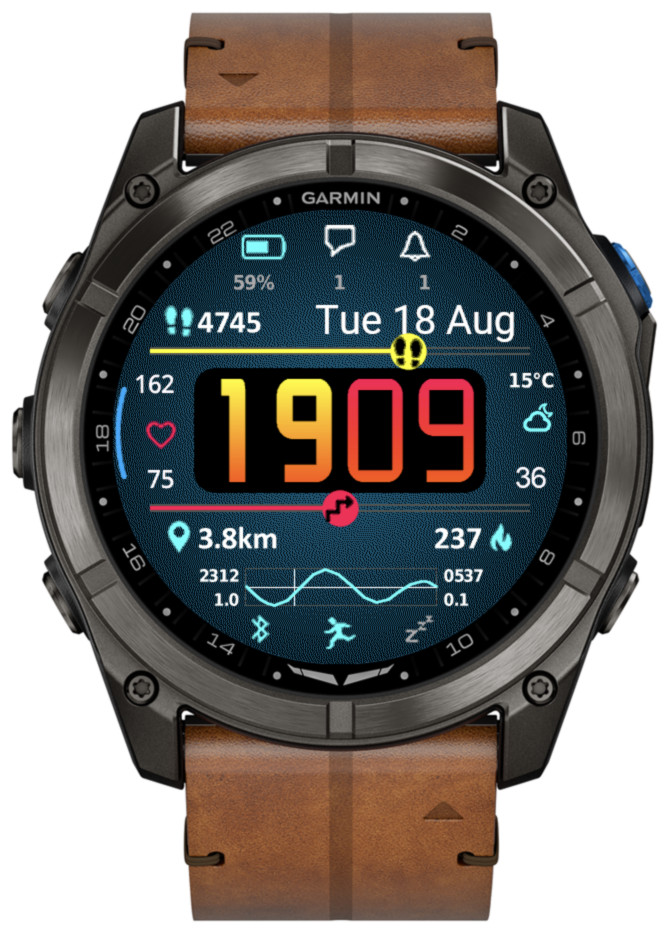
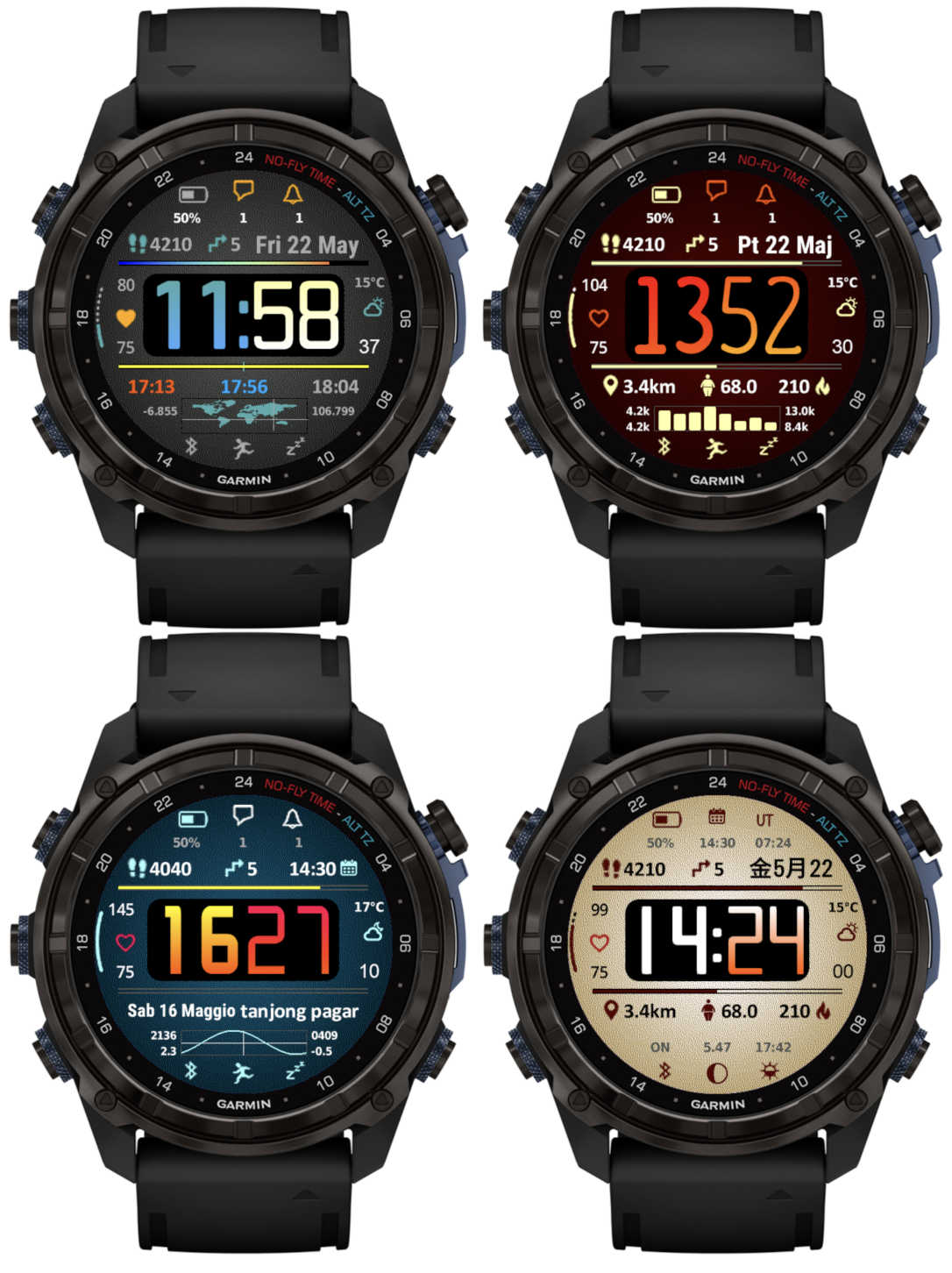
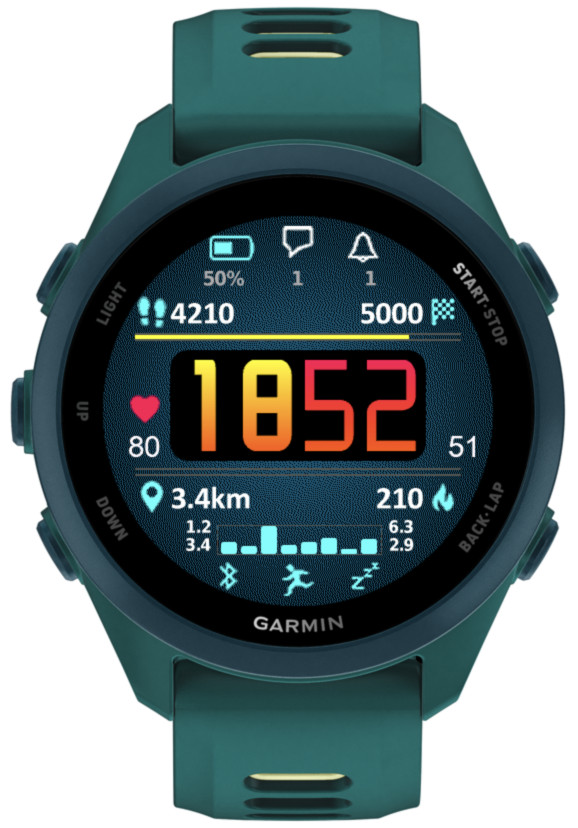
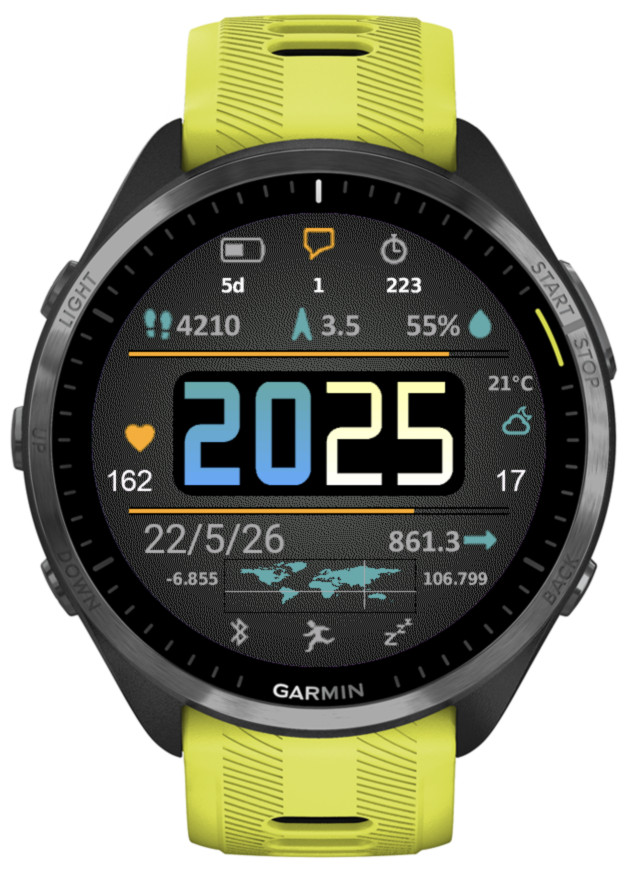
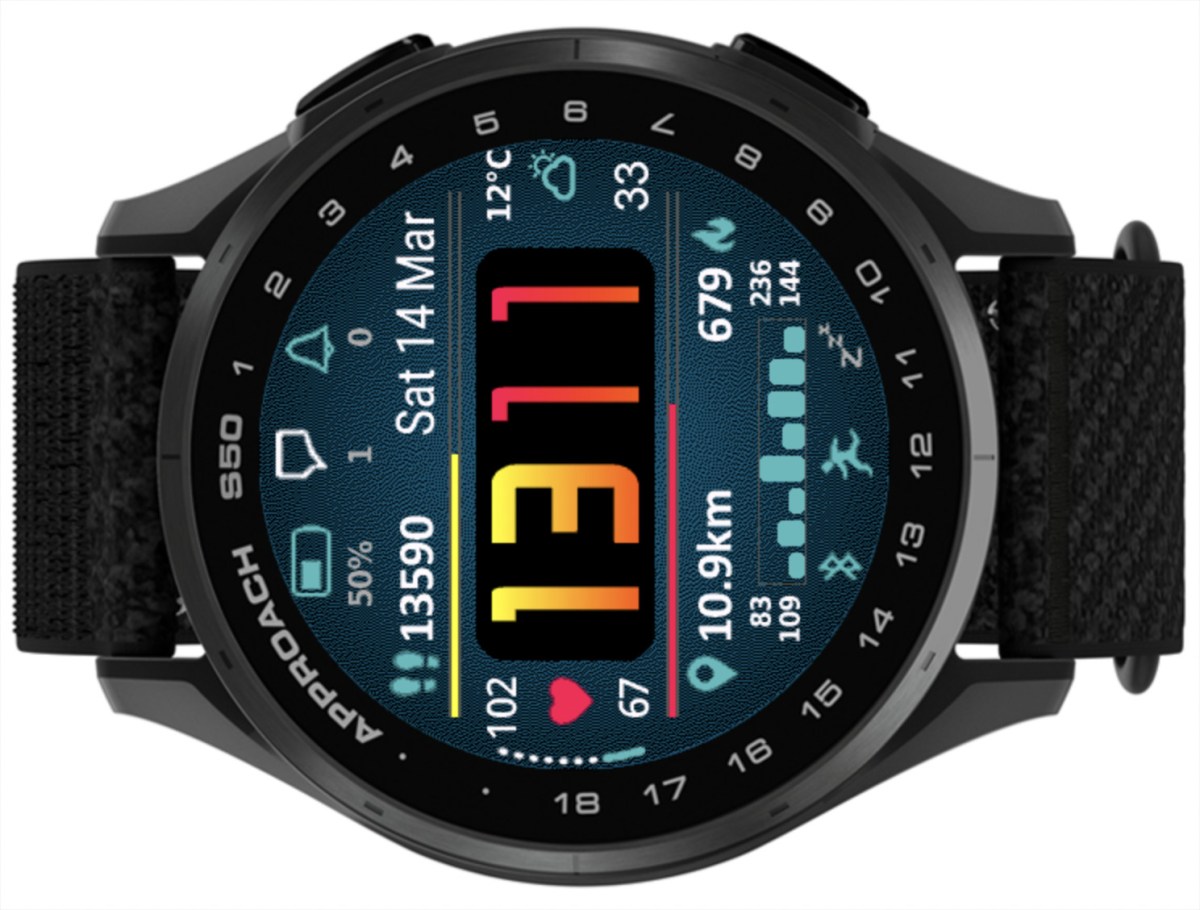
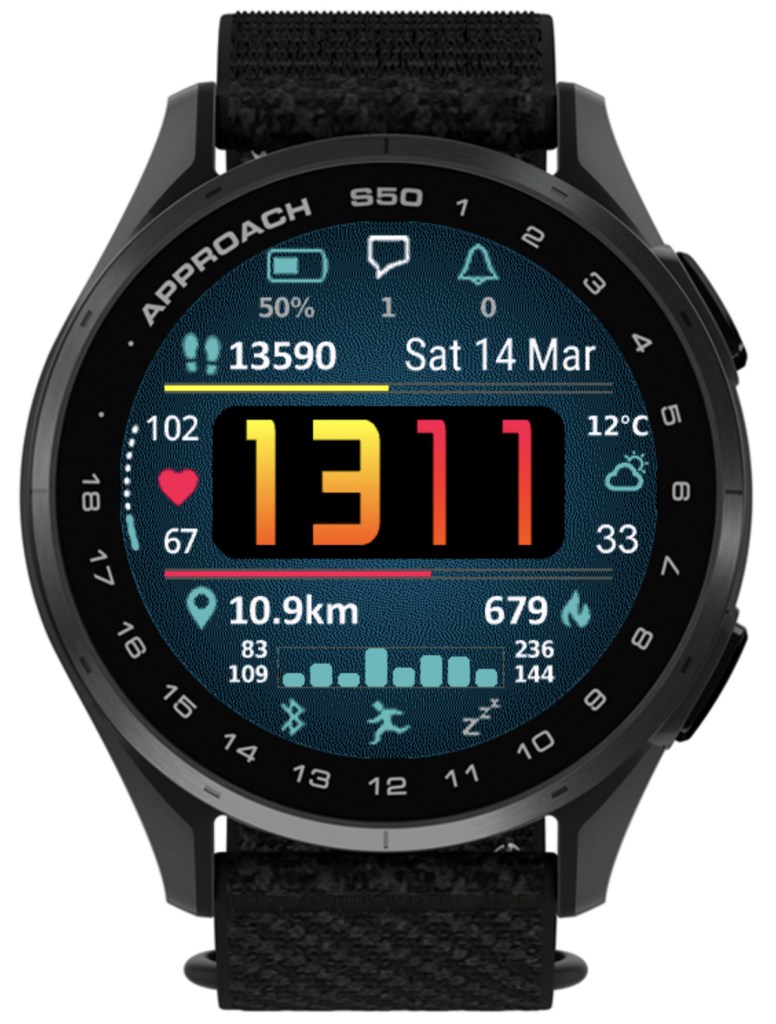
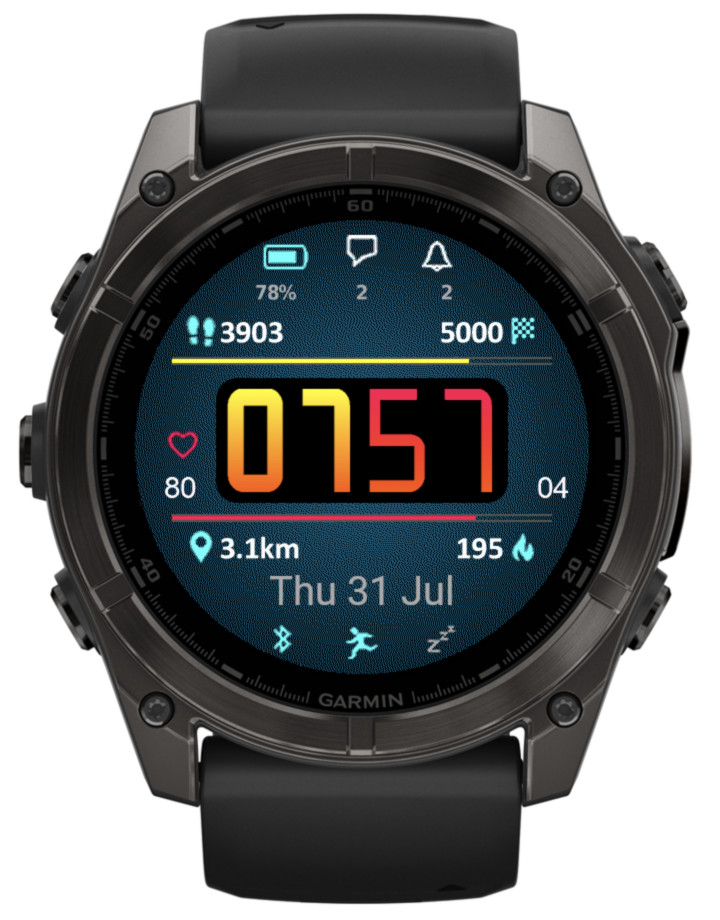
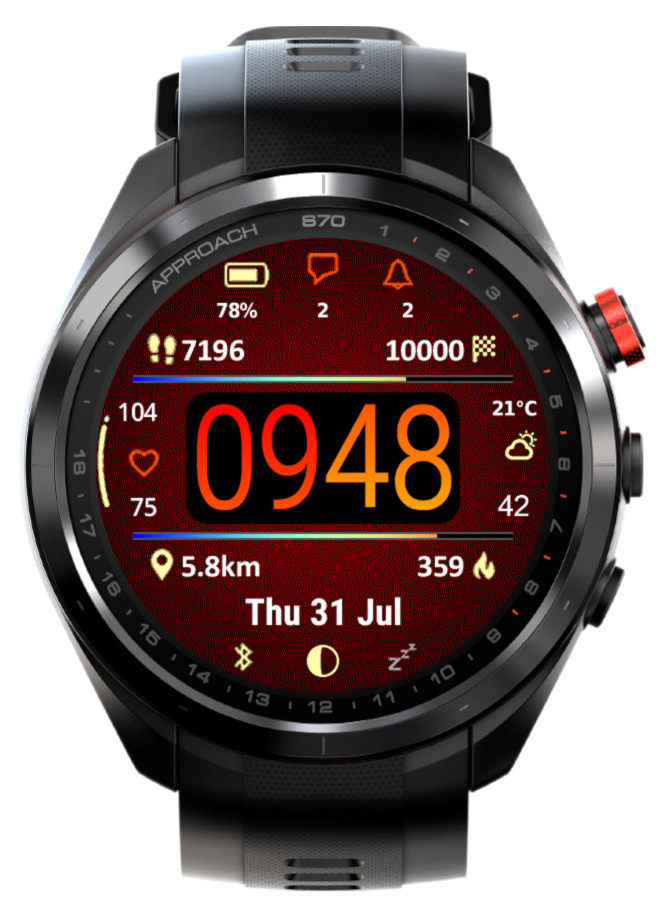
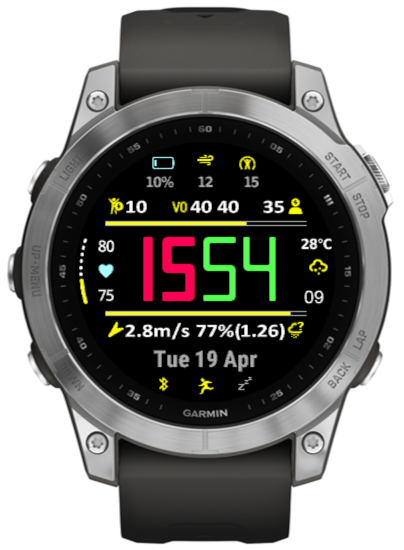
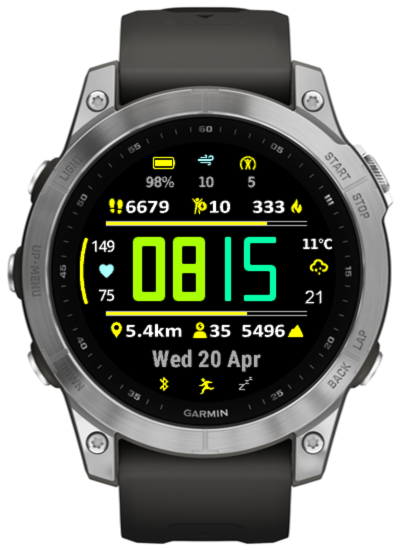
Now it is possible to choose one of the weekly activity graphs:
active minutes
calories
distance
floors climbed
steps/wheelchair pushes
These graphs display bars for 8 days. The first bar on the right corresponds to today, and the first bar on the left corresponds to one week ago.
The image below shows distance graph. So the numbers describing the graph are kilometers or miles.
There are 4 numbers shown around the bar graph:
Top left – minimum value recorded in 8 days Top right – maximum value recorded in 8 days Bottom left – current value Bottom right – average value over last 8 days
Another new option is tide information from stormglass.io
For this to work, you must enter in the settings your stormglass.io API key (it is free for the amount of data pulled by this watch face)
It includes these data points:
Next tide (level + time) Second next tide (level + time) Tide station name (if available) Tide graph in Bottom field
There is an option in the settings to specify the coordinates for the tide information (in Decimal Degrees: e.g. -6.600000, 106.800000).
You can also display your current coordinates together with a world map showing where you are
This update mostly focuses on adding great new options to customize and manage color themes:
• Background texture
An additional display element, which can be set to ‘Off’ or to the color of your choice. Note that while enabled, the enhanced visual appeal brought by the texture comes at a cost of slightly increased battery drain and slightly reduced responsiveness. The impact may be more noticeable on devices with less memory such as fenix 6 or Enduro. If you don’t like the appearance of this new element, or are concerned about the performance, just set it to ‘Off’.
• Time background
Another new display element, you can set it to the color of your choice, or to the background color to hide it when the texture is ‘Off’.
• Custom colors can be entered in RGB 6-digit format allowing access to the full pallette
Now there are two ways in which any of the 4 custom colors can be defined: Either by entering the color number in the 64-color palette (from 0 = black to 63 = white), or by entering a 6-digit hexadecimal RGB color code (from 000000 = black to ffffff = white). The first method allows to access the colors typically supported by most MIP devices, while the latter allows choosing any color that is possible on a given device (65536 colors on AMOLED devices).
• Updated default color themes
If you update from an earlier version of Rails, your existing color themes will be preserved, with the exception of the texture and time background being added to them. To see what a new theme looks like, choose ‘Reset’ from the ‘Theme manipulation’ drop down list and save the settings. If you want to preserve your old theme, now you can do so by using the ‘Export’ option in the list.
• Option to export/import themes
The ‘Reset theme’ option has been removed and instead a new ‘Theme manipulation’ drop down list has been added in the settings, with these options:
Off – inactive
Reset – select and save the settings to bring back the factory defaults for the current theme
Import – select and save the settings to import the theme copied into the ‘Export/import color theme’ field
Export – select and save the settings to export the current theme. When you open the settings again, the theme can be copied from the ‘Export/import color theme’ field. Note that you MUST enter the settings twice to do this, this is a limitation of how Garmin’s settings system works
• In power save modes rails are drawn including their data
Previously only the rails outline was drawn, now it is shown together with the data as in full power mode.
• Weekly steps count
In addition to counting your steps daily, now you have an option to show the count for the whole week. The first day of the week is defined in the user profile in Garmin Connect.
• New device (Venu X1)
Rails takes full advantage of its rectangular screen shape by adding 4 more data fields, in the top and bottom icon rows.
A number of older devices with less memory available cannot accommodate any more additions to this app. These include fenix 6s, anything from the fenix 5/Plus generation, all Forerunners before the 255, etc. This version freezes the development on these devices and in the future only maintenance changes are expected.
New on all devices
New Time font Opt 1
New Theme T1
New on devices with enough memory
Weekly walking activity distance
This is an addition to the already present run, bike and swim activities, and works the same way. The week counts from the first day of the week as defined in Garmin Connect.
Training effect
It can be selected for Top/Bottom icons or central data fields, or for the Top/Bottom rails. On the rails it covers the range from 0 to 5.
Wheelchair pushes support (pushes, goal, distance)
Pushes counter and pushes goal work the same way as steps counter and goal when the watch is in wheelchair mode. In addition, the daily or weekly distance reports the distances covered.
According to Garmin, currently this can only work on Venu 3/3s and Vivoactive 5.
Sensor graphs
Graphs displaying data from the watch sensors can be shown in the Bottom field.
This feature is controlled by a new setting option ‘Rails mode’. When set to ‘Color’ the rail gauges follow the current color theme. When set to ‘Heat map’, the rail gauges start from blue on the left and progress towards red on the right.
The exact appearance of this feature depends on the number of different colors supported by the device. Generally it is expected to look better on devices with more colors.
• Optional offset for the internal temperature sensor
This in theory could allow to compensate for external factors affecting the internal watch sensor temperature readings.
• Date2
The additional date field that can be used in several ways:
– Two different date formats can be switched easily, without the need to enter the format again
– A long date can be split in two and displayed in different places on the screen (e.g. above and below the time)
– The additional date format can be used to define arbitrary text, with the help of the ‘=’ escape character
The format for Date2 is separated by the ‘|’ symbol from the base Date in the format entry field.
The text data fields (Date, Weather location, Free text) font size can be set from 0 to 4 (these are the text sizes available in Garmin’s Connect IQ system).
Some devices do not have all 5 font sizes onboard. If you have one of these, font size increment/decrement might not always produce visible effect.
Date field now configurable to allow showing bottom icons text instead
This allows much more information to be shown in the bottom icons. Since the Date is no longer displayed in the bottom field, it can be selected for Opt1 – Opt6 data fields. The choice of data points for the top and bottom icons is now the same.
Launching widgets by screen press
This is only possible on devices with touch screen which run ‘System 6’. According to Garmin, it will not become available on Venu, D2 Air and Venu Sq / Music.
In Rails, these elements are sensitive to touch:
Top icons
Bottom icons
Left data icon
Right data icon
Opt1 – Opt6 data icons
Bottom field (if set to date)
A long press on any of the above launches an associated app (if available).
New data options
• Next calendar event time data option
This is only available on System 6 devices, and will not work unless your watch firmware is updated to System 6.
• Battery days icon option
Only available on compatible devices (notably, not on Forerunners).
New power save mode showing big hollow time
Option to activate full screen on gesture when in power save mode
Allows to display full screen information for about 10 seconds on gesture.
Shows body weight according to Garmin User Profile.
Sun bar
When selected for one of the rails it shows daylight, golden and blue hours (and a mark for sunrise/sunset) in a 2 hour window.
If the ‘Sun bar + times’ option is selected, it will override the data fields above or below the rail with golden/blue/twilight hours.
Countdown timer
To conserve space, now it shows only the part that is significant in comparison with the remaining countdown time. So it will show only the number of remaining days if it is larger than zero, otherwise it will show hours:minutes.
NOTE: This post describes combined new features of releases 2.18.0 and 2.17.0, since they were made in quick succession.
What’s new
6 new data points (stress, body battery, respiration rate, time to recovery, VO2Max (running + cycling)*
Battery in days added if battery info is displayed in data fields Opt 1 – Opt 4*
Location fallback to Garmin weather if not available from activity**
Oversize HR and seconds / Oversize data options now also available on AMOLED/LCD devices
2 more custom colors
2 additional data fields (Opt 5 between Opt 1 and Opt 2 and Opt 6 between Opt 3 and Opt 4)
Top icons text hidden when the icon color is the same as the background color
‘Feels like’ can be selected for all data fields
‘Chance of rain’ renamed to ‘Precipitation’. If it is selected for Opt 1 – Opt 4, precipitation volume [mm] will be appended if available
More data options for ‘Right data’ and ‘When seconds off, show’ fields
Important notes
(*) The highly anticipated new data is only available on some devices and may require firmware update from Garmin before it starts working. So it may happen that it will not be displayed on your watch yet (you will see “–” instead).
To check if your device is compatible, go to the watch menu System / About / SW versions and look for “Connect IQ System 5” or “API level” higher than 3.3.0.
It has been tested OK on Garmin’s simulator and on a real Venu, so hopefully it should be working on your watch too, as soon as the update to System 5 arrives.
Connect IQ System 5 has rolled out on a number of devices with more coming:
Now Available
Public Beta Available
Coming Soon
Forerunner® 245 Series Forerunner® 745 Forerunner® 945 Forerunner® 945 LTE Venu® Series Venu® 2 Series Venu® 2 Plus Series Vivoactive 4 Series