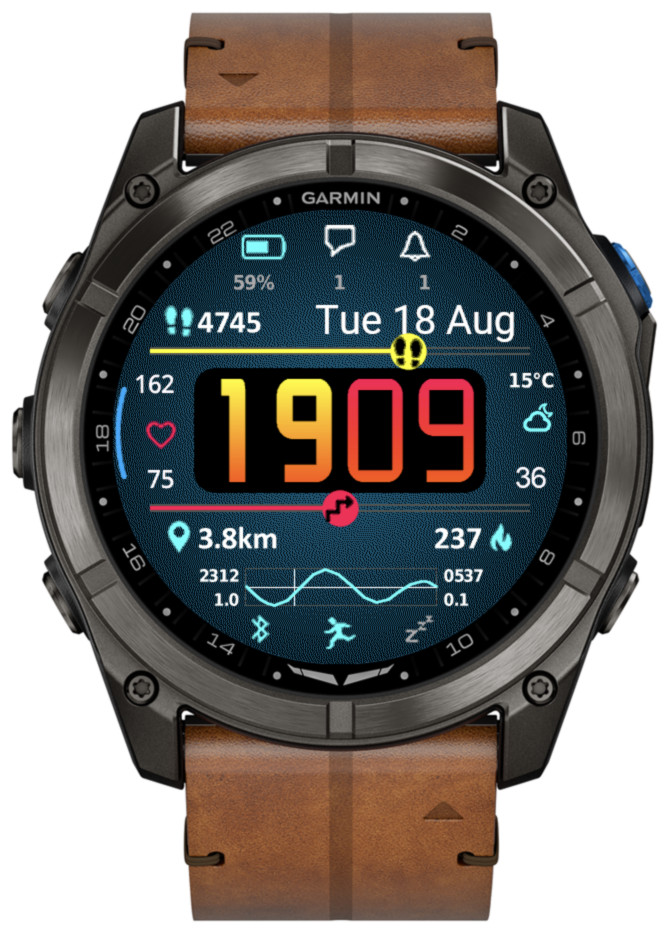
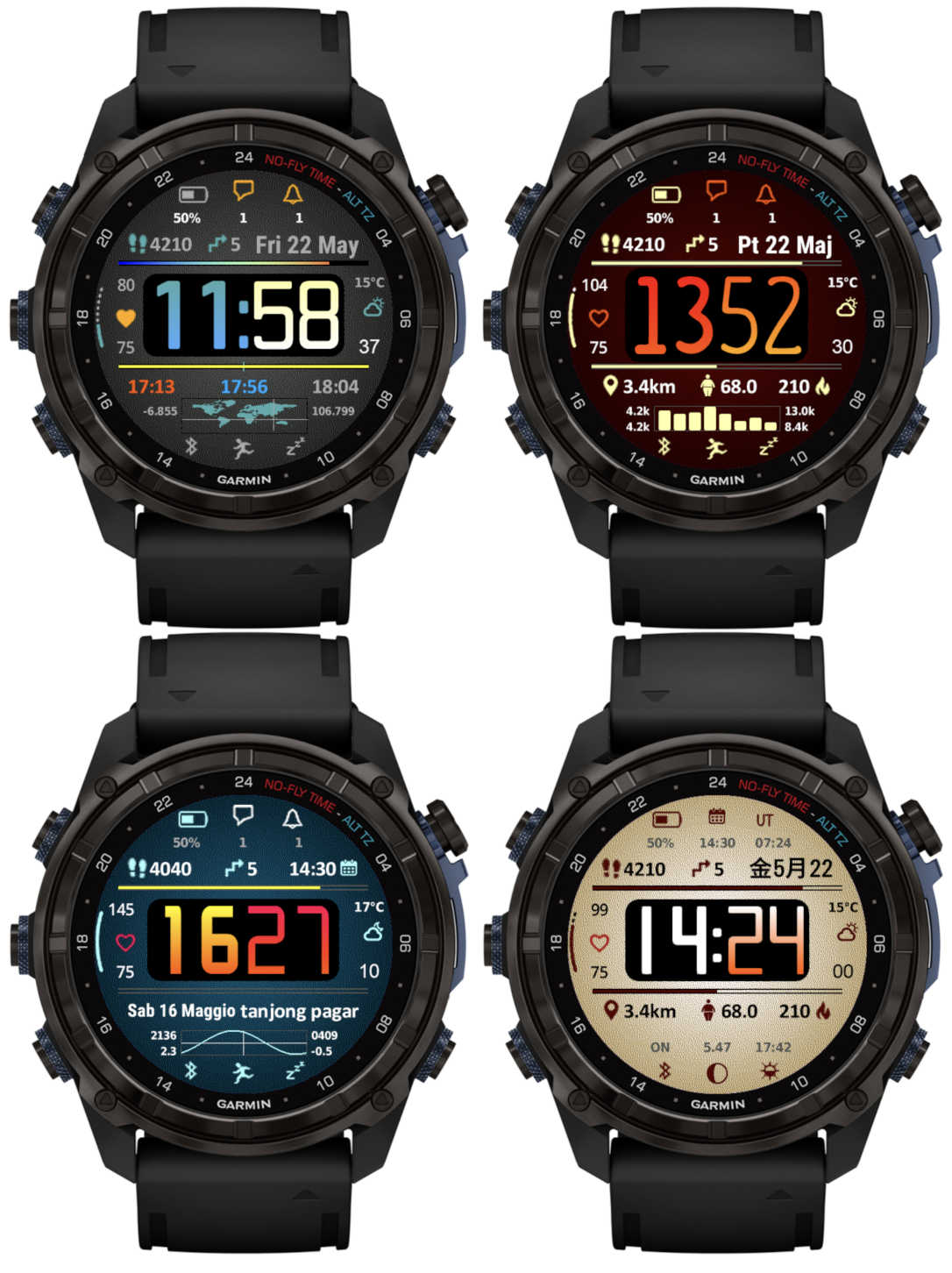
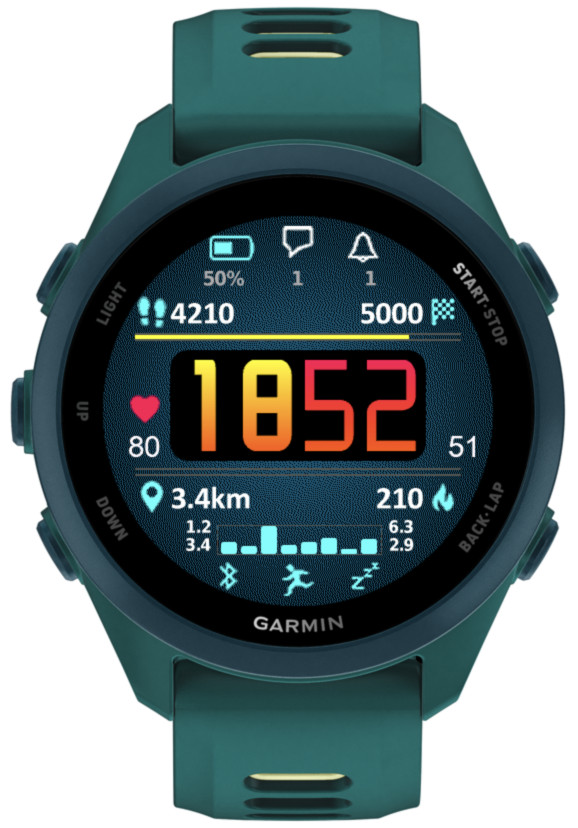
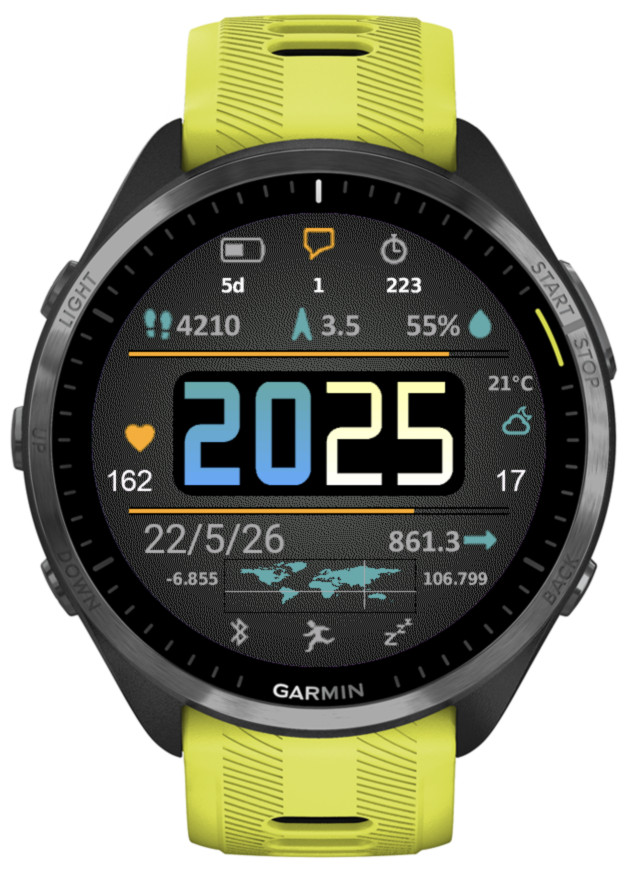
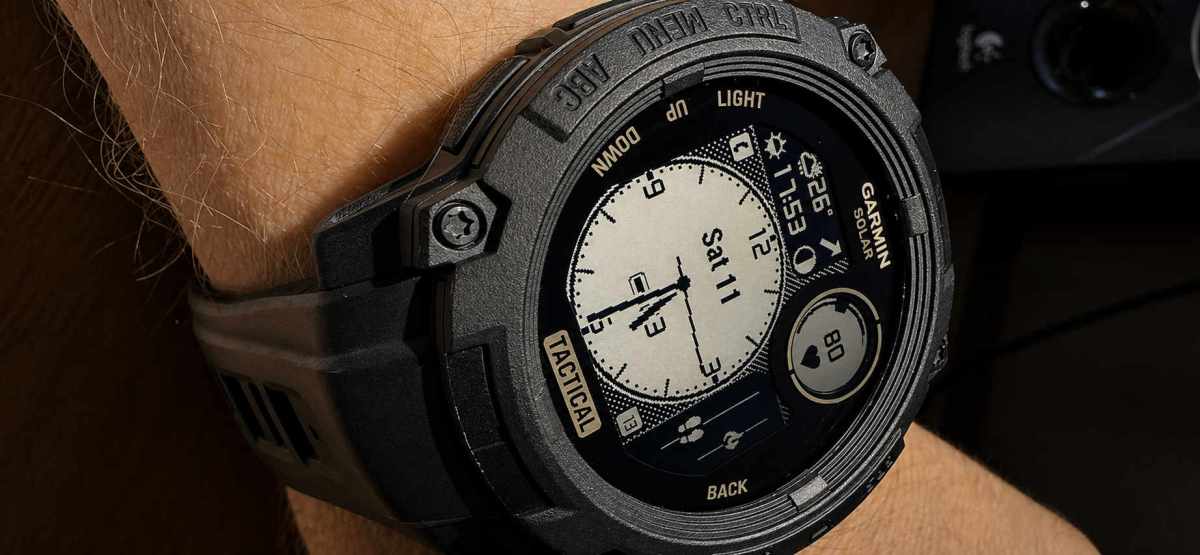
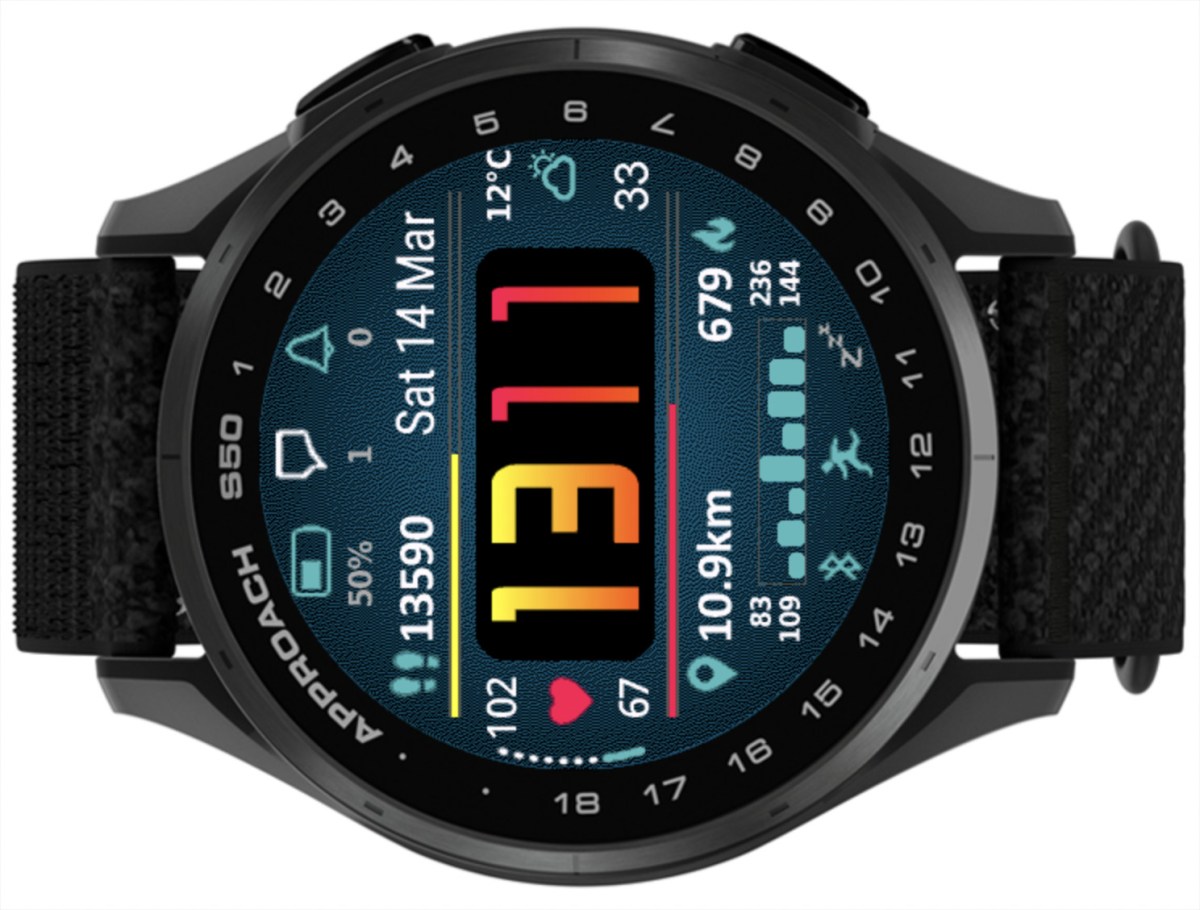
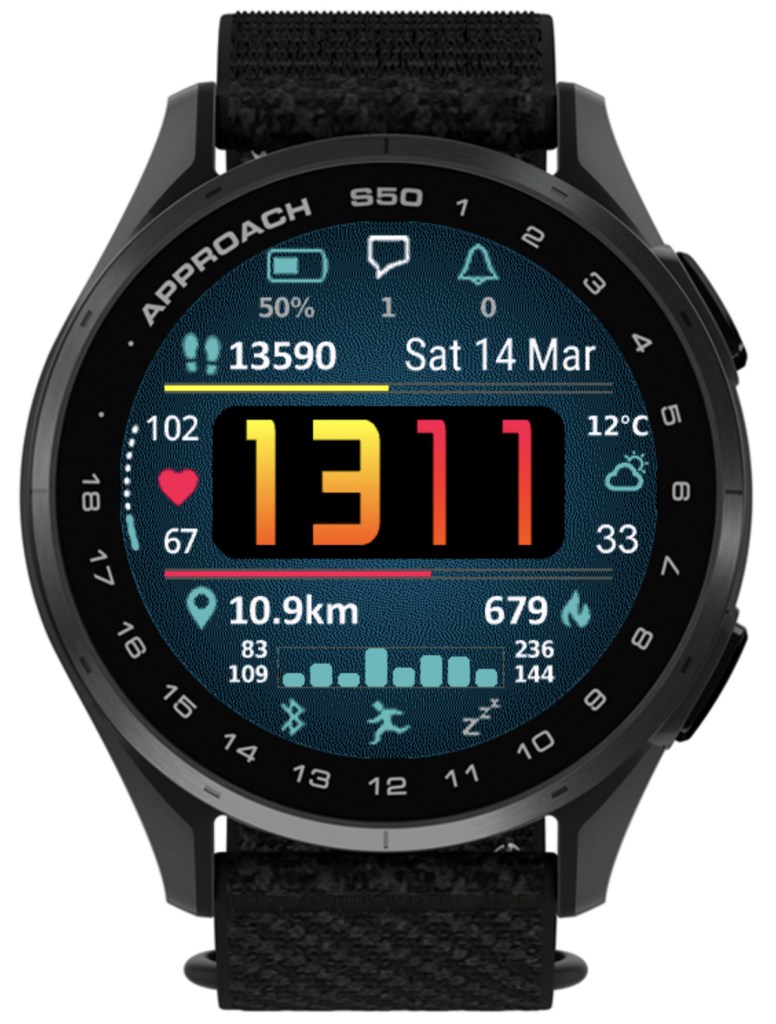
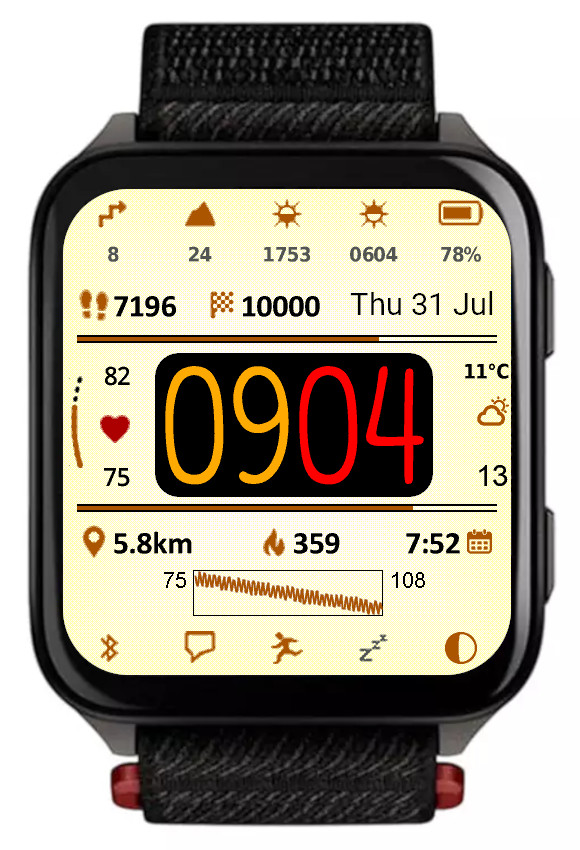
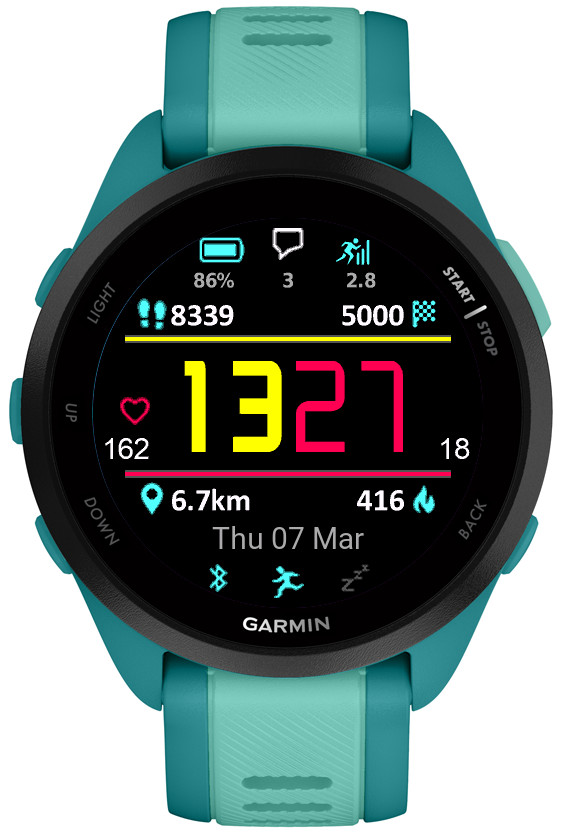
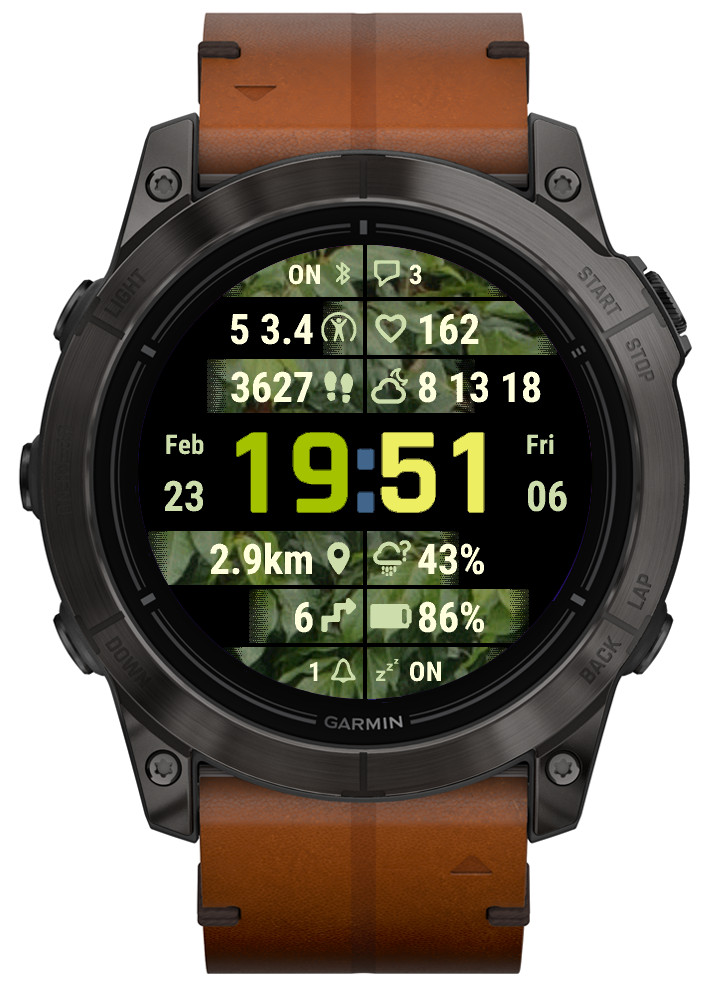
Now it is possible to choose one of the weekly activity graphs:
active minutes
calories
distance
floors climbed
steps/wheelchair pushes
These graphs display bars for 8 days. The first bar on the right corresponds to today, and the first bar on the left corresponds to one week ago.
The image below shows distance graph. So the numbers describing the graph are kilometers or miles.
There are 4 numbers shown around the bar graph:
Top left – minimum value recorded in 8 days Top right – maximum value recorded in 8 days Bottom left – current value Bottom right – average value over last 8 days
Another new option is tide information from stormglass.io
For this to work, you must enter in the settings your stormglass.io API key (it is free for the amount of data pulled by this watch face)
It includes these data points:
Next tide (level + time) Second next tide (level + time) Tide station name (if available) Tide graph in Bottom field
There is an option in the settings to specify the coordinates for the tide information (in Decimal Degrees: e.g. -6.600000, 106.800000).
You can also display your current coordinates together with a world map showing where you are
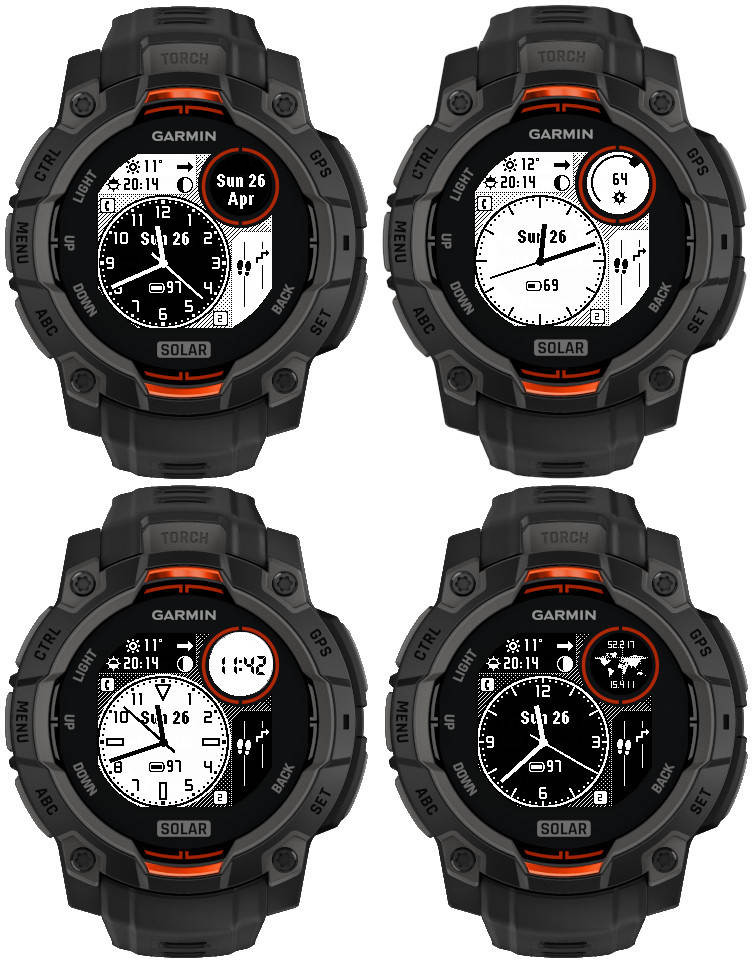
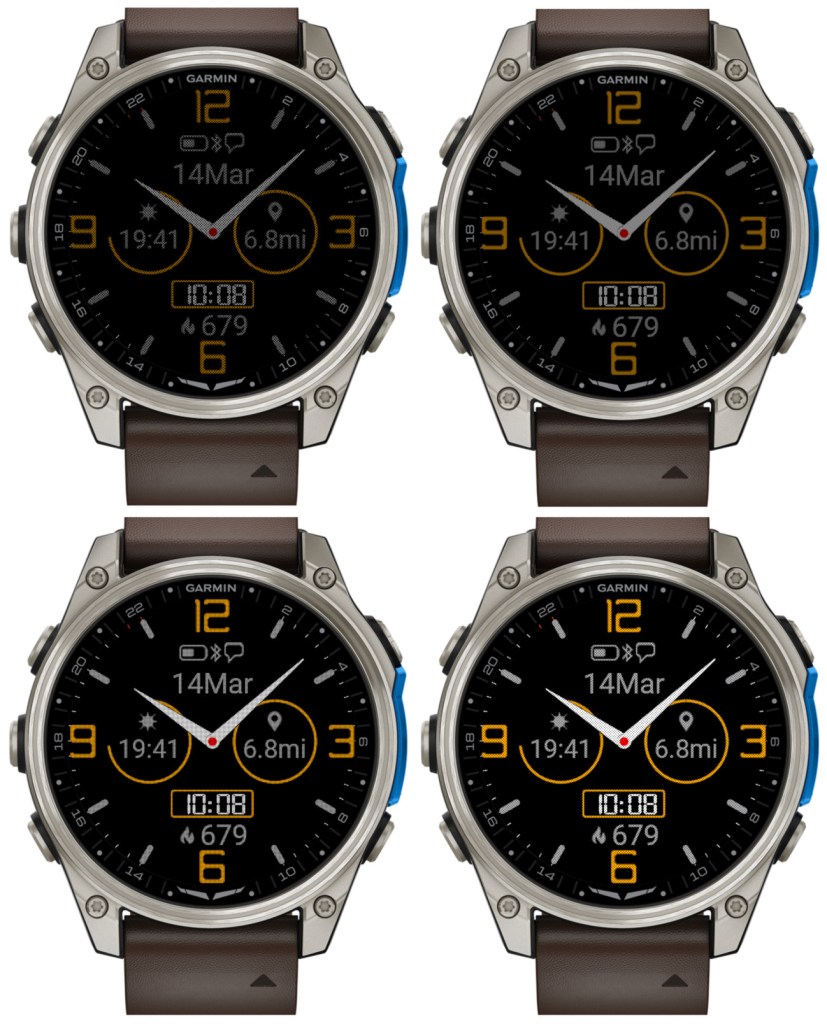
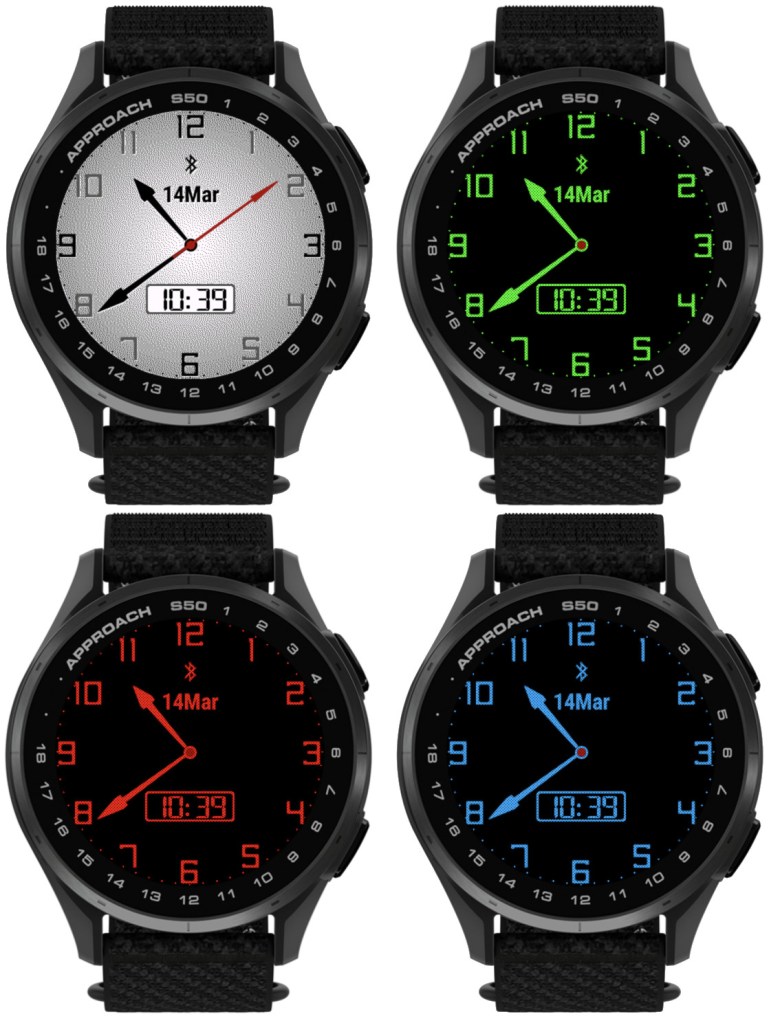
• Additional color mode (white/black)
• 5 new dial styles
• Digital clock
• World coordinates
• Data font updated for better data fit
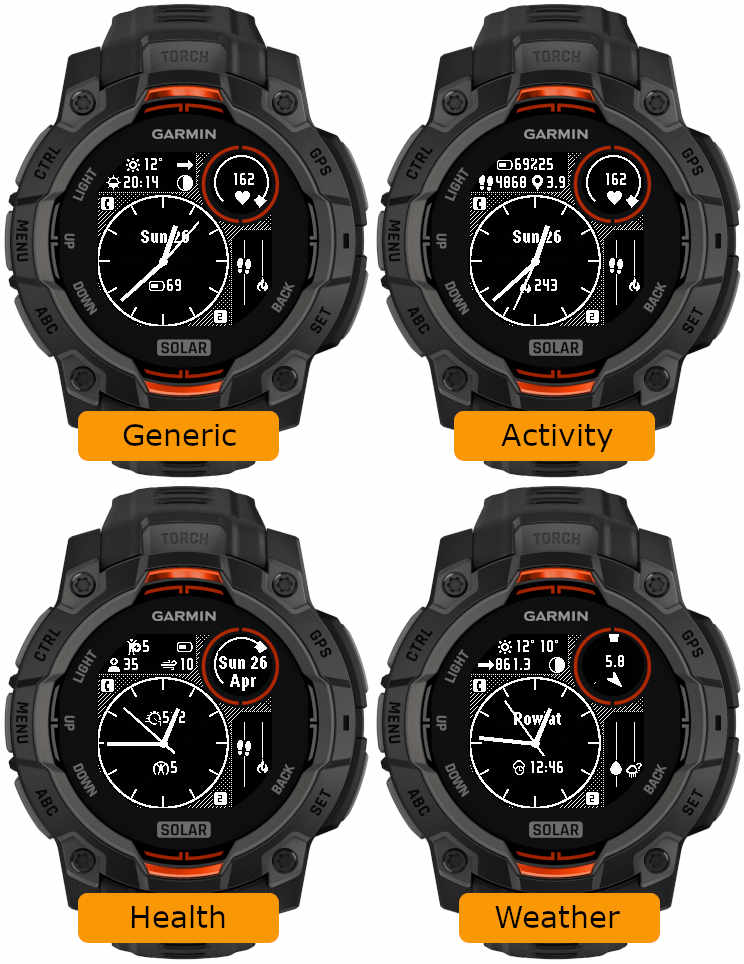
• Pre-defined data sets (generic, activity, health, weather)
What’s new
This update focuses on Instinct MIP devices.
The new features include:
• Weather (current + feels like temperature) data option • Additional date component in the circle (by default showing month name) • Additional color mode (white/black) • New dial styles • Digital clock option for Circle number • World coordinates option for Circle number
• Narrower data font • Pre-defined data sets (generic, activity, health, weather)
There are 4 levels now. Level 1 corresponds to the AOD brightness before version 5.10.0. Please note that a higher AOD brightness means a faster battery drain.
• Increased background brightness threshold for switching to monochrome AOD
Since AOD mode has a restriction on screen luminance, it is not reasonable to try to have AOD with background color other than black. Because of this, for the color themes with non-black background elements, Time Flies automatically switches to monochrome AOD. Before version 5.10.0, this was triggered by backgrounds simply being any other than black. In 5.10.0, backgrounds with overall limited luminance are assumed to come with foreground elements that are bright enough to be seen well on a completely black background. So now themes that do not include bright background elements will still be shown in full color in AOD, except the backgrounds of course.
• Option to choose the monochrome AOD color
For color themes with bright background, when the switch to the monochrome AOD occurs, it is now possible to choose what single color this AOD should be in.
There is a new dedicated field for this in the settings: ‘Inverted AOD color’, which accepts the same color definitions as the custom color fields (color map entry or RGB).
• Custom colors can be entered as RGB
Before 5.10.0, each of the 4 custom colors could be defined as a number entry in the color map, ranging from 0 (black) to 63 (white). Now it is also possible to define the custom colors as 6 digit RGB values ranging from 000000 (black) to ffffff (white).
Notes:
1) All 6 digits including leading zeros need to be entered for this to work
2) While the RGB color entry works on MIP devices, it will not make any difference compared to the color map entry, since MIP devices support only up to 64 colors anyway, and any RGB entry will be mapped by the watch to the nearest supported color.
• Separate options for battery % and battery % + days
Before 5.10.0, there was only ‘Battery %’ option for the data fields and DBox. In the four Opt data fields it would display battery level in % with the battery days estimation appended after the % sign (if supported by the watch). Now, there are two separate options available in the settings: ‘Battery %’ and ‘Battery % + days’.
• Larger AM/PM indicator in DBox
The AM/PM indicator is shown in DBox when the watch operates in 12h time mode. Its size has now been increased so that it is visible better, especially in AOD mode.
This update mostly focuses on adding great new options to customize and manage color themes:
• Background texture
An additional display element, which can be set to ‘Off’ or to the color of your choice. Note that while enabled, the enhanced visual appeal brought by the texture comes at a cost of slightly increased battery drain and slightly reduced responsiveness. The impact may be more noticeable on devices with less memory such as fenix 6 or Enduro. If you don’t like the appearance of this new element, or are concerned about the performance, just set it to ‘Off’.
• Time background
Another new display element, you can set it to the color of your choice, or to the background color to hide it when the texture is ‘Off’.
• Custom colors can be entered in RGB 6-digit format allowing access to the full pallette
Now there are two ways in which any of the 4 custom colors can be defined: Either by entering the color number in the 64-color palette (from 0 = black to 63 = white), or by entering a 6-digit hexadecimal RGB color code (from 000000 = black to ffffff = white). The first method allows to access the colors typically supported by most MIP devices, while the latter allows choosing any color that is possible on a given device (65536 colors on AMOLED devices).
• Updated default color themes
If you update from an earlier version of Rails, your existing color themes will be preserved, with the exception of the texture and time background being added to them. To see what a new theme looks like, choose ‘Reset’ from the ‘Theme manipulation’ drop down list and save the settings. If you want to preserve your old theme, now you can do so by using the ‘Export’ option in the list.
• Option to export/import themes
The ‘Reset theme’ option has been removed and instead a new ‘Theme manipulation’ drop down list has been added in the settings, with these options:
Off – inactive
Reset – select and save the settings to bring back the factory defaults for the current theme
Import – select and save the settings to import the theme copied into the ‘Export/import color theme’ field
Export – select and save the settings to export the current theme. When you open the settings again, the theme can be copied from the ‘Export/import color theme’ field. Note that you MUST enter the settings twice to do this, this is a limitation of how Garmin’s settings system works
• In power save modes rails are drawn including their data
Previously only the rails outline was drawn, now it is shown together with the data as in full power mode.
• Weekly steps count
In addition to counting your steps daily, now you have an option to show the count for the whole week. The first day of the week is defined in the user profile in Garmin Connect.
• New device (Venu X1)
Rails takes full advantage of its rectangular screen shape by adding 4 more data fields, in the top and bottom icon rows.
A number of older devices with less memory available cannot accommodate any more additions to this app. These include fenix 6s, anything from the fenix 5/Plus generation, all Forerunners before the 255, etc. This version freezes the development on these devices and in the future only maintenance changes are expected.
New on all devices
New Time font Opt 1
New Theme T1
New on devices with enough memory
Weekly walking activity distance
This is an addition to the already present run, bike and swim activities, and works the same way. The week counts from the first day of the week as defined in Garmin Connect.
Training effect
It can be selected for Top/Bottom icons or central data fields, or for the Top/Bottom rails. On the rails it covers the range from 0 to 5.
Wheelchair pushes support (pushes, goal, distance)
Pushes counter and pushes goal work the same way as steps counter and goal when the watch is in wheelchair mode. In addition, the daily or weekly distance reports the distances covered.
According to Garmin, currently this can only work on Venu 3/3s and Vivoactive 5.
Sensor graphs
Graphs displaying data from the watch sensors can be shown in the Bottom field.
NOTE: This post also covers the new features added in the version 3.3.0.
• Training effect
There is no separate new option for Training Effect, but it is appended to Recovery Time in the data fields 3 – 10, or in the data fields 1, 2, 11, 12 if they are set to occupy the whole width of the screen by switching the opposite field to ‘Off’.
• Launching widgets by screen touch enabled by default
If you prefer them not to be launched, set ‘Widget launch’ to ‘Off’.
• New color mode
The previous ‘Highlight’ mode was renamed to ‘Gradient’. The new ‘Highlight’ mode works pretty much the same as the old one, but it has a sharp edge.
• Options to configure AOD icon and text color
In AOD mode each color theme sets the icon and text color automatically for the active color theme. But if you prefer different colors, now you can define them here.
• New color themes on compatible devices
4 new Color options: Img1 – Img4.
They only make a difference in ‘Highlight’ or ‘Gradient’ color modes.
Instead of color combinations used in other themes, they use wallpaper images (currently Leaves, Flowers, Wood, Sky) for the data level/progress highlight.