
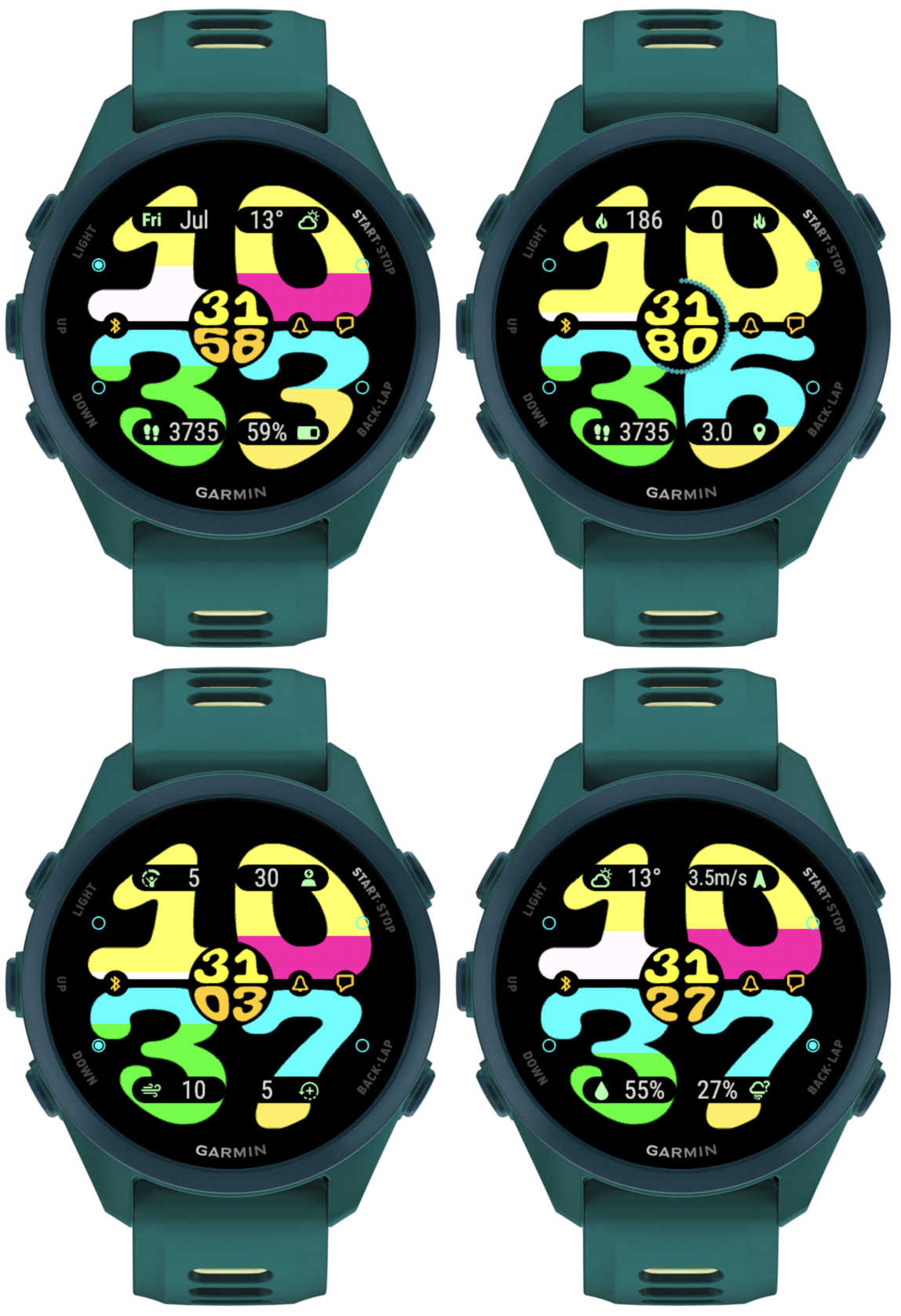
You can conveniently switch between 4 predefined customizable data sets by screen touch or by wrist gesture.
Category: Uncategorized
Time Flies background patterns
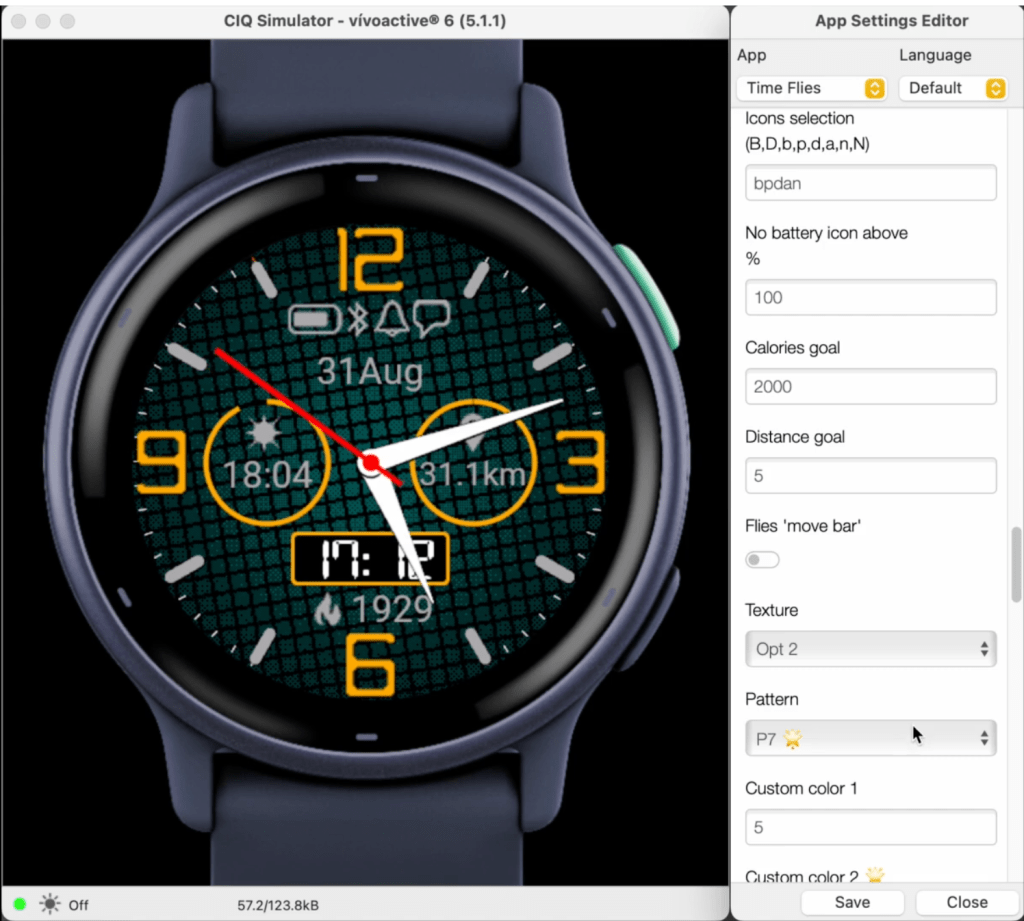
Gradient version 3.7.0
What’s new
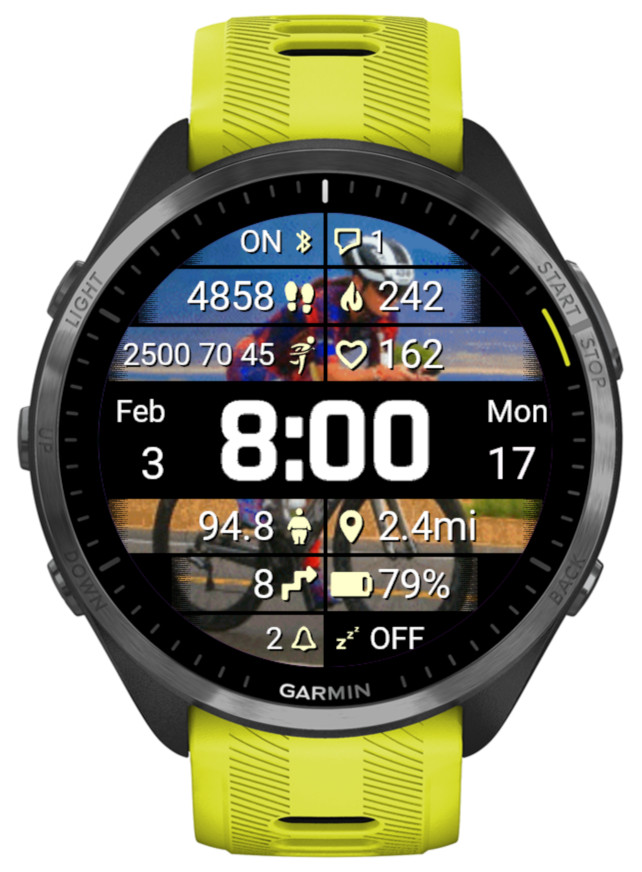
Data points
- Weekly triathlon distances (swim [m/yd], bike [km/mi], run [km/mi])
- Body weight according to User Profile [kg/lb]
- Temperature + Feels like temperature
- Stress + body battery together
Wallpaper
- Img5
Rails version 4.0.0
What’s new
A number of older devices with less memory available cannot accommodate any more additions to this app. These include fenix 6s, anything from the fenix 5/Plus generation, all Forerunners before the 255, etc. This version freezes the development on these devices and in the future only maintenance changes are expected.
New on all devices
- New Time font Opt 1
- New Theme T1
New on devices with enough memory
- Weekly walking activity distance
This is an addition to the already present run, bike and swim activities, and works the same way. The week counts from the first day of the week as defined in Garmin Connect. - Training effect
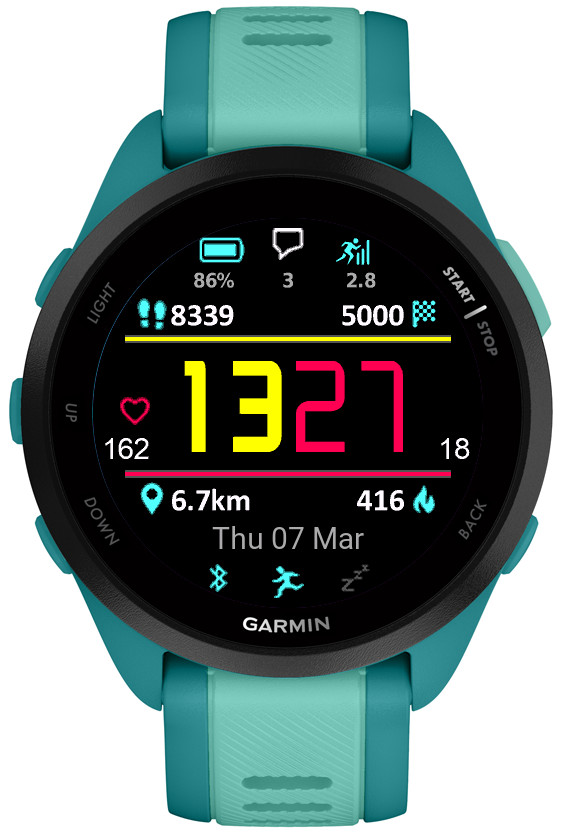
It can be selected for Top/Bottom icons or central data fields, or for the Top/Bottom rails. On the rails it covers the range from 0 to 5. - Wheelchair pushes support (pushes, goal, distance)
Pushes counter and pushes goal work the same way as steps counter and goal when the watch is in wheelchair mode. In addition, the daily or weekly distance reports the distances covered.
According to Garmin, currently this can only work on Venu 3/3s and Vivoactive 5. - Sensor graphs
Graphs displaying data from the watch sensors can be shown in the Bottom field.
6 data choices are available:
-barometric pressure (6 hours)
-elevation (6 hours)
-temperature (6 hours)
-body battery (12 hours)
-stress (4 hours)
-heart rate (4 hours) - More data options for Top and Bottom icons
Steps and pushes with their respective goals were added.
Also, the middle Top icon field (2nd on most devices or 3rd on Venu Sq2) now allows displaying the free text. - c and C in date format display day and month name in caps
So for example date format “c D C” will show “THU 07 MAR”.
Instinct Analog
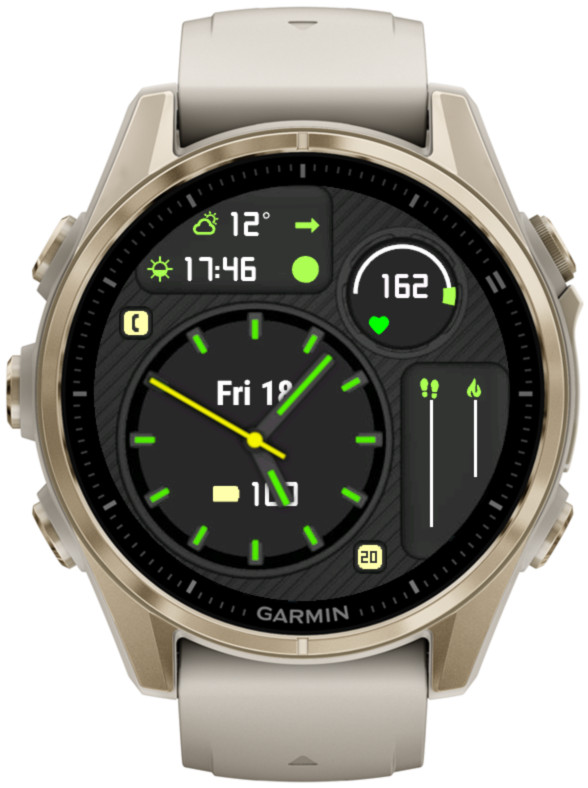
Analog watch face, Instinct style.
Features
- 7 data fields with up to 50+ options each
- 2 sliders and 2 arc gauges showing level/progress of up to 25 data choices
- 4 configurable status icons (phone, notifications, alarms, do not disturb)
- 4 configurable datasets switchable by screen touch, gesture, watch face ‘customize’ menu, or the Connect IQ app
- Battery saving options
- 10 customizable color themes, with separate colors for AOD mode
- Choice of Garmin* or OWM weather
- Always on second hand*
- Live HR and solar charging options for circle number and arc 2*
(*) On compatible devices
This watch face is free to download and use. The ‘premium features’ are always accessible, but when the free unlock promotion ends, a floating padlock icon will appear on the screen several seconds after gesture if no valid unlock key is entered.
To download, visit Garmin app store here.
You can support my work by obtaining an unlock key here.
The user manual is available here for devices compatible with Connect IQ 4.x, and here for other devices.
Instinct Pro version 2.4.0

What’s new
Dataset switching by gesture
You can choose how many datasets you want to switch by gesture (from 0 to 4).
Switching datasets requires double gesture, to minimize unintended switches when you move your hand for other reasons than looking at your watch.
When you raise your wrist the first time, an indicator bar appears between Data 3 and Data 5. It shows which data set is currently active – the number of bar segments (1 to 4) reflects the currently active set.
While you see the bar, move your wrist again to cycle to the next data set. This movement must be completed within the ‘Gesture timeout’ defined in the settings, or before the bar disappears. If you find it difficult to get the dataset to switch, try making the timeout longer.
Waking up to full display by gesture in power save mode
If you set ‘Full on gesture’ to ‘On’, wrist movement while in power save mode will activate the regular full screen display for about 10 seconds.
Two configurable data line gauges
They are located above (Top line) and below (Bottom line) the time and present the same collection of data as the circle arcs or highlight.
3 new entries have been added for line gauges at the end of the ‘Color setup’. First for line background color (applicable to top/bottom), second for top line foreground, last for bottom line foreground (foreground color reflects the selected data current level/progress). Remember that each entry has two colors for black and white screen background (this applies to AMOLED devices too even though white screen background is not supported).
If you don’t want to see these new data lines, on monochrome devices just set them to ‘Off’. On color devices, the background color will still be visible, so to hide it completely, you will need to edit the ‘Color setup’ to change the line background colors to black and white (white does not apply to AMOLED devices).
For example, with yellow accent:
Before: 61,56,63,0,60,56,56,52,63,56,62,0,60,0,63,0,61,0,61,52,56,56,61,0,61, 0
After: 61,56,63,0,60,56,56,52,63,56,62,0,60,0,63,0,61,0,61,52,0,63,61,0,61,0
Live HR in the circle
This is the new default setting for the circle number. If you have ‘Live HR’ selected for more than one data field, only one of these fields will be updated live, the rest will update according to your ‘Data update’ setting.
Removed the gap between hours and minutes in 24h time format
Instinct Pro version 2.1.0

What’s new
Graphs
- Graph options have been added for Data 5, Data 7 – 10 (or 7 – 12 on Instinct Crossover)
- Possible data / graph duration:
HR – 1 hour
Body Battery – 3 hours
Stress – 3 hours
SpO2 – 2.5 days
Elevation – 2 hours
Barometric pressure – 2 hours
Temperature – 2 hours
The actual choice depends on the device capabilities. - The graph duration may be dependent on the device. If you find that it is different on your watch please send feedback to vgfsyhcxft@gmail.com.
- There are three presentation options for the graphs (line, area or colors).
Colors is only available on devices with color display. - Color mapping depends on the type of the graph:
HR: according to the sport for which the current activity retrieves heart rate zone thresholds, or ‘generic’ if there is no activity (zone 1 – gray, zone 2 – blue, zone 3 – green, zone 4 – yellow, zone 5 – red)
Body battery: <= 25 – red, <= 50 – yellow, <= 75 – green, <= 100 – blue
Stress: <= 25 – blue, <= 50 – green, <= 75 – yellow, <= 100 – red
SpO2: <= 92.5 – red, <= 95.0 – yellow, <= 97.5 – green, <= 100.0 blue
Elevation, Pressure, Temperature: lowest 25% – blue, lower medium 25% – green, upper medium 25% – yellow, highest 25% – red - On devices with AMOLED or LCD display, the graph always defaults to line style in AOD mode because of battery drain and burn-in protection considerations.