Time Flies version 5.10.0

What’s new

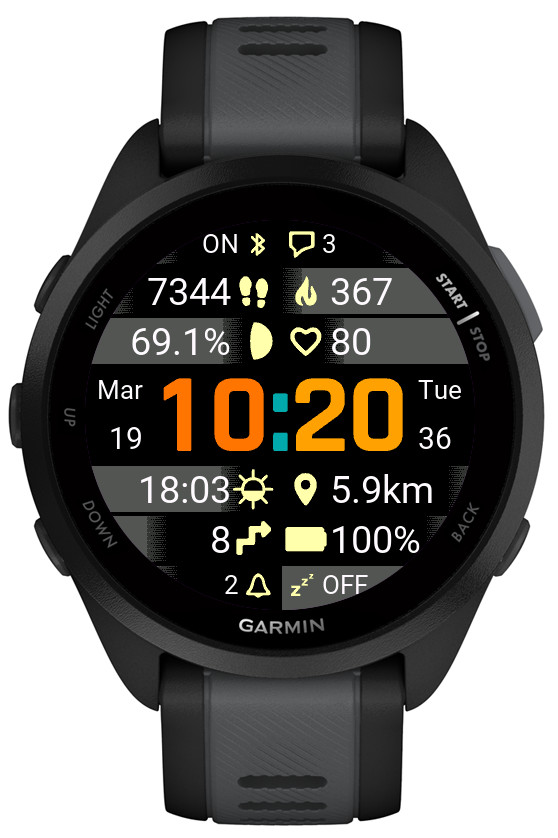
• AOD brightness levels adjustment
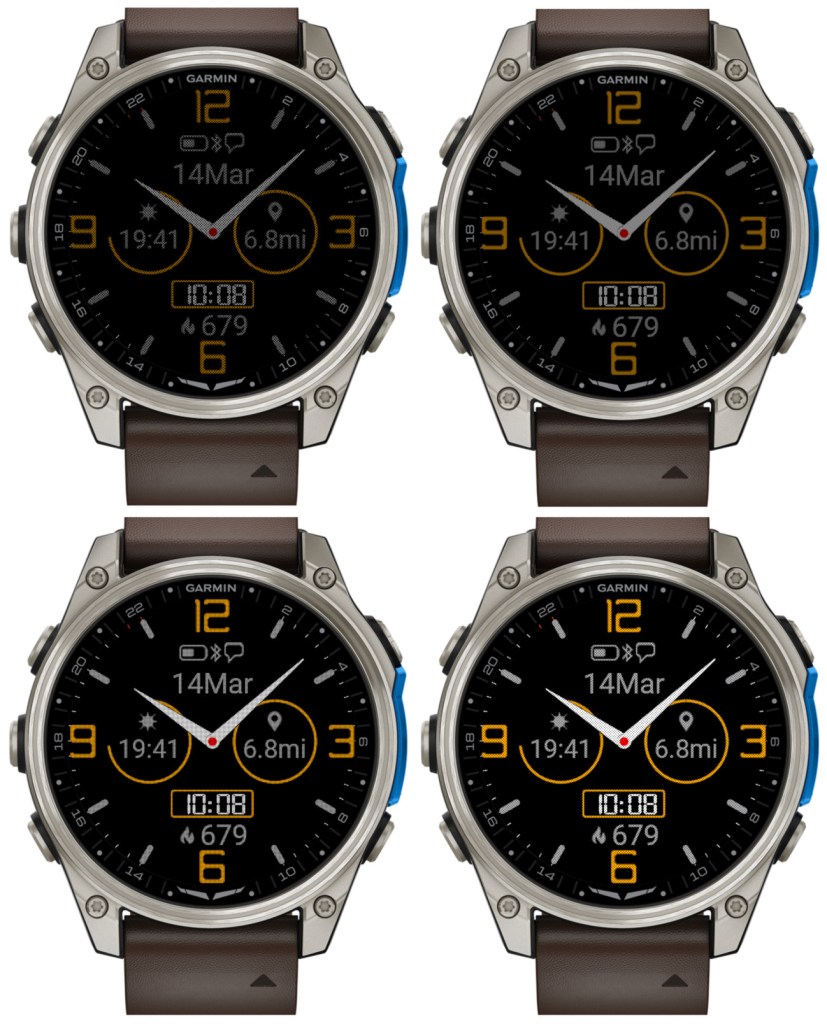
There are 4 levels now. Level 1 corresponds to the AOD brightness before version 5.10.0. Please note that a higher AOD brightness means a faster battery drain.

• Increased background brightness threshold for switching to monochrome AOD

Since AOD mode has a restriction on screen luminance, it is not reasonable to try to have AOD with background color other than black. Because of this, for the color themes with non-black background elements, Time Flies automatically switches to monochrome AOD. Before version 5.10.0, this was triggered by backgrounds simply being any other than black. In 5.10.0, backgrounds with overall limited luminance are assumed to come with foreground elements that are bright enough to be seen well on a completely black background. So now themes that do not include bright background elements will still be shown in full color in AOD, except the backgrounds of course.

• Option to choose the monochrome AOD color

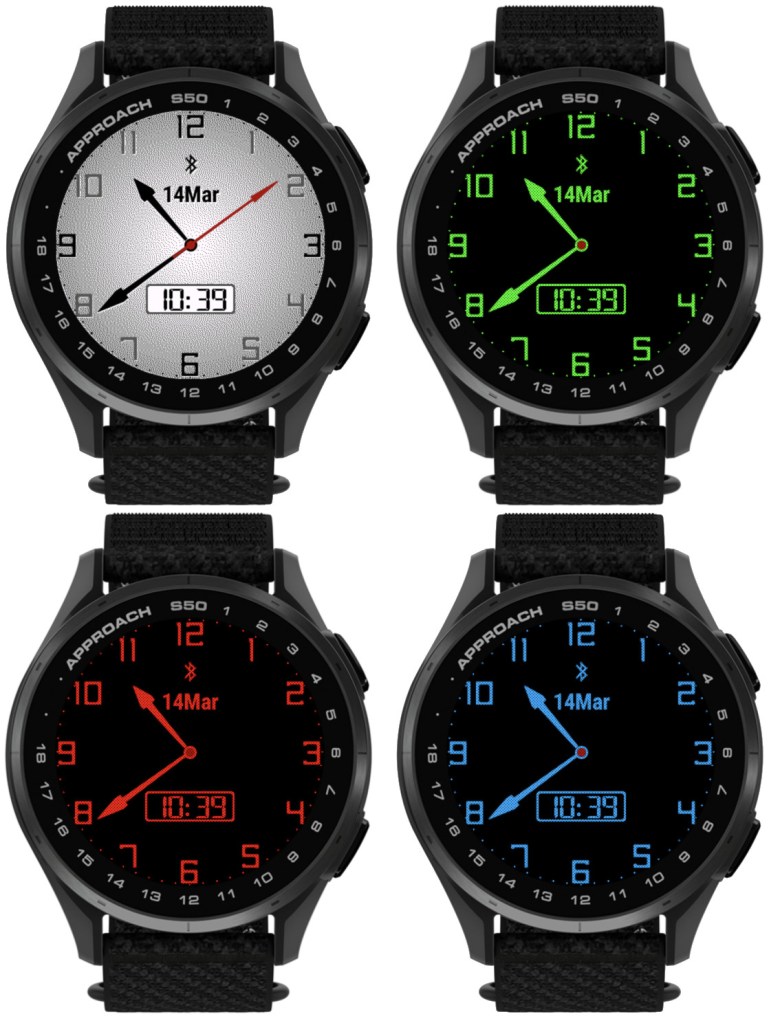
For color themes with bright background, when the switch to the monochrome AOD occurs, it is now possible to choose what single color this AOD should be in.

There is a new dedicated field for this in the settings: ‘Inverted AOD color’, which accepts the same color definitions as the custom color fields (color map entry or RGB).

• Custom colors can be entered as RGB

Before 5.10.0, each of the 4 custom colors could be defined as a number entry in the color map, ranging from 0 (black) to 63 (white). Now it is also possible to define the custom colors as 6 digit RGB values ranging from 000000 (black) to ffffff (white).

Notes:

1) All 6 digits including leading zeros need to be entered for this to work

2) While the RGB color entry works on MIP devices, it will not make any difference compared to the color map entry, since MIP devices support only up to 64 colors anyway, and any RGB entry will be mapped by the watch to the nearest supported color.

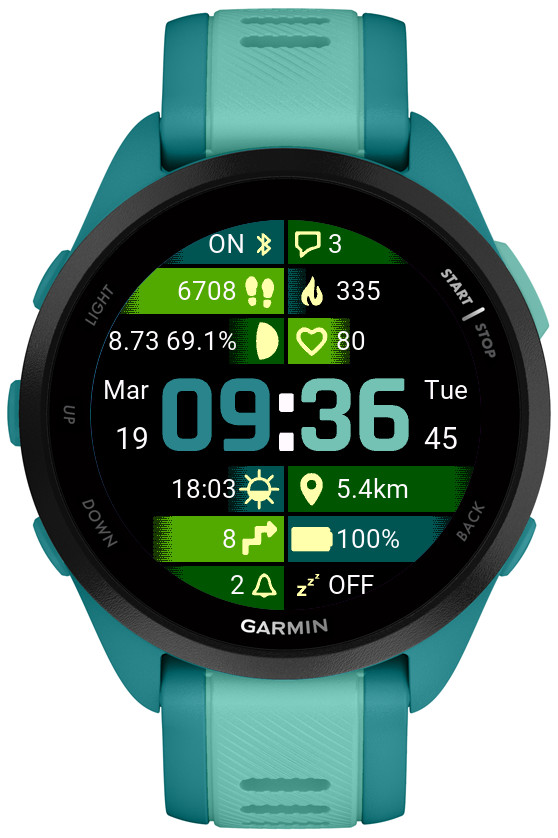
• Separate options for battery % and battery % + days

Before 5.10.0, there was only ‘Battery %’ option for the data fields and DBox. In the four Opt data fields it would display battery level in % with the battery days estimation appended after the % sign (if supported by the watch). Now, there are two separate options available in the settings: ‘Battery %’ and ‘Battery % + days’.

• Larger AM/PM indicator in DBox

The AM/PM indicator is shown in DBox when the watch operates in 12h time mode. Its size has now been increased so that it is visible better, especially in AOD mode.

• Support for new devices

Approach® S50
D2™ Mach 2
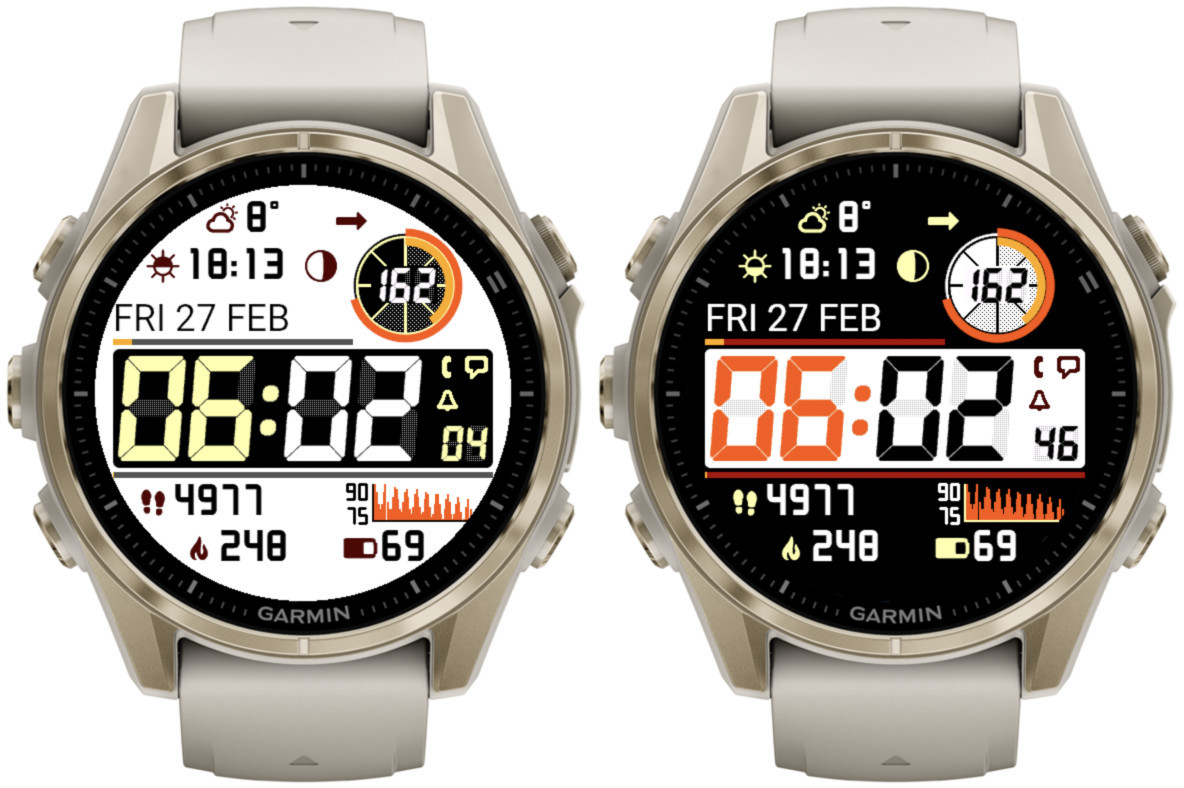
Instinct Pro version 4.1.0


Note

  1. Thist post covers features added in releases 4.0.0 and 4.1.0
  2. The availability of the newly added features depends on the device
  3. If you get IQ! after updating, just select this watch face again from the list

What’s new

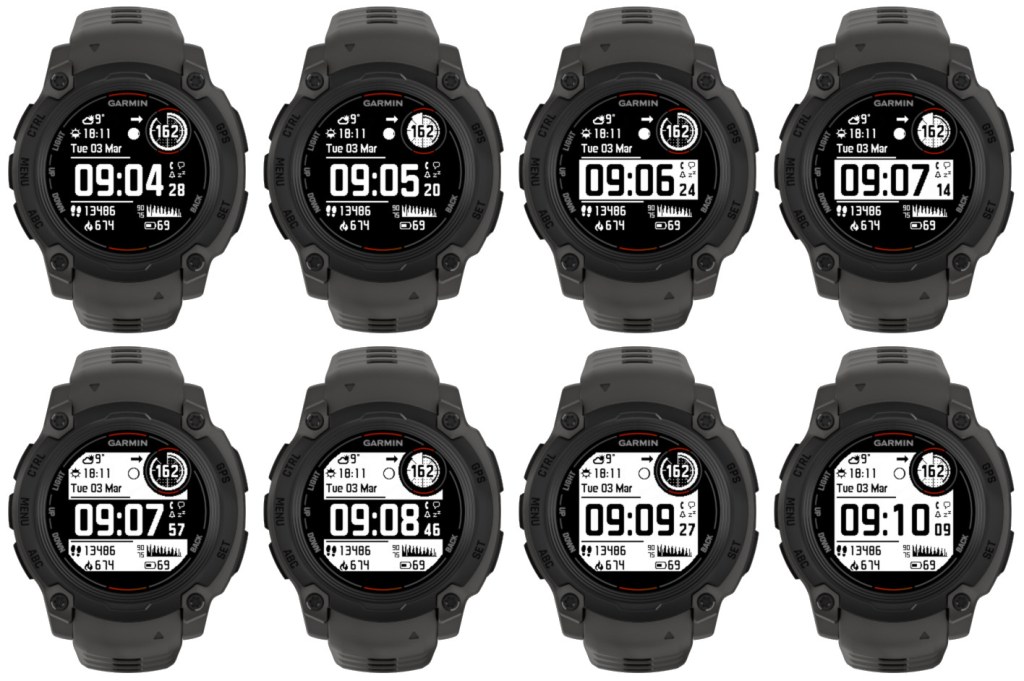
  • More background modes
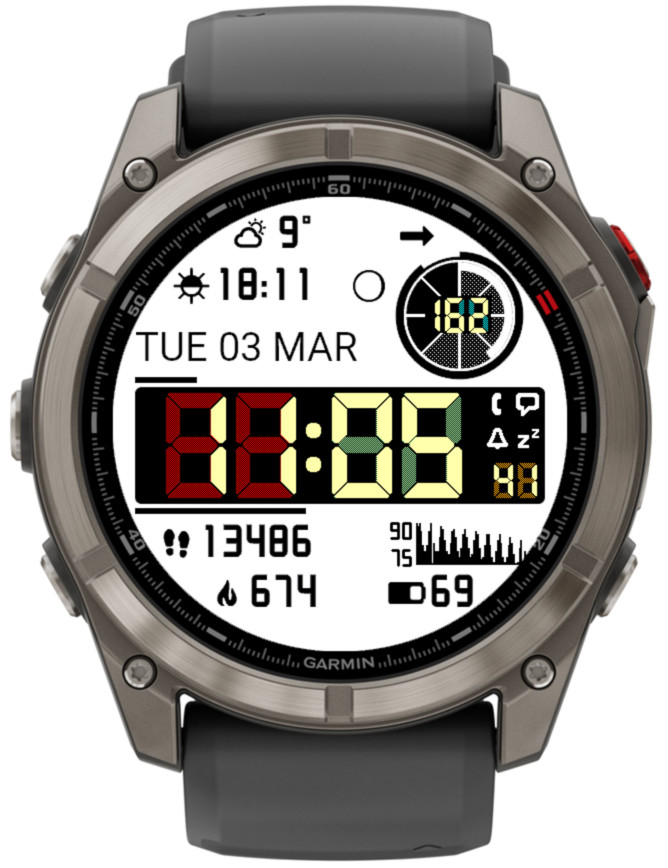
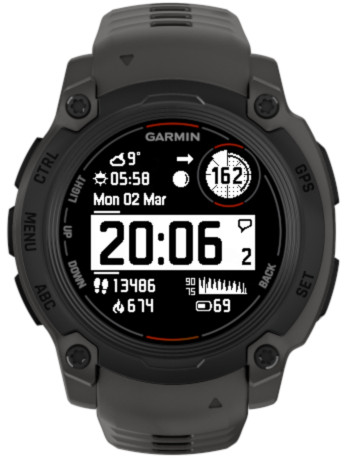
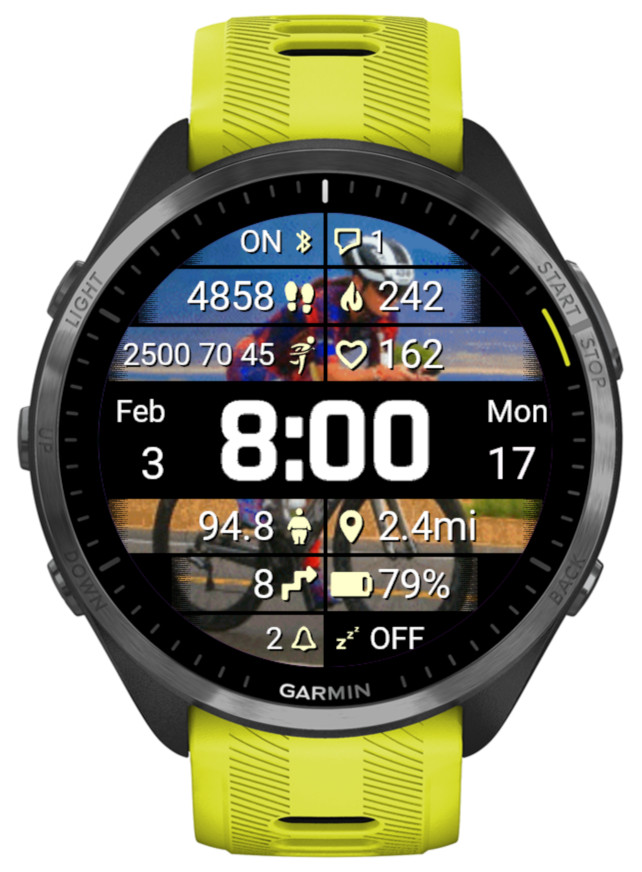
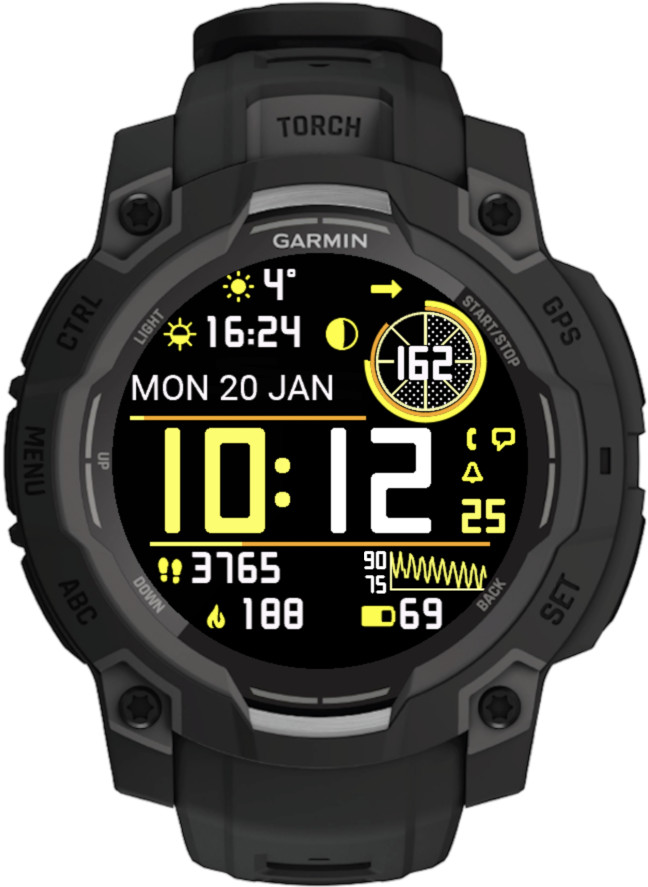
Eight Garmin smartwatches displaying time, date, heart rate, and other fitness metrics.

  • Additional time font – LCD italic

    Selected by choosing ‘Opt4’ time font.
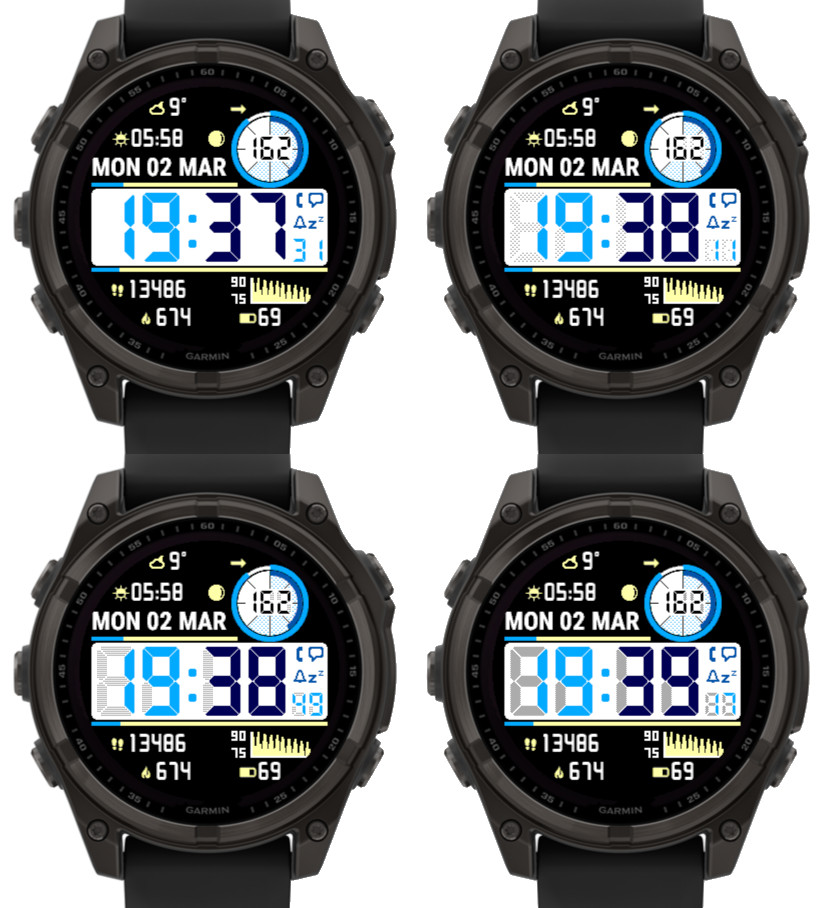
  • Adjustable LCD font ‘ghost effect’ to mimic vintage LCD screen look

    Not available on Instinct 2 family. On Instinct 3 it applies to minutes and hours, on other devices also to seconds and ‘Circle number 1’.

The effect level can be set to Off, Light, Medium, Heavy:

Four Garmin smartwatches displaying various time settings and data. Each watch shows different times: 19:37, 19:38, 19:38, and 19:39, along with date and weather information.


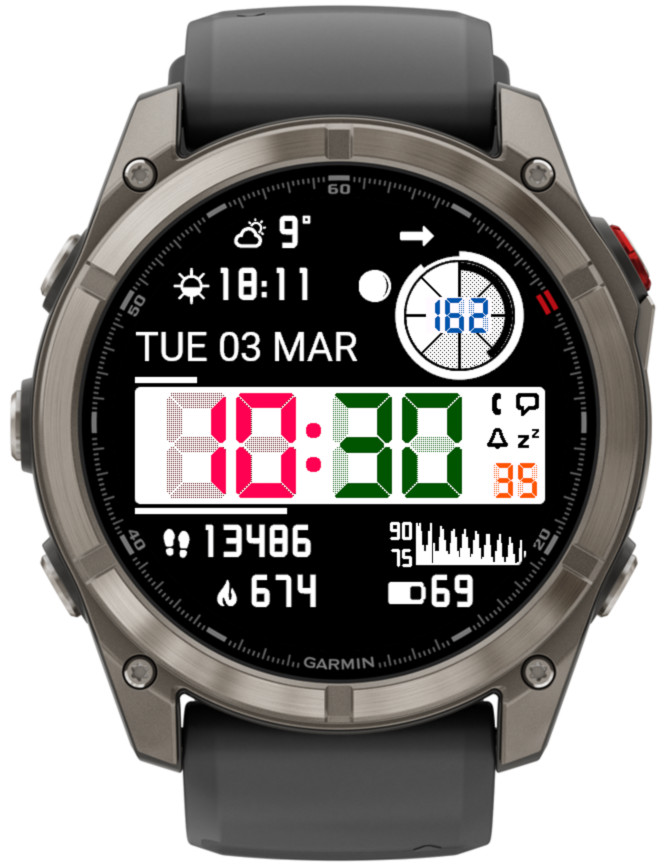
The color of the ghost effect is customizable and for this purpose 8 additional elements in the ‘Color setup’ setting field are recognized (2 for each new element for black and white background). So instead of the default gray, the same or a matching color can be selected for the shadow as for the corresponding element. Or you can try something different:

More information on color customization

  • Seconds, Data right 2 and Circle number 1 follow the time font

  • Weekly run and bike activity distance on Instinct 3 Solar
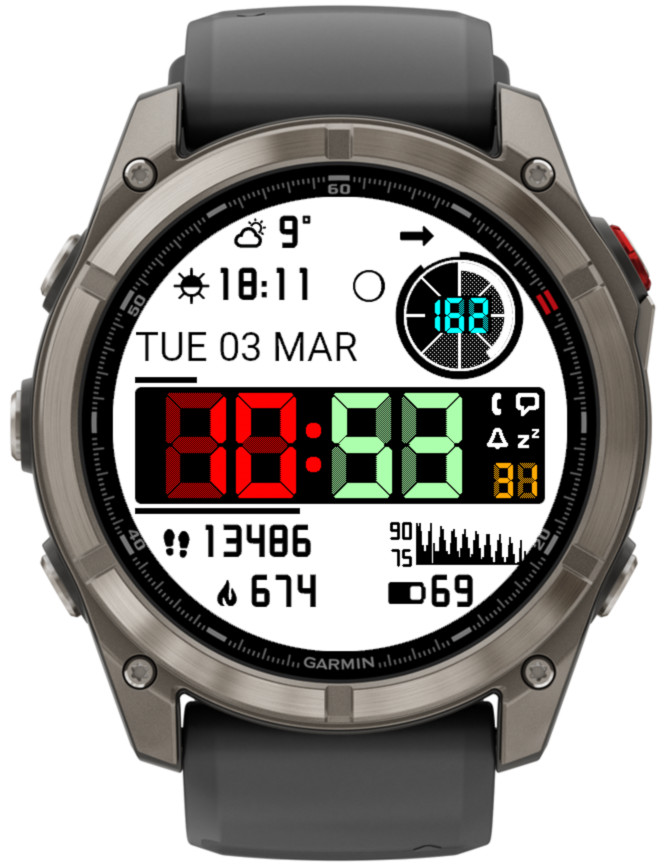
  • Data right 1 can display the icon for Data right 2

    In the example below, Data right 2 is set to ‘Notifications’.
Close-up of a Garmin smartwatch displaying time, date, heart rate, and various fitness metrics.

  • Time until sunrise/sunset

    Shows countdown (hours: minutes) until the next sunrise or sunset.

  • Two extra data fields in the bottom part of the screen

    This was already available on rectangular devices, now it has been added to round devices as well.

Instinct Pro version 3.4.0

What’s new

On Instinct 2, Instinct 2s, Descent G1
  • Bug fix: time disappearing in some scenarios
On Instinct 3 solar
  • Solar charging graph (1 hour)
  • Live solar charging % in the circle
On Instinct 3 solar, Instinct E
  • Option to display weather location whole or by one word
On other devices, where applicable
  • Live solar charging % in the circle
  • New data (weight, next calendar event, training status, training effect)
  • 3 levels of AOD brightness
  • Adjustable gauge lines thickness
  • Option to display weather location whole or by one word
  • Updated line colors in some white color themes

Gradient version 3.5.0

What’s new

IMPORTANT: This release freezes the development on the older generation of devices that do not have enough onboard memory to allow adding new features.

These include:

* fenix 5 family (all variants plus derivatives like quatix, D2 etc)
* fenix 6s variants
* Forerunners before 255/955
* Venu Sq
* vivoactive 3
* MARQ (1st gen)

There will only be maintenance updates to fix bugs or to adapt to external changes (e.g. OWM policies).

The new features listed below appear only on the devices capable of accommodating them:

Wider range of data font size

Previously there were only two sizes, controlled by the settings option ‘Big data font’ (On or Off).

Now, this option is renamed to ‘Data font size’, and it allows the choice of XS, S, M, L, XL.

This applies to fields 3 – 10, and to 1, 2, 11, 12 if the opposite field is Off.

Note that on some devices your font may increase in size after updating to this version. Don’t be alarmed, just select the size you want again.

Moon illumination

It can be selected as an alternative to moon age, with the same moon phase icon, or it can be displayed together with the moon age.

Weekly activity distance period

An option was added to show the weekly activity distance for the last 7 days instead of the current week.

Rails version 3.1.0

What’s new

More OWM weather data:
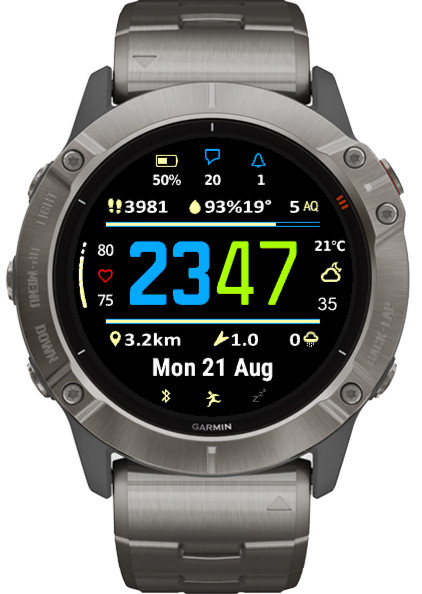
  • Air quality (1 = best, 5 = worst)
  • Humidity with dew point

These options require own OWM API key.

Climb

Daily meters or feet climbed.

Text data fields font size

The text data fields (Date, Weather location, Free text) font size can be set from 0 to 4 (these are the text sizes available in Garmin’s Connect IQ system).

Some devices do not have all 5 font sizes onboard. If you have one of these, font size increment/decrement might not always produce visible effect.

Instinct Pro version 2.6.0

What’s new

This release adds some more data points and ways of presenting them.

New data

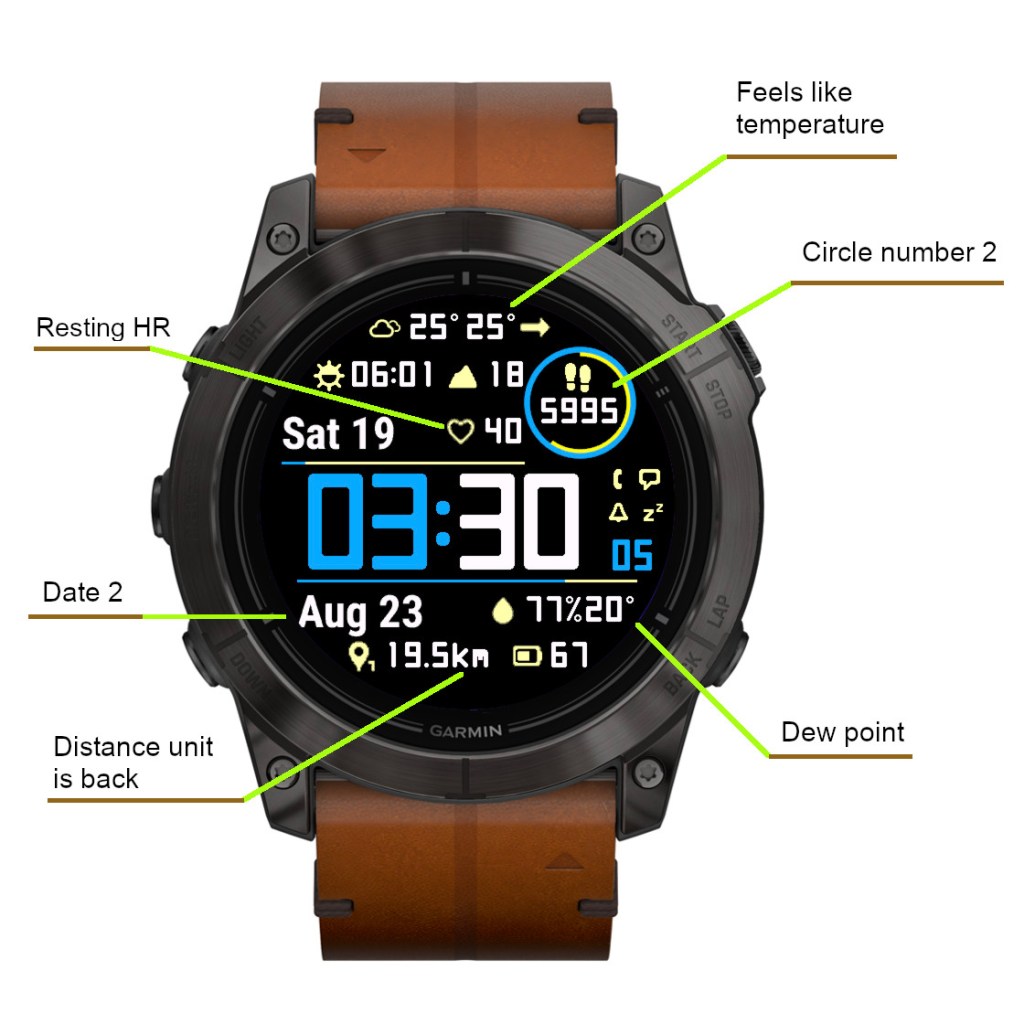
  • Resting HR
  • Climb (m or ft)
  • Option to show weather with feels like temperature in addition to current temperature
  • Option to show humidity with dew point (OWM only)
  • Second date field allowing different date format (separated by | symbol in date format field)

Alternate circle number format

The existing ‘Circle number’ option was renamed to ‘Circle number 1’ and another option called ‘Circle number 2’ was added.

‘Circle number 2’ generally allows the same choice of data as the main data fields (except date and weather location), and uses the same font and icon.

If ‘Circle number 1’ is set to ‘Off’ and ‘Circle number 2’ is set to something else, the ‘Circle number 2’ will be shown in the circle. Note that you can alternate the circle number format between different data sets.

Resting Heart Rate

On compatible devices (Connect IQ 3.2.0 or higher) it shows “The user’s seven day average resting heart rate (bpm)”. On older devices it shows “Heart rate in beats per minute (bpm)”, whatever that is (It could be entered manually or otherwise the watch has some obscure way of calculating it).

Second date field

An additional date option called ‘Date 2’ was added. The date format for ‘Date 2’ is defined after the format for ‘Date’ in the ‘Date format’ field. The two formats are separated by the “|” symbol.

So for example, in the picture shown above, the ‘Date format’ is “n D|N y”.

There are at least two ways it can be used:

1) A long date can be split in two to make it fit better on the screen
2) Alternate longer/shorter date can be used for different data sets to make it fit with the defined layout

Distance units

In an earlier update, the distance unit (km or mi) was removed to reduce the space occupied by the distance field. But this turned out to be unpopular with some users, so now there are options to choose the daily/weekly distance with or without the units.

Added existing data options in new places

  • Battery days option added for Data right or Data left (depending on the device)
  • Solar intensity option added for top and bottom lines

Gradient version 2.4.0

What’s new:

  • Added battery remaining days display:
    • It shows after battery % in data fields 5 – 8 (see picture)
    • It will only work on devices supporting System 5

NOTE: Apparently currently many devices with System 5 on it are not able to display this data. If you don’t see it showing on your watch even though you have System 5, please wait for a firmware update from Garmin.

PHP Code Snippets Powered By : XYZScripts.com