Rails version 5.0.0

What’s new

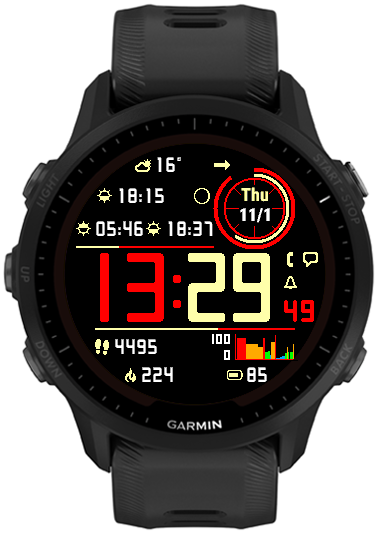
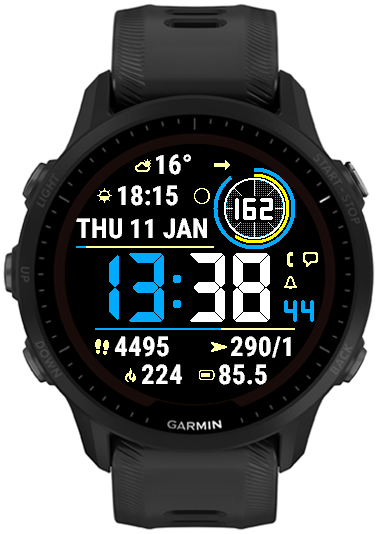
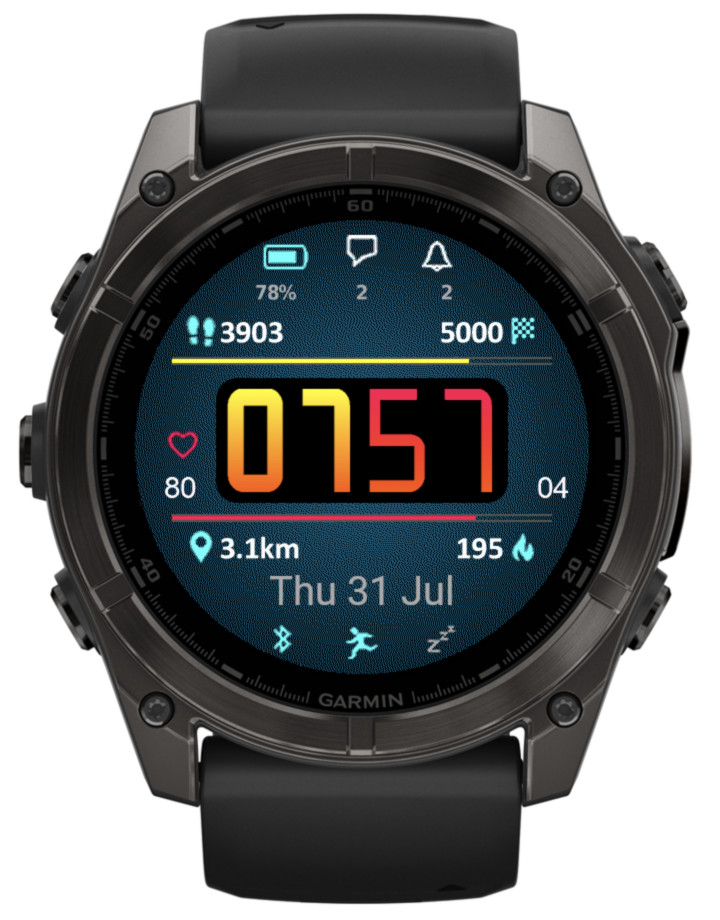
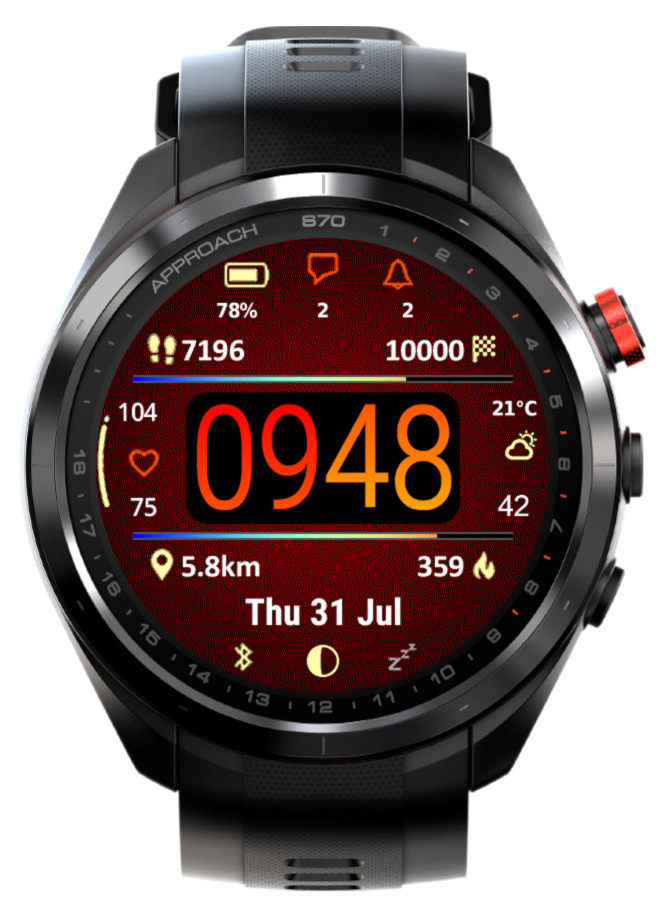
This update mostly focuses on adding great new options to customize and manage color themes:

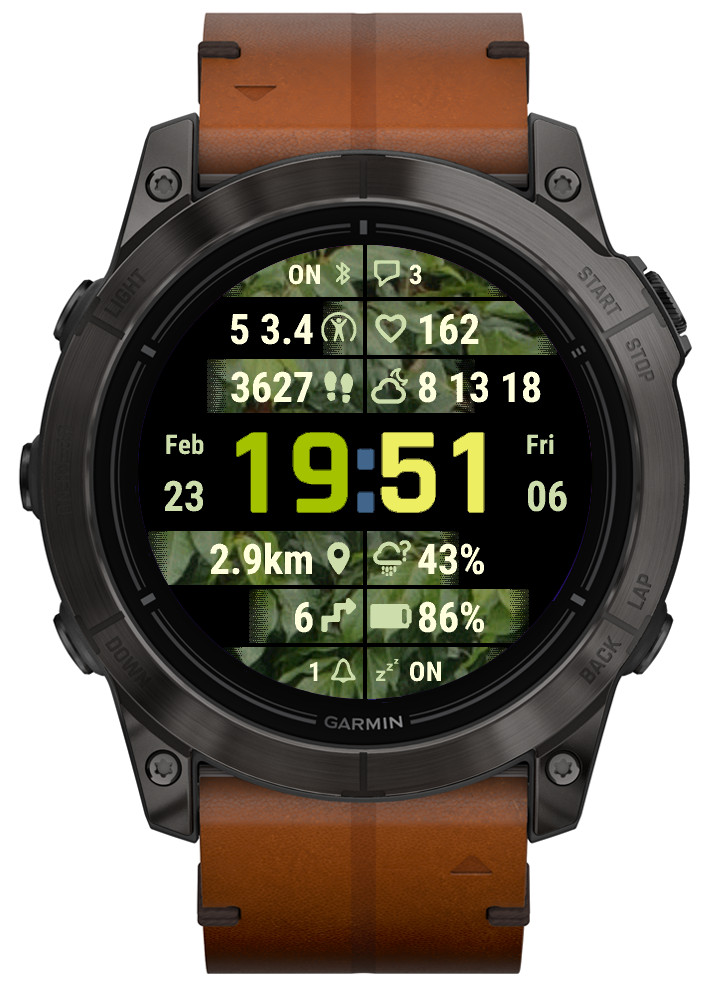
• Background texture

An additional display element, which can be set to ‘Off’ or to the color of your choice. Note that the enhanced visual appeal brought by the texture comes at a cost of increased battery drain and slightly reduced responsiveness. The impact may be more noticeable on devices with less memory such as fenix 6 or Enduro.

• Time background

Another new display element, you can set it to the color of your choice, or to the background color to hide it when the texture is ‘Off’.

• Custom colors can be entered in RGB 6-digit format allowing access to the full pallette

Now there are two ways in which any of the 4 custom colors can be defined: Either by entering the color number in the 64-color palette (from 0 = black to 63 = white), or by entering a 6-digit hexadecimal RGB color code (from 000000 = black to ffffff = white). The first method allows to access the colors typically supported by most MIP devices, while the latter allows choosing any color that is possible on a given device (65536 colors on AMOLED devices).

• Updated default color themes

If you update from an earlier version of Rails, your existing color themes will be preserved, with the exception of the texture and time background being added to them. To see what a new theme looks like, choose ‘Reset’ from the ‘Theme manipulation’ drop down list and save the settings. If you want to preserve your old theme, now you can do so by using the ‘Export’ option in the list.

• Option to export/import themes

The ‘Reset theme’ option has been removed and instead a new ‘Theme manipulation’ drop down list has been added in the settings, with these options:

Off – inactive

Reset – select and save the settings to bring back the factory defaults for the current theme

Import – select and save the settings to import the theme copied into the ‘Export/import color theme’ field

Export – select and save the settings to export the current theme. When you open the settings again, the theme can be copied from the ‘Export/import color theme’ field. Note that you MUST enter the settings twice to do this, this is a limitation of how Garmin’s settings system works

• In power save modes rails are drawn including their data

Previously only the rails outline was drawn, now it is shown together with the data as in full power mode.

• Weekly steps count

In addition to counting your steps daily, now you have an option to show the count for the whole week. The first day of the week is defined in the user profile in Garmin Connect.

• New device (Venu X1)

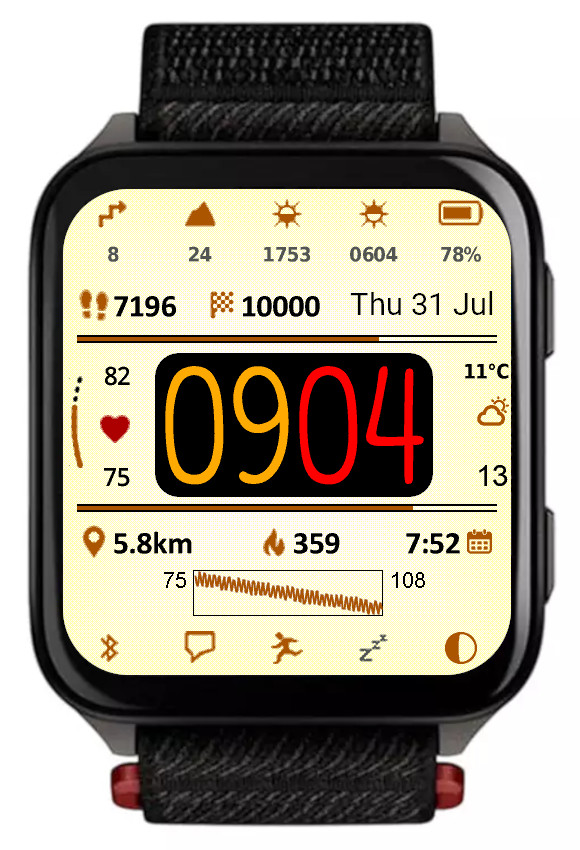
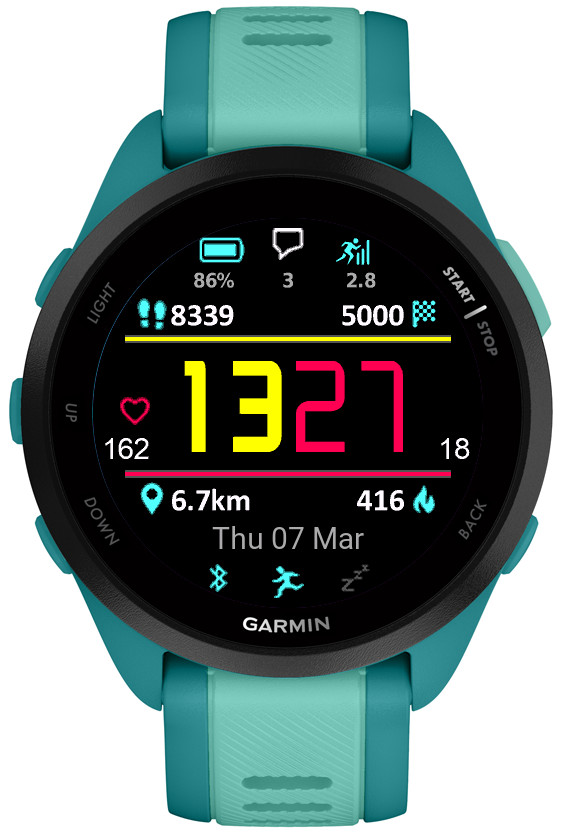
Rails takes full advantage of its rectangular screen shape by adding 4 more data fields, in the top and bottom icon rows.
Rails version 4.0.0

What’s new

A number of older devices with less memory available cannot accommodate any more additions to this app. These include fenix 6s, anything from the fenix 5/Plus generation, all Forerunners before the 255, etc. This version freezes the development on these devices and in the future only maintenance changes are expected.

New on all devices

  • New Time font Opt 1
  • New Theme T1

New on devices with enough memory

  • Weekly walking activity distance

    This is an addition to the already present run, bike and swim activities, and works the same way. The week counts from the first day of the week as defined in Garmin Connect.
  • Training effect

    It can be selected for Top/Bottom icons or central data fields, or for the Top/Bottom rails. On the rails it covers the range from 0 to 5.

  • Wheelchair pushes support (pushes, goal, distance)

    Pushes counter and pushes goal work the same way as steps counter and goal when the watch is in wheelchair mode. In addition, the daily or weekly distance reports the distances covered.

    According to Garmin, currently this can only work on Venu 3/3s and Vivoactive 5.
  • Sensor graphs

    Graphs displaying data from the watch sensors can be shown in the Bottom field.

    6 data choices are available:
    -barometric pressure (6 hours)
    -elevation (6 hours)
    -temperature (6 hours)
    -body battery (12 hours)
    -stress (4 hours)
    -heart rate (4 hours)

  • More data options for Top and Bottom icons

    Steps and pushes with their respective goals were added.

    Also, the middle Top icon field (2nd on most devices or 3rd on Venu Sq2) now allows displaying the free text.

  • c and C in date format display day and month name in caps

    So for example date format “c D C” will show “THU 07 MAR”.

Gradient version 3.4.0

What’s new

NOTE: This post also covers the new features added in the version 3.3.0.

• Training effect

There is no separate new option for Training Effect, but it is appended to Recovery Time in the data fields 3 – 10, or in the data fields 1, 2, 11, 12 if they are set to occupy the whole width of the screen by switching the opposite field to ‘Off’.

• Launching widgets by screen touch enabled by default

If you prefer them not to be launched, set ‘Widget launch’ to ‘Off’.

• New color mode

The previous ‘Highlight’ mode was renamed to ‘Gradient’. The new ‘Highlight’ mode works pretty much the same as the old one, but it has a sharp edge.

• Options to configure AOD icon and text color

In AOD mode each color theme sets the icon and text color automatically for the active color theme. But if you prefer different colors, now you can define them here.

• New color themes on compatible devices

4 new Color options: Img1 – Img4.

They only make a difference in ‘Highlight’ or ‘Gradient’ color modes.

Instead of color combinations used in other themes, they use wallpaper images (currently Leaves, Flowers, Wood, Sky) for the data level/progress highlight.

Instinct Pro version 3.0.0

What’s new

This release marks the separation of development for Instinct and other devices. No new features are expected on Instinct 2 / Crossover family because unfortunately these watches have very little memory for watch face use, and with the current set of features it is already full.

The development will continue on other devices, taking advantage of the capabilities that the existing Instincts don’t have.

On most devices:

• Separate options for battery % with and without decimal point

This option is only available on some devices, and it will have effect only if the device is capable of displaying the battery level with 0.1% accuracy (e.g. fenix 6, Instinct). If the decimal point always remains .0 that means your device can only provide the battery level with 1% accuracy.

• Option to show the lines permanently at 100% as a separator

When you use ‘On’ option for the top or the bottom line, it will appear as 100% (full length).

On non-Instinct devices only:

• Multiple data font style/size options

For greater flexibility, several data font options are provided:

Custom S
Custom L
System XS
System S
System M
System L
System XL

‘Custom’ fonts are Instinct Pro’s own fonts that look the same on every device.

‘System’ fonts come from the watch and may look very different (both in shape and size) on different device families.

• Launching widgets by touch (if supported by the device)

This works with the Data 1 – 10, Circle number 1 or 2, and Data right 1 and 2.

It will only have effect if a widget corresponding to the displayed data can be found.

• Weekly activity distance (run, bike, swim, walk)

Displays the distance covered with the respective activity since the beginning of the current week. The first day of the week is defined in Garmin Connect settings. Note that as at the time of writing, Garmin does not synchronize the activities recorded on different devices. So for example, if you use either your watch or your bike computer to record cycling activities, those recorded with the bike computer will not be counted.

• Wheelchair pushes (if supported by the device)

Daily pushes and pushes goal can be selected as an option on some devices. Also, if the device is in wheelchair mode, the daily and weekly distance will show the pushes distance.

• Solar charging graph (60 minutes)

Shows the solar charging level on scale from 0 to 100, sampled once every full minute.

Of course it only works on devices with solar charging capability.

• Support for Tempe sensor (requires an activity in the background)

If you have a Tempe sensor paired to your watch and you start an activity, this will show the temperature reading from the sensor. The reading is updated once every 5 minutes – this is the maximum frequency allowed for a watch face.

On some devices it will show the readings from the internal watch sensor when Tempe is not connected, but still only updated at 5 minute intervals.

• Aviation style wind option

This option will show BBB/KK, where BBB is the 3-digit bearing rounded to 10 degrees and KK is the wind speed in knots.

• Day and month name can be displayed in ALL CAPS

Additional date format characters are recognized: ‘c’ will show the day name in all caps, e.g. MONDAY, and ‘C’ will do the same for the month, e.g. MAY.

Rails version 3.2.0

What’s new

• Heat map style gauges

This feature is controlled by a new setting option ‘Rails mode’. When set to ‘Color’ the rail gauges follow the current color theme. When set to ‘Heat map’, the rail gauges start from blue on the left and progress towards red on the right.

The exact appearance of this feature depends on the number of different colors supported by the device. Generally it is expected to look better on devices with more colors.

• Optional offset for the internal temperature sensor

This in theory could allow to compensate for external factors affecting the internal watch sensor temperature readings.

• Date2

The additional date field that can be used in several ways:

– Two different date formats can be switched easily, without the need to enter the format again

– A long date can be split in two and displayed in different places on the screen (e.g. above and below the time)

– The additional date format can be used to define arbitrary text, with the help of the ‘=’ escape character

The format for Date2 is separated by the ‘|’ symbol from the base Date in the format entry field.

Time Flies version 5.0.0

What’s new

This update brings some significant changes:

• Features aligned on MIP and AMOLED devices

As much as possible, the available options and their behavior are now consistent between all devices regardless of the display technology. Most importantly this brings the gesture related functions such as alternate DBox or dynamic hand style to AMOLED devices (NOTE: it is only applicable if you use the Always On Display).

• 6 configurable layouts defining all visible screen components

It is now possible to quickly change the layout and color theme of your watch face for different occasions. On compatible devices, you can do this very easily without reaching for your phone, by using the watch face ‘Customize’ option on your watch.

The predefined configurations also help you figure out how the available face design options (hands, marks, background, data, etc.) work. All configuration changes are kept but can be reset back to the default if needed.

• 2 more themes

This allows more options to define and switch different color and background themes.

• Data fields Opt1 – Opt4 can be configured as circles

This, together with the changeable DBox position, opens many new ways for creating your favorite watch face style. In addition, in the circle mode you also get a circular data level indicator around the perimeter.

• Alternate time or UTC hand option

If enabled, this extra hand uses ‘Outline’ style if the main hands are ‘Solid’, or ‘Outline’ with a different color when the main hands are shown as ‘Outline’ too. Operates in 12 or 24 hours mode.

• Launching widgets by touch (if supported by the watch)

This works with the Opt 1 – Opt 4 data and the DBox.

If a related widget can be found, it will be launched after a long press. Note that the activation of this feature may depend on your watch system settings and power state.

• DBox can be shown on the right side

Note that it will become visible only when Opt 3 data is set to ‘Off’.

• Date in DBox always in English

DBox uses a custom LCD font which is not suitable for many non-English languages. To avoid unpredictable date appearance in DBox, now the date is always shown in English there, regardless of the system language setting.

• Body battery, stress and temperature graphs

Graph x-axis:

Body battery – 12 hours
Stress – 4 hours
Temperature – 6 hours

• Extended hand width range

This is to help our friends who like to see the hands really FAT!

Updating from an earlier version

Because this update is a big departure from the version 4.x.x, some of the previously defined settings will be lost after the update – hands, marks, gauges, data.

However the unlock key will be kept, unless some unexpected Connect IQ error occurs.

On older devices like fenix 5 or forerunner 245, this update removes the ‘always on’ second hand and makes premium some features that were free before. For those who would rather have it as it was, there is a new app on the store called ‘Time Flies Legacy’. It is an exact copy of Time Flies 4.12.1, completely free. But it will not be updated except for major bug fixes, if any are found. It is available for download here: https://apps.garmin.com/en-US/apps/eddbbfc5-c98c-49dd-b07d-5da8f3605f5b

Gradient version 3.1.0

What’s new

  • Added stress and altitude graphs

The duration of the stress graph is 4 hours (updated every 3 minutes) and altitude graph 6 hours (updated every 2 minutes).

  • The icon and text in combined fields now centered

  • Two font sizes for Data 3 – 10

This is controlled by a new setting ‘Big data font’ (by default ‘On’).

On most devices a smaller font option has been added which can be activated by setting ‘Big data font’ to ‘Off’. This allows longer data to fit better on the screen.

However, on some devices which come with enormously large system fonts (Venu family, Forerunner 265 and 965), the smallest available font was used already, so the only possible option was to add a larger font. The effect of this is that after update your fonts will appear bigger, which may be useful for those who want better readability. Otherwise, to revert to the previous size, set ‘Big data font’ to ‘Off’.

  • Added climb (meters or feet) data option

  • Fix for status icons (phone connected, do not disturb, notifications, alarms) not updating immediately on some devices

Instinct Pro version 2.4.0

What’s new

Dataset switching by gesture

You can choose how many datasets you want to switch by gesture (from 0 to 4).

Switching datasets requires double gesture, to minimize unintended switches when you move your hand for other reasons than looking at your watch.

When you raise your wrist the first time, an indicator bar appears between Data 3 and Data 5. It shows which data set is currently active – the number of bar segments (1 to 4) reflects the currently active set.

While you see the bar, move your wrist again to cycle to the next data set. This movement must be completed within the ‘Gesture timeout’ defined in the settings, or before the bar disappears. If you find it difficult to get the dataset to switch, try making the timeout longer.

Waking up to full display by gesture in power save mode

If you set ‘Full on gesture’ to ‘On’, wrist movement while in power save mode will activate the regular full screen display for about 10 seconds.

Two configurable data line gauges

They are located above (Top line) and below (Bottom line) the time and present the same collection of data as the circle arcs or highlight.

3 new entries have been added for line gauges at the end of the ‘Color setup’. First for line background color (applicable to top/bottom), second for top line foreground, last for bottom line foreground (foreground color reflects the selected data current level/progress). Remember that each entry has two colors for black and white screen background (this applies to AMOLED devices too even though white screen background is not supported).

If you don’t want to see these new data lines, on monochrome devices just set them to ‘Off’. On color devices, the background color will still be visible, so to hide it completely, you will need to edit the ‘Color setup’ to change the line background colors to black and white (white does not apply to AMOLED devices).

For example, with yellow accent:

Before: 61,56,63,0,60,56,56,52,63,56,62,0,60,0,63,0,61,0,61,52,56,56,61,0,61, 0

After: 61,56,63,0,60,56,56,52,63,56,62,0,60,0,63,0,61,0,61,52,0,63,61,0,61,0

Live HR in the circle

This is the new default setting for the circle number. If you have ‘Live HR’ selected for more than one data field, only one of these fields will be updated live, the rest will update according to your ‘Data update’ setting.

Removed the gap between hours and minutes in 24h time format

Rails version 3.0.0

What’s new

New time font option

Select ‘Opt4’ from the ‘Time font’ list.

Date field now configurable to allow showing bottom icons text instead

This allows much more information to be shown in the bottom icons. Since the Date is no longer displayed in the bottom field, it can be selected for Opt1 – Opt6 data fields. The choice of data points for the top and bottom icons is now the same.

Launching widgets by screen press

This is only possible on devices with touch screen which run ‘System 6’. According to Garmin, it will not become available on Venu, D2 Air and Venu Sq / Music.

In Rails, these elements are sensitive to touch:

  • Top icons
  • Bottom icons
  • Left data icon
  • Right data icon
  • Opt1 – Opt6 data icons
  • Bottom field (if set to date)

A long press on any of the above launches an associated app (if available).

New data options

• Next calendar event time data option

This is only available on System 6 devices, and will not work unless your watch firmware is updated to System 6.

• Battery days icon option

Only available on compatible devices (notably, not on Forerunners).

New power save mode showing big hollow time

Option to activate full screen on gesture when in power save mode

Allows to display full screen information for about 10 seconds on gesture.

Night & Day version 2.11.0

What’s new

  • Weekly activity distance (run, cycle, swim)

    It is only available on compatible devices (generally those running CIQ 3.3.0 or higher).

    Shows the distance recorded in run, cycle and swim activities since the beginning of the week.

    The beginning of the week (Saturday, Sunday or Monday) is defined in Garmin Connect User Settings.

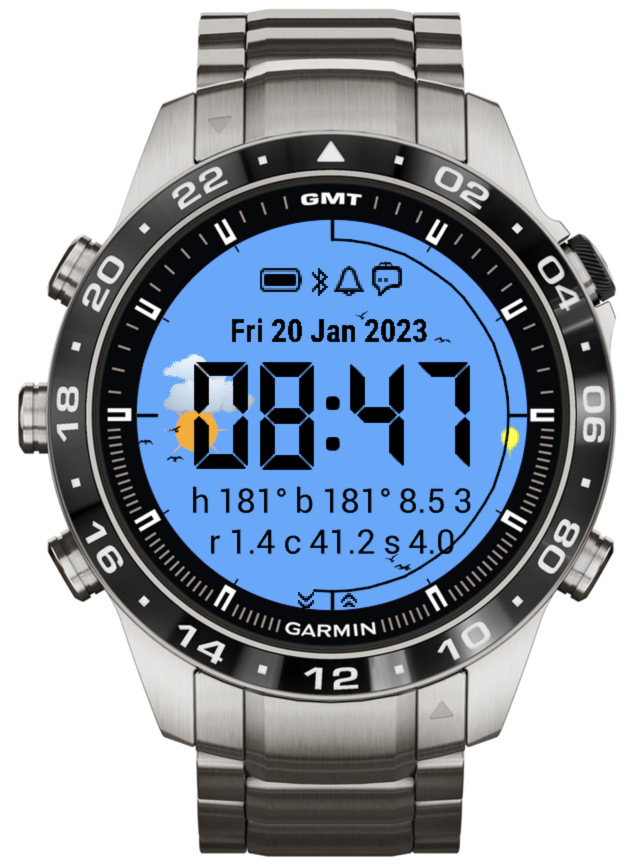
  • Compass showing heading, bearing and speed

    It displays meaningful data only when there is an activity running in the background.

    While recoding an activity you can switch to the watch face by a hotkey or a screen swipe.

    The compass field contains 4 numbers:

    1) Heading – This is the direction the watch is facing
    2) Bearing – This is the direction in which the watch is moving. If stationary, it will show the same value as heading
    3) Speed in m/s
    4) GPS signal quality (0 = GPS is not available, 1 = last known GPS fix, 2 = poor, 3 = usable, 4 = good)

  • Escape character in date format

    Entering ‘=’ in the date format will cause the next character to be taken literally (not substituted with a date component).

  • Bug fix for the seconds sometimes displayed incorrectly
PHP Code Snippets Powered By : XYZScripts.com