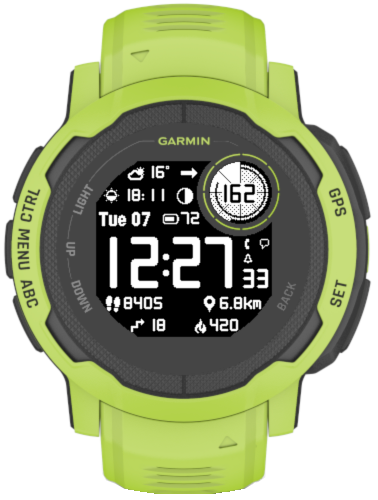
Instinct Pro version 4.1.0


Note

  1. Thist post covers features added in releases 4.0.0 and 4.1.0
  2. The availability of the newly added features depends on the device
  3. If you get IQ! after updating, just select this watch face again from the list

What’s new

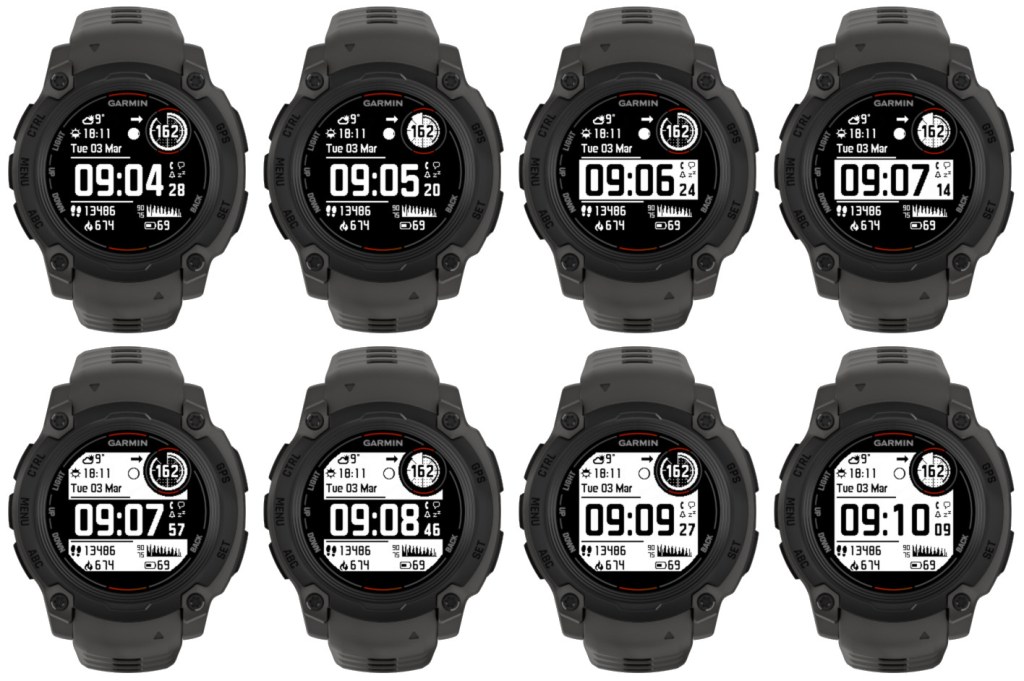
  • More background modes
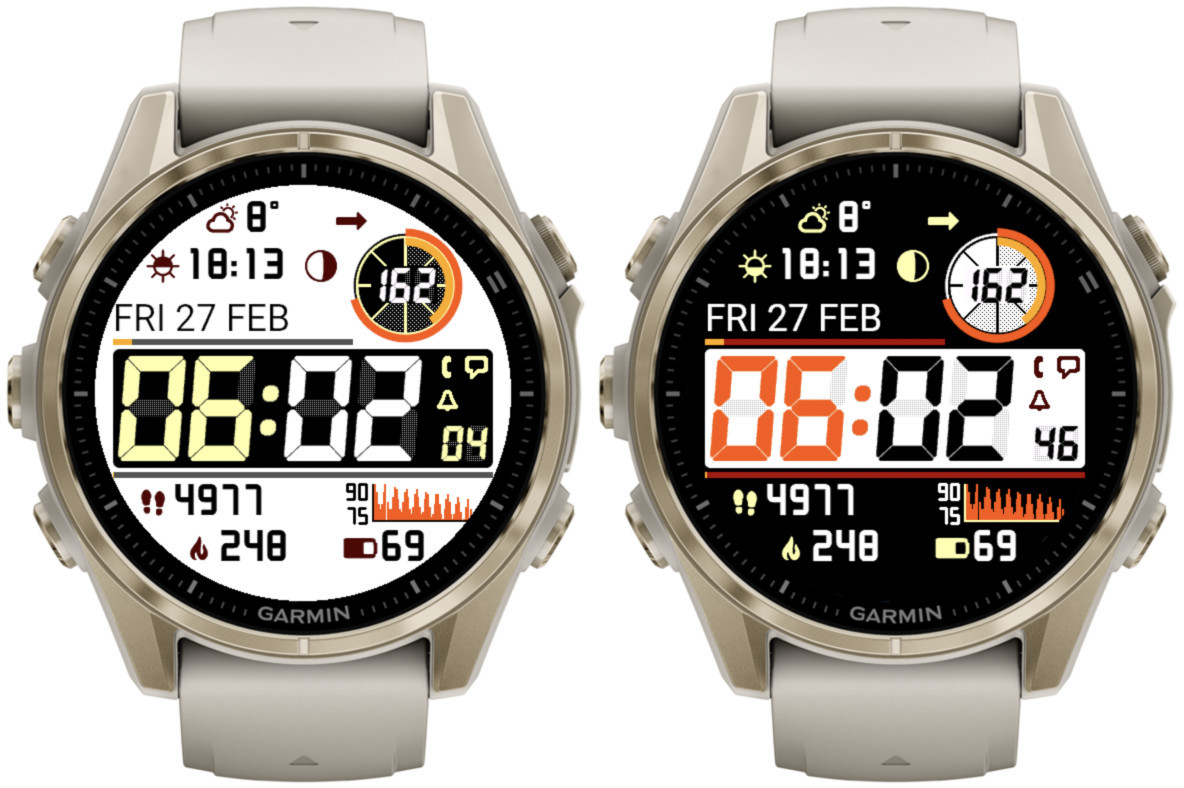
Eight Garmin smartwatches displaying time, date, heart rate, and other fitness metrics.

  • Additional time font – LCD italic

    Selected by choosing ‘Opt4’ time font.
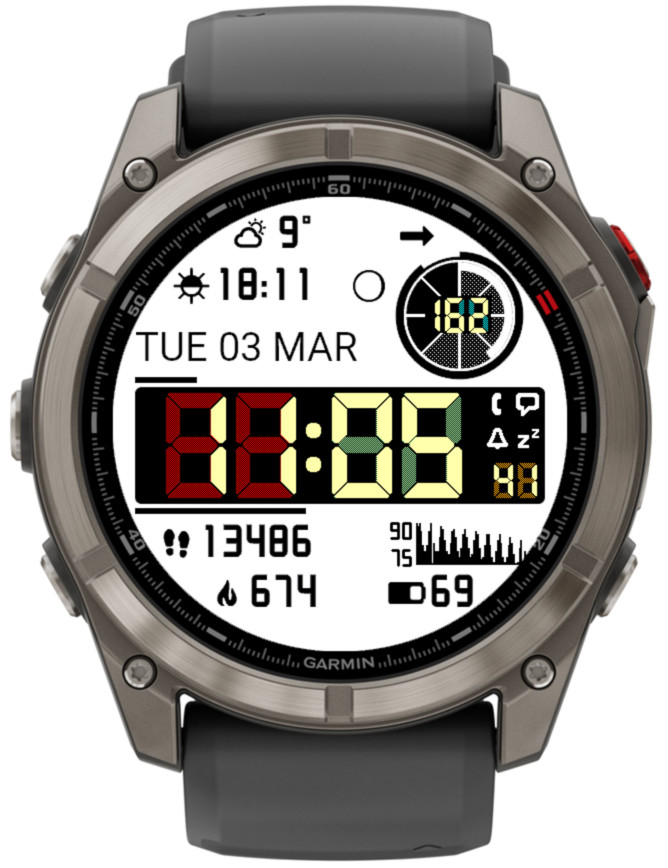
  • Adjustable LCD font ‘ghost effect’ to mimic vintage LCD screen look

    Not available on Instinct 2 family. On Instinct 3 it applies to minutes and hours, on other devices also to seconds and ‘Circle number 1’.

The effect level can be set to Off, Light, Medium, Heavy:
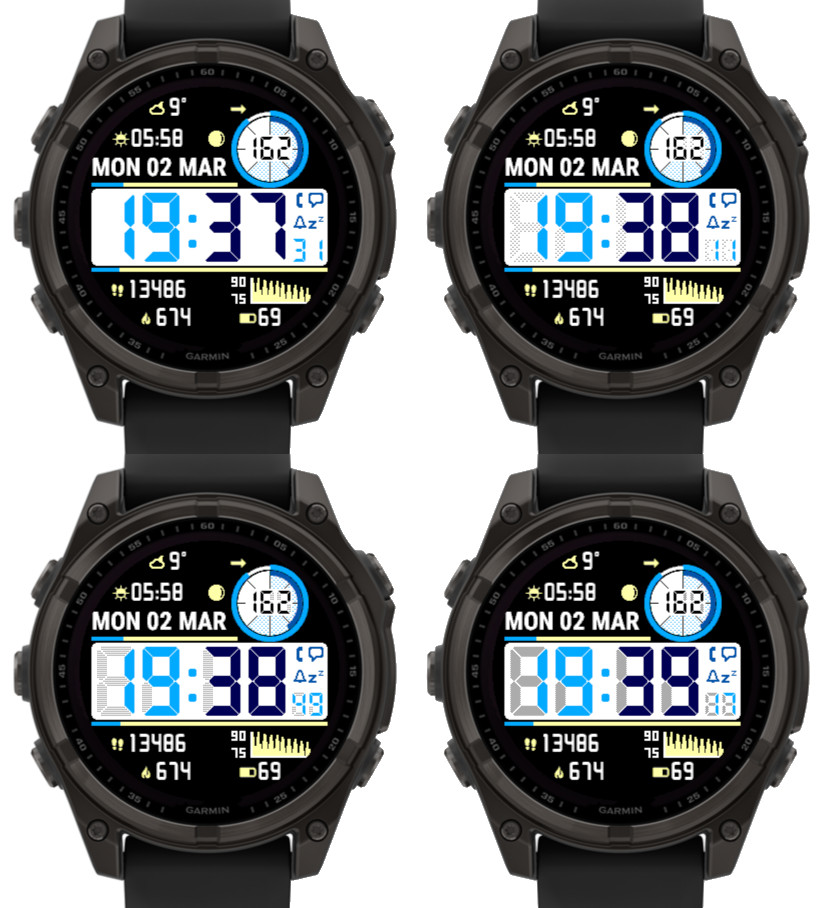
Four Garmin smartwatches displaying various time settings and data. Each watch shows different times: 19:37, 19:38, 19:38, and 19:39, along with date and weather information.


The color of the ghost effect is customizable and for this purpose 8 additional elements in the ‘Color setup’ setting field are recognized (2 for each new element for black and white background). So instead of the default gray, the same or a matching color can be selected for the shadow as for the corresponding element. Or you can try something different:
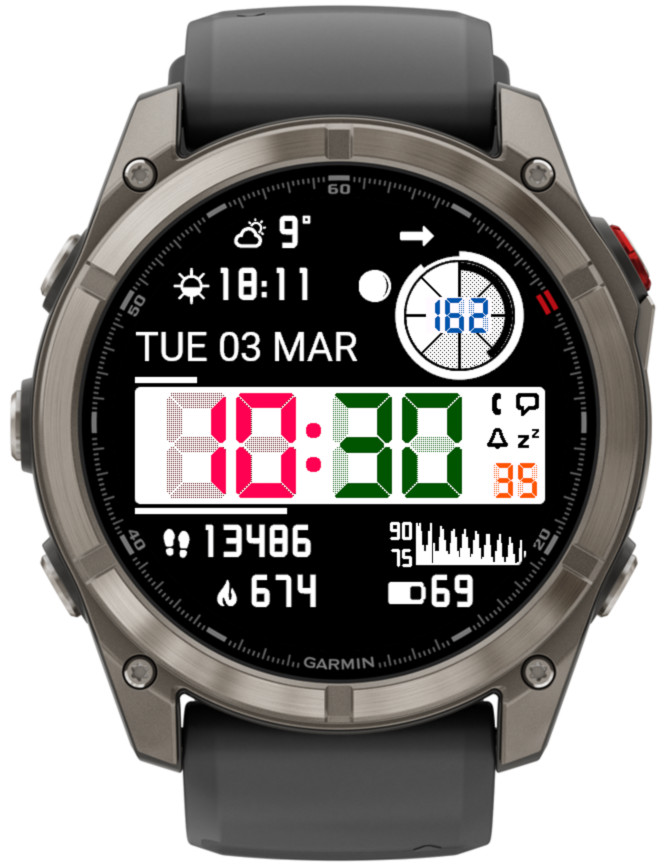
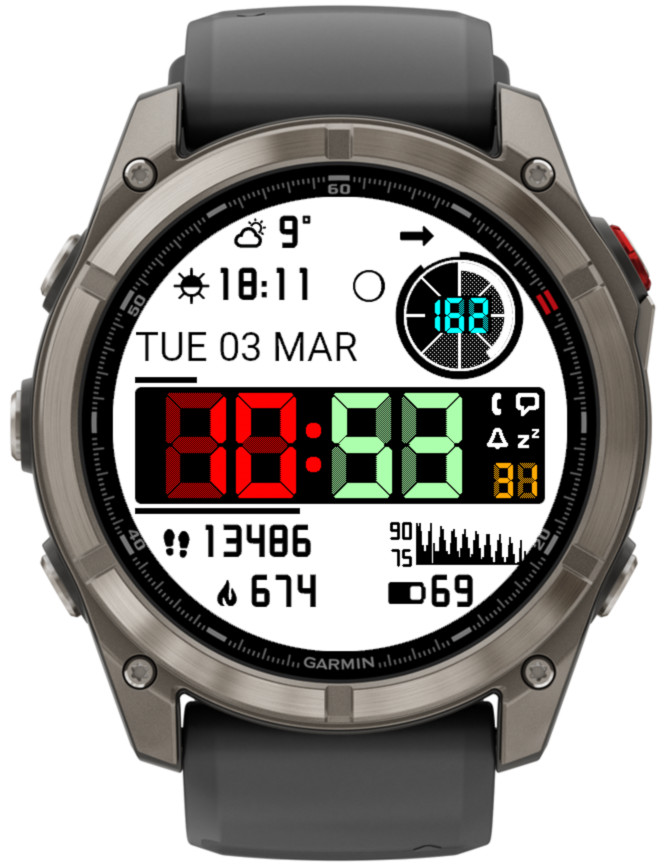
More information on color customization

  • Seconds, Data right 2 and Circle number 1 follow the time font

  • Weekly run and bike activity distance on Instinct 3 Solar
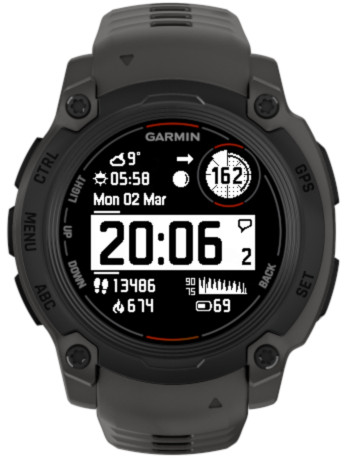
  • Data right 1 can display the icon for Data right 2

    In the example below, Data right 2 is set to ‘Notifications’.
Close-up of a Garmin smartwatch displaying time, date, heart rate, and various fitness metrics.

  • Time until sunrise/sunset

    Shows countdown (hours: minutes) until the next sunrise or sunset.

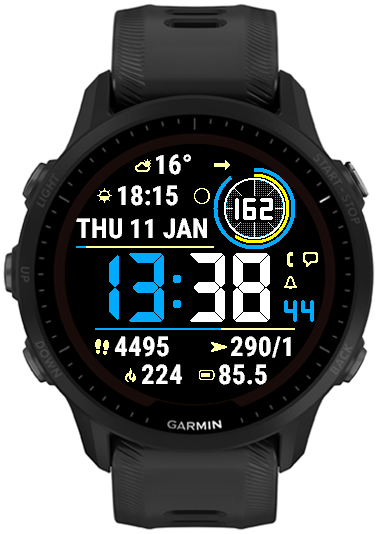
  • Two extra data fields in the bottom part of the screen

    This was already available on rectangular devices, now it has been added to round devices as well.
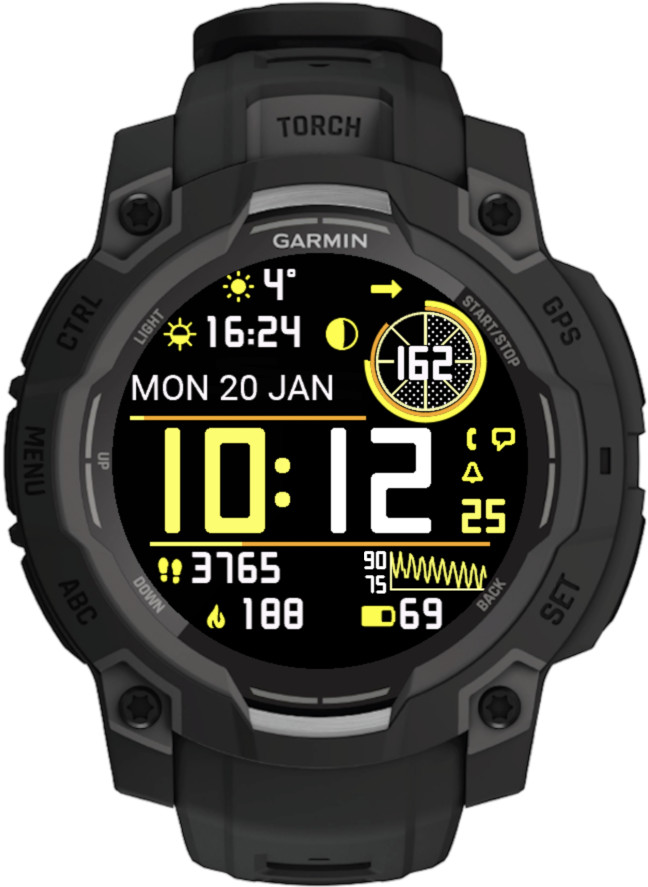
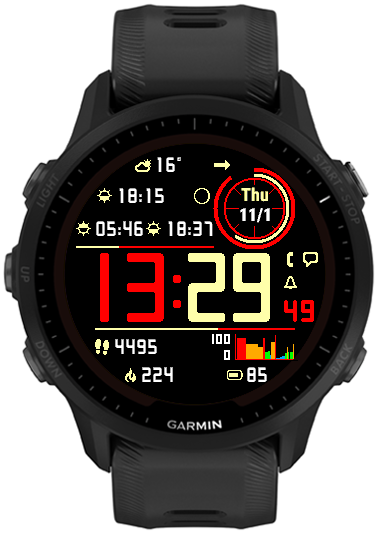
Instinct Pro version 3.4.0

What’s new

On Instinct 2, Instinct 2s, Descent G1
  • Bug fix: time disappearing in some scenarios
On Instinct 3 solar
  • Solar charging graph (1 hour)
  • Live solar charging % in the circle
On Instinct 3 solar, Instinct E
  • Option to display weather location whole or by one word
On other devices, where applicable
  • Live solar charging % in the circle
  • New data (weight, next calendar event, training status, training effect)
  • 3 levels of AOD brightness
  • Adjustable gauge lines thickness
  • Option to display weather location whole or by one word
  • Updated line colors in some white color themes

Instinct Pro version 3.0.0

What’s new

This release marks the separation of development for Instinct and other devices. No new features are expected on Instinct 2 / Crossover family because unfortunately these watches have very little memory for watch face use, and with the current set of features it is already full.

The development will continue on other devices, taking advantage of the capabilities that the existing Instincts don’t have.

On most devices:

• Separate options for battery % with and without decimal point

This option is only available on some devices, and it will have effect only if the device is capable of displaying the battery level with 0.1% accuracy (e.g. fenix 6, Instinct). If the decimal point always remains .0 that means your device can only provide the battery level with 1% accuracy.

• Option to show the lines permanently at 100% as a separator

When you use ‘On’ option for the top or the bottom line, it will appear as 100% (full length).

On non-Instinct devices only:

• Multiple data font style/size options

For greater flexibility, several data font options are provided:

Custom S
Custom L
System XS
System S
System M
System L
System XL

‘Custom’ fonts are Instinct Pro’s own fonts that look the same on every device.

‘System’ fonts come from the watch and may look very different (both in shape and size) on different device families.

• Launching widgets by touch (if supported by the device)

This works with the Data 1 – 10, Circle number 1 or 2, and Data right 1 and 2.

It will only have effect if a widget corresponding to the displayed data can be found.

• Weekly activity distance (run, bike, swim, walk)

Displays the distance covered with the respective activity since the beginning of the current week. The first day of the week is defined in Garmin Connect settings. Note that as at the time of writing, Garmin does not synchronize the activities recorded on different devices. So for example, if you use either your watch or your bike computer to record cycling activities, those recorded with the bike computer will not be counted.

• Wheelchair pushes (if supported by the device)

Daily pushes and pushes goal can be selected as an option on some devices. Also, if the device is in wheelchair mode, the daily and weekly distance will show the pushes distance.

• Solar charging graph (60 minutes)

Shows the solar charging level on scale from 0 to 100, sampled once every full minute.

Of course it only works on devices with solar charging capability.

• Support for Tempe sensor (requires an activity in the background)

If you have a Tempe sensor paired to your watch and you start an activity, this will show the temperature reading from the sensor. The reading is updated once every 5 minutes – this is the maximum frequency allowed for a watch face.

On some devices it will show the readings from the internal watch sensor when Tempe is not connected, but still only updated at 5 minute intervals.

• Aviation style wind option

This option will show BBB/KK, where BBB is the 3-digit bearing rounded to 10 degrees and KK is the wind speed in knots.

• Day and month name can be displayed in ALL CAPS

Additional date format characters are recognized: ‘c’ will show the day name in all caps, e.g. MONDAY, and ‘C’ will do the same for the month, e.g. MAY.

Instinct Pro version 2.6.0

What’s new

This release adds some more data points and ways of presenting them.

New data

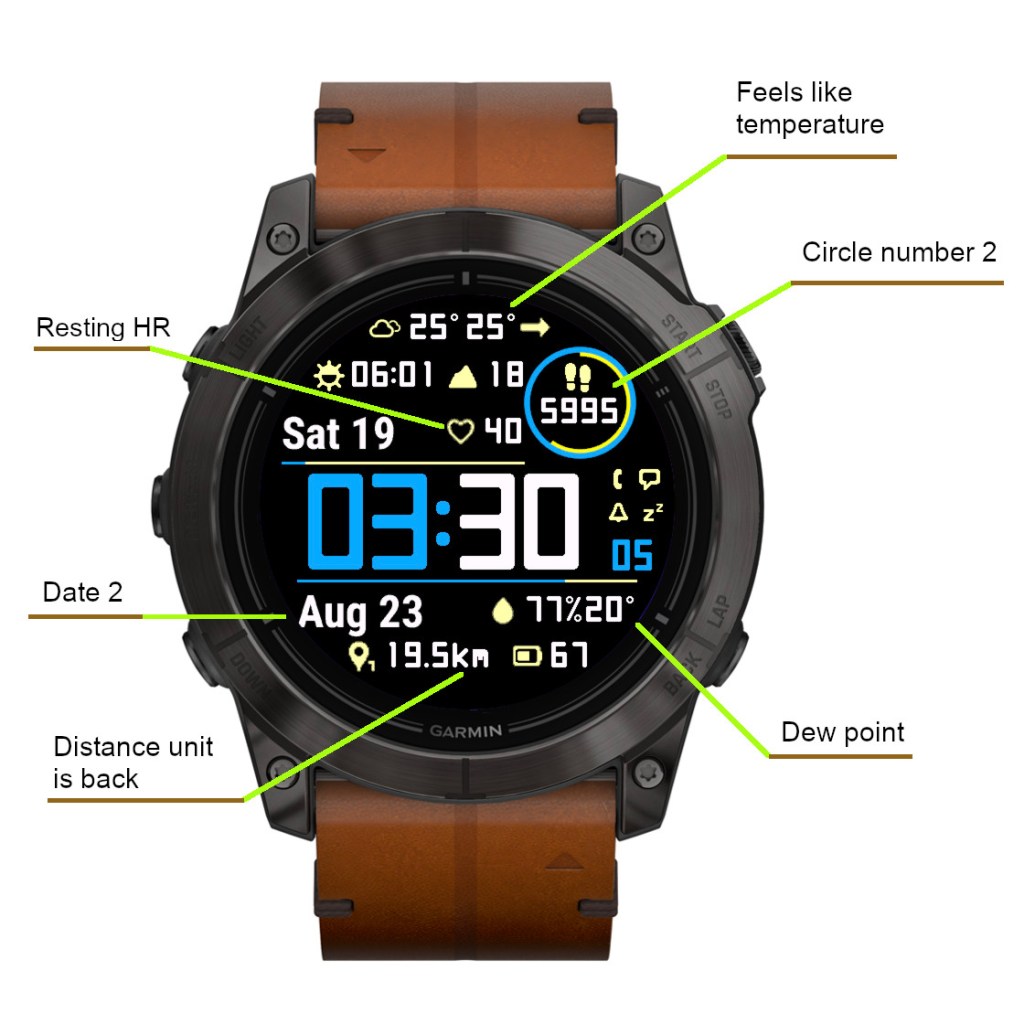
  • Resting HR
  • Climb (m or ft)
  • Option to show weather with feels like temperature in addition to current temperature
  • Option to show humidity with dew point (OWM only)
  • Second date field allowing different date format (separated by | symbol in date format field)

Alternate circle number format

The existing ‘Circle number’ option was renamed to ‘Circle number 1’ and another option called ‘Circle number 2’ was added.

‘Circle number 2’ generally allows the same choice of data as the main data fields (except date and weather location), and uses the same font and icon.

If ‘Circle number 1’ is set to ‘Off’ and ‘Circle number 2’ is set to something else, the ‘Circle number 2’ will be shown in the circle. Note that you can alternate the circle number format between different data sets.

Resting Heart Rate

On compatible devices (Connect IQ 3.2.0 or higher) it shows “The user’s seven day average resting heart rate (bpm)”. On older devices it shows “Heart rate in beats per minute (bpm)”, whatever that is (It could be entered manually or otherwise the watch has some obscure way of calculating it).

Second date field

An additional date option called ‘Date 2’ was added. The date format for ‘Date 2’ is defined after the format for ‘Date’ in the ‘Date format’ field. The two formats are separated by the “|” symbol.

So for example, in the picture shown above, the ‘Date format’ is “n D|N y”.

There are at least two ways it can be used:

1) A long date can be split in two to make it fit better on the screen
2) Alternate longer/shorter date can be used for different data sets to make it fit with the defined layout

Distance units

In an earlier update, the distance unit (km or mi) was removed to reduce the space occupied by the distance field. But this turned out to be unpopular with some users, so now there are options to choose the daily/weekly distance with or without the units.

Added existing data options in new places

  • Battery days option added for Data right or Data left (depending on the device)
  • Solar intensity option added for top and bottom lines

Instinct Pro version 2.4.0

What’s new

Dataset switching by gesture

You can choose how many datasets you want to switch by gesture (from 0 to 4).

Switching datasets requires double gesture, to minimize unintended switches when you move your hand for other reasons than looking at your watch.

When you raise your wrist the first time, an indicator bar appears between Data 3 and Data 5. It shows which data set is currently active – the number of bar segments (1 to 4) reflects the currently active set.

While you see the bar, move your wrist again to cycle to the next data set. This movement must be completed within the ‘Gesture timeout’ defined in the settings, or before the bar disappears. If you find it difficult to get the dataset to switch, try making the timeout longer.

Waking up to full display by gesture in power save mode

If you set ‘Full on gesture’ to ‘On’, wrist movement while in power save mode will activate the regular full screen display for about 10 seconds.

Two configurable data line gauges

They are located above (Top line) and below (Bottom line) the time and present the same collection of data as the circle arcs or highlight.

3 new entries have been added for line gauges at the end of the ‘Color setup’. First for line background color (applicable to top/bottom), second for top line foreground, last for bottom line foreground (foreground color reflects the selected data current level/progress). Remember that each entry has two colors for black and white screen background (this applies to AMOLED devices too even though white screen background is not supported).

If you don’t want to see these new data lines, on monochrome devices just set them to ‘Off’. On color devices, the background color will still be visible, so to hide it completely, you will need to edit the ‘Color setup’ to change the line background colors to black and white (white does not apply to AMOLED devices).

For example, with yellow accent:

Before: 61,56,63,0,60,56,56,52,63,56,62,0,60,0,63,0,61,0,61,52,56,56,61,0,61, 0

After: 61,56,63,0,60,56,56,52,63,56,62,0,60,0,63,0,61,0,61,52,0,63,61,0,61,0

Live HR in the circle

This is the new default setting for the circle number. If you have ‘Live HR’ selected for more than one data field, only one of these fields will be updated live, the rest will update according to your ‘Data update’ setting.

Removed the gap between hours and minutes in 24h time format

Instinct Pro version 2.2.0

What’s new

  • 4 configurable datasets for quick changes of displayed data

    How this works:

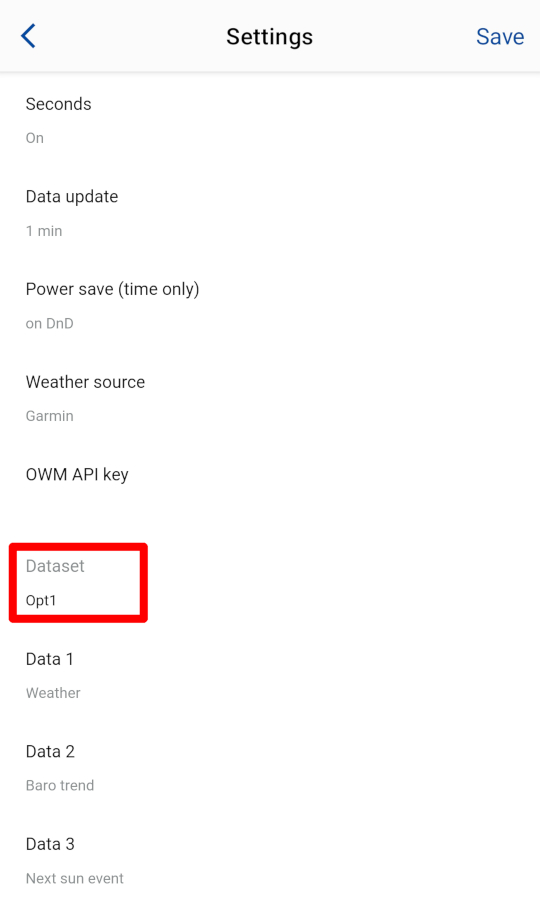
    A new ‘Dataset’ setting option was added for quick changing of the displayed data configuration. It allows to choose sets Opt1 to Opt4. Each set keeps the configuration for the main data fields, left and/or right data fields (depending on the device), and the circle.

    You will start with Dataset Opt1 which keeps your existing data setup. When you choose a dataset that was not used before, it will begin with the default settings. Then you can can select the data that you want in this set and save the settings.

    The next time you switch to this set from another, your configuration will be restored.

  • Switching between datasets can be done quickly on the watch, without the need to reach for the phone

    NOTE: This is only possible on watches running CIQ 2.3.0 or higher.

    How this works:

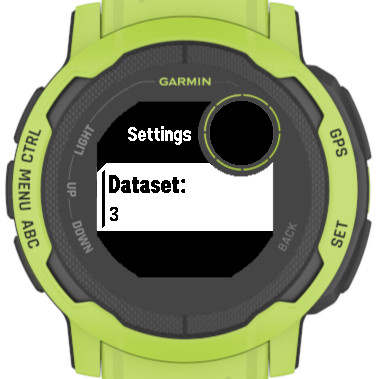
    When you go to the watch face selection menu on your device, besides the ‘Apply’ option, you will see ‘Customize’ if your device supports it. When you select it, you will be able to cycle between the 4 data sets by pressing the select key or tapping on the ‘Dataset’ option. Once done, press the exit key.

  • Switching color themes on the watch

    How this works:

    Press the select key or tap the ‘Theme’ option. Then press the exit key.


  • Escape character in date format

    How this works:

    If you enter ‘=’ (equals sign) in the ‘Date format’ field, the following character will be taken literally, i.e. not substituted by its assigned data.

    So for example ‘=n’ will show an n instead of the day name.

    If you input ‘Garmin’ in the ‘Date format’, you will get something like Gar1iFri or Gpr1iFri (depending on the time of the day), but if you input ‘G=ar=mi=n’, you will always get Garmin.

  • Military Date Time Group (DTG) option for some data fields

  • Removed units in distances to save screen space

  • Changed wind speed ‘kn’ (ISO recommendation) to ‘kt’ (used in aviation)

Instinct Pro version 2.1.0

What’s new

Graphs

  • Graph options have been added for Data 5, Data 7 – 10 (or 7 – 12 on Instinct Crossover)

  • Possible data / graph duration:

    HR – 1 hour
    Body Battery – 3 hours
    Stress – 3 hours
    SpO2 – 2.5 days
    Elevation – 2 hours
    Barometric pressure – 2 hours
    Temperature – 2 hours

    The actual choice depends on the device capabilities.

  • The graph duration may be dependent on the device. If you find that it is different on your watch please send feedback to vgfsyhcxft@gmail.com.

  • There are three presentation options for the graphs (line, area or colors).

    Colors is only available on devices with color display.

  • Color mapping depends on the type of the graph:

    HR: according to the sport for which the current activity retrieves heart rate zone thresholds, or ‘generic’ if there is no activity (zone 1 – gray, zone 2 – blue, zone 3 – green, zone 4 – yellow, zone 5 – red)

    Body battery: <= 25 – red, <= 50 – yellow, <= 75 – green, <= 100 – blue

    Stress: <= 25 – blue, <= 50 – green, <= 75 – yellow, <= 100 – red

    SpO2: <= 92.5 – red, <= 95.0 – yellow, <= 97.5 – green, <= 100.0 blue

    Elevation, Pressure, Temperature: lowest 25% – blue, lower medium 25% – green, upper medium 25% – yellow, highest 25% – red

  • On devices with AMOLED or LCD display, the graph always defaults to line style in AOD mode because of battery drain and burn-in protection considerations.

Instinct Pro

A new watch face from Reed Works!

Created to complement the unique design of this beautiful watch, or to provide a similar experience on other devices.

  • 10 (or more on some devices) general data fields with 40+ options each
  • Circle field with 4 configurable data: 3 graphical and 1 numeric
  • Extra data field shown when the seconds are inactive
  • Status icons (phone, notifications, alarms, do not disturb)
  • Graphs (options depend on device)
  • 4 configurable datasets
  • Color accent options*
  • Switching of datasets and color themes on the watch, without a phone*
  • Battery saving options
  • 4 background modes**
  • 3 Circle highlight levels**
  • 3 time font options
  • Choice of Garmin (on compatible devices) or OWM weather
  • Live / Real time heart rate

    *On compatible devices only
    **Not available on AMOLED devices

To download, visit Garmin app store here

To purchase an unlock key, visit here.

A user manual is available here.

For devices that support color, see the instructions here.

PHP Code Snippets Powered By : XYZScripts.com