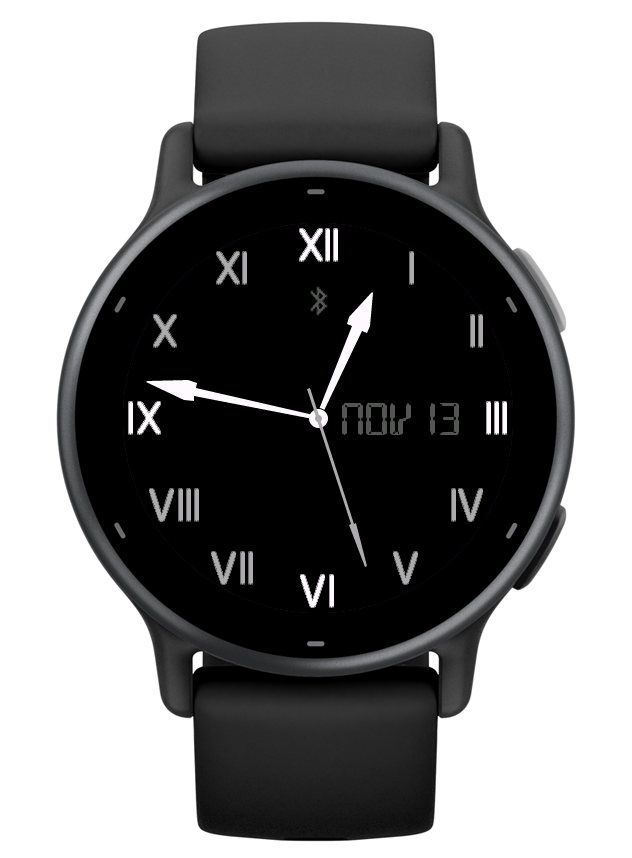
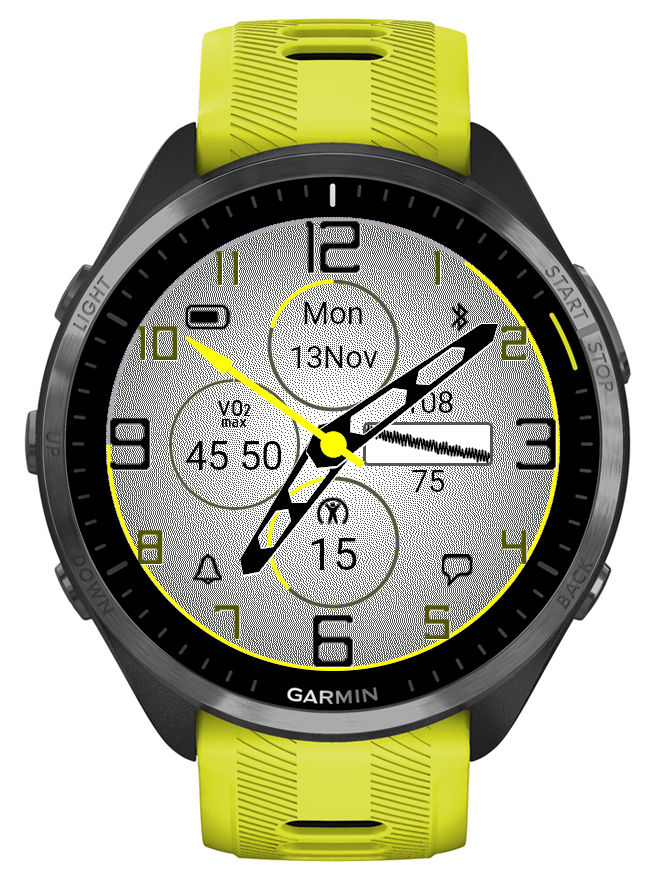
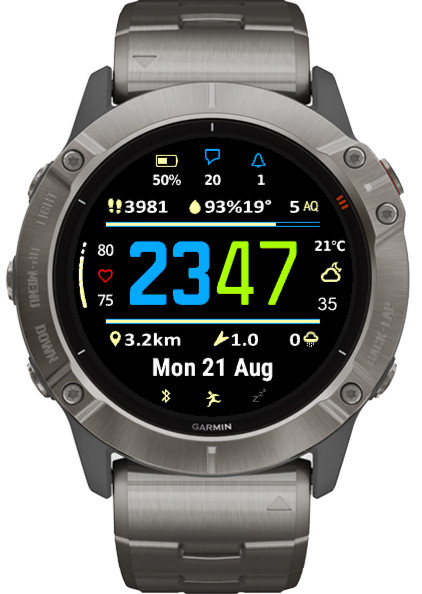
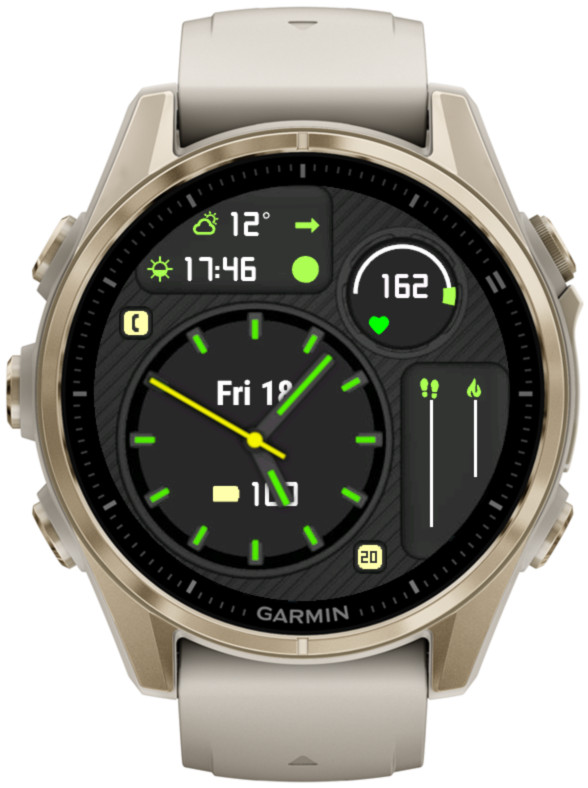
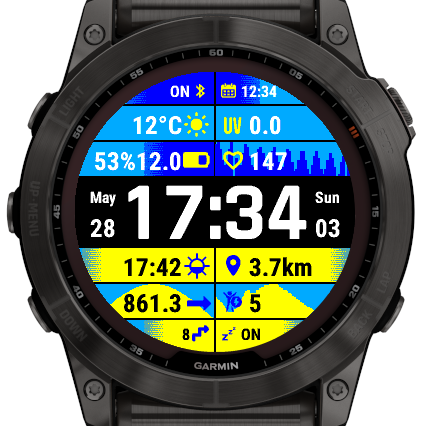
This feature is controlled by a new setting option ‘Rails mode’. When set to ‘Color’ the rail gauges follow the current color theme. When set to ‘Heat map’, the rail gauges start from blue on the left and progress towards red on the right.
The exact appearance of this feature depends on the number of different colors supported by the device. Generally it is expected to look better on devices with more colors.
• Optional offset for the internal temperature sensor
This in theory could allow to compensate for external factors affecting the internal watch sensor temperature readings.
• Date2
The additional date field that can be used in several ways:
– Two different date formats can be switched easily, without the need to enter the format again
– A long date can be split in two and displayed in different places on the screen (e.g. above and below the time)
– The additional date format can be used to define arbitrary text, with the help of the ‘=’ escape character
The format for Date2 is separated by the ‘|’ symbol from the base Date in the format entry field.
As much as possible, the available options and their behavior are now consistent between all devices regardless of the display technology. Most importantly this brings the gesture related functions such as alternate DBox or dynamic hand style to AMOLED devices (NOTE: it is only applicable if you use the Always On Display).
• 6 configurable layouts defining all visible screen components
It is now possible to quickly change the layout and color theme of your watch face for different occasions. On compatible devices, you can do this very easily without reaching for your phone, by using the watch face ‘Customize’ option on your watch.
The predefined configurations also help you figure out how the available face design options (hands, marks, background, data, etc.) work. All configuration changes are kept but can be reset back to the default if needed.
• 2 more themes
This allows more options to define and switch different color and background themes.
• Data fields Opt1 – Opt4 can be configured as circles
This, together with the changeable DBox position, opens many new ways for creating your favorite watch face style. In addition, in the circle mode you also get a circular data level indicator around the perimeter.
• Alternate time or UTC hand option
If enabled, this extra hand uses ‘Outline’ style if the main hands are ‘Solid’, or ‘Outline’ with a different color when the main hands are shown as ‘Outline’ too. Operates in 12 or 24 hours mode.
• Launching widgets by touch (if supported by the watch)
This works with the Opt 1 – Opt 4 data and the DBox.
If a related widget can be found, it will be launched after a long press. Note that the activation of this feature may depend on your watch system settings and power state.
• DBox can be shown on the right side
Note that it will become visible only when Opt 3 data is set to ‘Off’.
• Date in DBox always in English
DBox uses a custom LCD font which is not suitable for many non-English languages. To avoid unpredictable date appearance in DBox, now the date is always shown in English there, regardless of the system language setting.
• Body battery, stress and temperature graphs
Graph x-axis:
Body battery – 12 hours Stress – 4 hours Temperature – 6 hours
• Extended hand width range
This is to help our friends who like to see the hands really FAT!
Updating from an earlier version
Because this update is a big departure from the version 4.x.x, some of the previously defined settings will be lost after the update – hands, marks, gauges, data.
However the unlock key will be kept, unless some unexpected Connect IQ error occurs.
On older devices like fenix 5 or forerunner 245, this update removes the ‘always on’ second hand and makes premium some features that were free before. For those who would rather have it as it was, there is a new app on the store called ‘Time Flies Legacy’. It is an exact copy of Time Flies 4.12.1, completely free. But it will not be updated except for major bug fixes, if any are found. It is available for download here: https://apps.garmin.com/en-US/apps/eddbbfc5-c98c-49dd-b07d-5da8f3605f5b
The duration of the stress graph is 4 hours (updated every 3 minutes) and altitude graph 6 hours (updated every 2 minutes).
The icon and text in combined fields now centered
Two font sizes for Data 3 – 10
This is controlled by a new setting ‘Big data font’ (by default ‘On’).
On most devices a smaller font option has been added which can be activated by setting ‘Big data font’ to ‘Off’. This allows longer data to fit better on the screen.
However, on some devices which come with enormously large system fonts (Venu family, Forerunner 265 and 965), the smallest available font was used already, so the only possible option was to add a larger font. The effect of this is that after update your fonts will appear bigger, which may be useful for those who want better readability. Otherwise, to revert to the previous size, set ‘Big data font’ to ‘Off’.
Added climb (meters or feet) data option
Fix for status icons (phone connected, do not disturb, notifications, alarms) not updating immediately on some devices
The text data fields (Date, Weather location, Free text) font size can be set from 0 to 4 (these are the text sizes available in Garmin’s Connect IQ system).
Some devices do not have all 5 font sizes onboard. If you have one of these, font size increment/decrement might not always produce visible effect.
This release adds some more data points and ways of presenting them.
New data
Resting HR
Climb (m or ft)
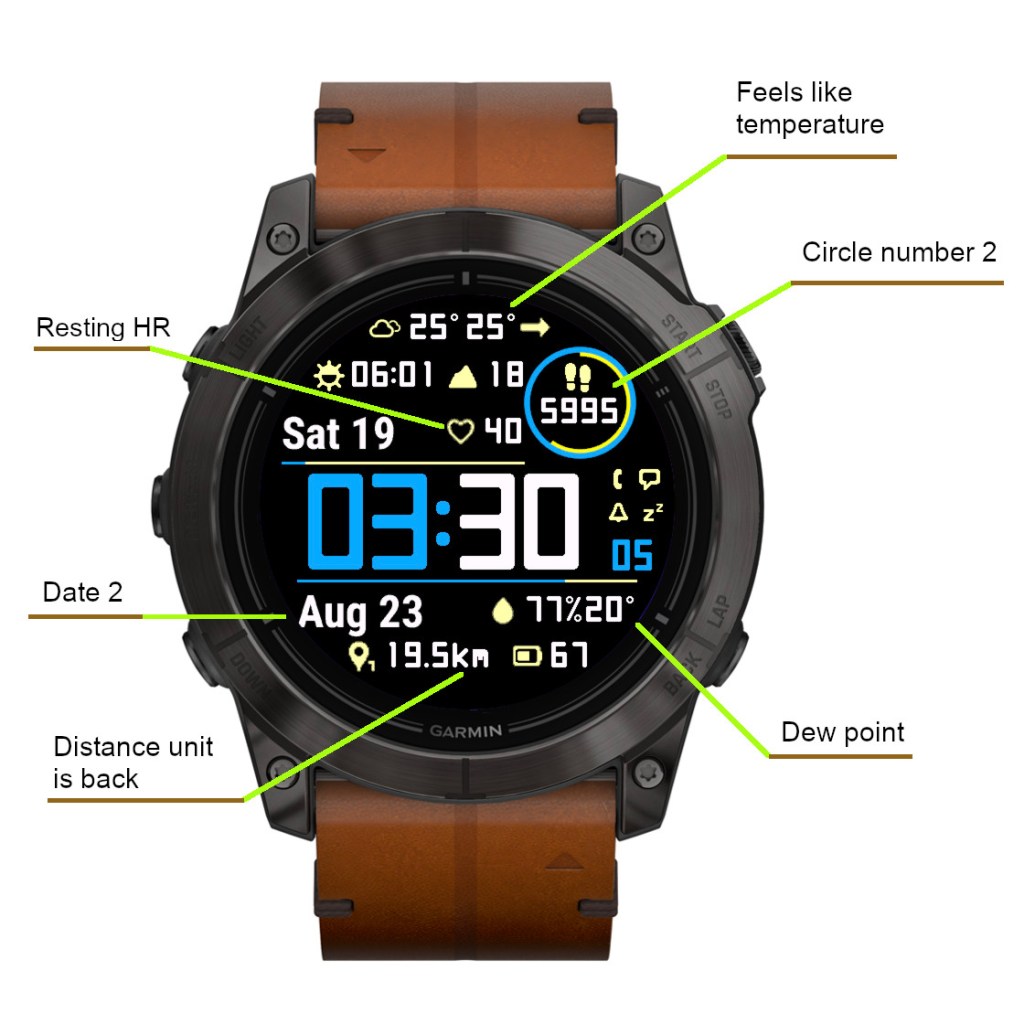
Option to show weather with feels like temperature in addition to current temperature
Option to show humidity with dew point (OWM only)
Second date field allowing different date format (separated by | symbol in date format field)
Alternate circle number format
The existing ‘Circle number’ option was renamed to ‘Circle number 1’ and another option called ‘Circle number 2’ was added.
‘Circle number 2’ generally allows the same choice of data as the main data fields (except date and weather location), and uses the same font and icon.
If ‘Circle number 1’ is set to ‘Off’ and ‘Circle number 2’ is set to something else, the ‘Circle number 2’ will be shown in the circle. Note that you can alternate the circle number format between different data sets.
Resting Heart Rate
On compatible devices (Connect IQ 3.2.0 or higher) it shows “The user’s seven day average resting heart rate (bpm)”. On older devices it shows “Heart rate in beats per minute (bpm)”, whatever that is (It could be entered manually or otherwise the watch has some obscure way of calculating it).
Second date field
An additional date option called ‘Date 2’ was added. The date format for ‘Date 2’ is defined after the format for ‘Date’ in the ‘Date format’ field. The two formats are separated by the “|” symbol.
So for example, in the picture shown above, the ‘Date format’ is “n D|N y”.
There are at least two ways it can be used:
1) A long date can be split in two to make it fit better on the screen 2) Alternate longer/shorter date can be used for different data sets to make it fit with the defined layout
Distance units
In an earlier update, the distance unit (km or mi) was removed to reduce the space occupied by the distance field. But this turned out to be unpopular with some users, so now there are options to choose the daily/weekly distance with or without the units.
Added existing data options in new places
Battery days option added for Data right or Data left (depending on the device)
Solar intensity option added for top and bottom lines
2 sliders and 2 arc gauges showing level/progress of up to 25 data choices
4 configurable status icons (phone, notifications, alarms, do not disturb)
4 configurable datasets switchable by screen touch, gesture, watch face ‘customize’ menu, or the Connect IQ app
Battery saving options
10 customizable color themes, with separate colors for AOD mode
Choice of Garmin* or OWM weather
Always on second hand*
Live HR and solar charging options for circle number and arc 2*
(*) On compatible devices
This watch face is free to download and use. The ‘premium features’ are always accessible, but when the free unlock promotion ends, a floating padlock icon will appear on the screen several seconds after gesture if no valid unlock key is entered.
1 = Good 2 = Fair 3 = Moderate 4 = Poor 5 = Very Poor
As with other OWM data, this may or may not work, depending on your API key validity, which depends on the evolving OWM policies.
Currently, it should work with a “Current weather and forecasts collection” key created before August 2022, or with a “One Call by Call” subscription (free up to 1000 API calls per day – Instinct Pro will not exceed 300 calls per day).
Openweather can now be selected as the weather source. This brings weather to the devices that don’t support Garmin’s weather.
You will need to provide your own OWM API key to get the Openweather data.
PLEASE NOTE that not every OWM API key will work with Gradient.
OWM API key created with the free “Current weather and forecasts collection” subscription after mid-2022 will not work due to OWM policy changes. If you have a key created earlier, it should work.
Alternatively, you can subscribe to “One Call by Call” plan for One Call API 3.0. This subscription comes with 1,000 API calls per day for free, and Gradient will not exceed 200 calls per day.
UV index
This is only available if you use Openweather, since Garmin weather data does not include UV.
Body battery graph (24h)
Available on compatible devices only.
Barometric pressure graph (6h)
Available only on devices with barometric sensor.
Next calendar event
Available on the newer devices that support Garmin’s System 6.
Launching widgets by screen press
Available on the touchscreen devices that support Garmin’s System 6.
This feature is disabled by default. It can be activated to react to a single or double screen press.
You can choose how many datasets you want to switch by gesture (from 0 to 4).
Switching datasets requires double gesture, to minimize unintended switches when you move your hand for other reasons than looking at your watch.
When you raise your wrist the first time, an indicator bar appears between Data 3 and Data 5. It shows which data set is currently active – the number of bar segments (1 to 4) reflects the currently active set.
While you see the bar, move your wrist again to cycle to the next data set. This movement must be completed within the ‘Gesture timeout’ defined in the settings, or before the bar disappears. If you find it difficult to get the dataset to switch, try making the timeout longer.
Waking up to full display by gesture in power save mode
If you set ‘Full on gesture’ to ‘On’, wrist movement while in power save mode will activate the regular full screen display for about 10 seconds.
Two configurable data line gauges
They are located above (Top line) and below (Bottom line) the time and present the same collection of data as the circle arcs or highlight.
3 new entries have been added for line gauges at the end of the ‘Color setup’. First for line background color (applicable to top/bottom), second for top line foreground, last for bottom line foreground (foreground color reflects the selected data current level/progress). Remember that each entry has two colors for black and white screen background (this applies to AMOLED devices too even though white screen background is not supported).
If you don’t want to see these new data lines, on monochrome devices just set them to ‘Off’. On color devices, the background color will still be visible, so to hide it completely, you will need to edit the ‘Color setup’ to change the line background colors to black and white (white does not apply to AMOLED devices).
This is the new default setting for the circle number. If you have ‘Live HR’ selected for more than one data field, only one of these fields will be updated live, the rest will update according to your ‘Data update’ setting.
Removed the gap between hours and minutes in 24h time format
Date field now configurable to allow showing bottom icons text instead
This allows much more information to be shown in the bottom icons. Since the Date is no longer displayed in the bottom field, it can be selected for Opt1 – Opt6 data fields. The choice of data points for the top and bottom icons is now the same.
Launching widgets by screen press
This is only possible on devices with touch screen which run ‘System 6’. According to Garmin, it will not become available on Venu, D2 Air and Venu Sq / Music.
In Rails, these elements are sensitive to touch:
Top icons
Bottom icons
Left data icon
Right data icon
Opt1 – Opt6 data icons
Bottom field (if set to date)
A long press on any of the above launches an associated app (if available).
New data options
• Next calendar event time data option
This is only available on System 6 devices, and will not work unless your watch firmware is updated to System 6.
• Battery days icon option
Only available on compatible devices (notably, not on Forerunners).
New power save mode showing big hollow time
Option to activate full screen on gesture when in power save mode
Allows to display full screen information for about 10 seconds on gesture.