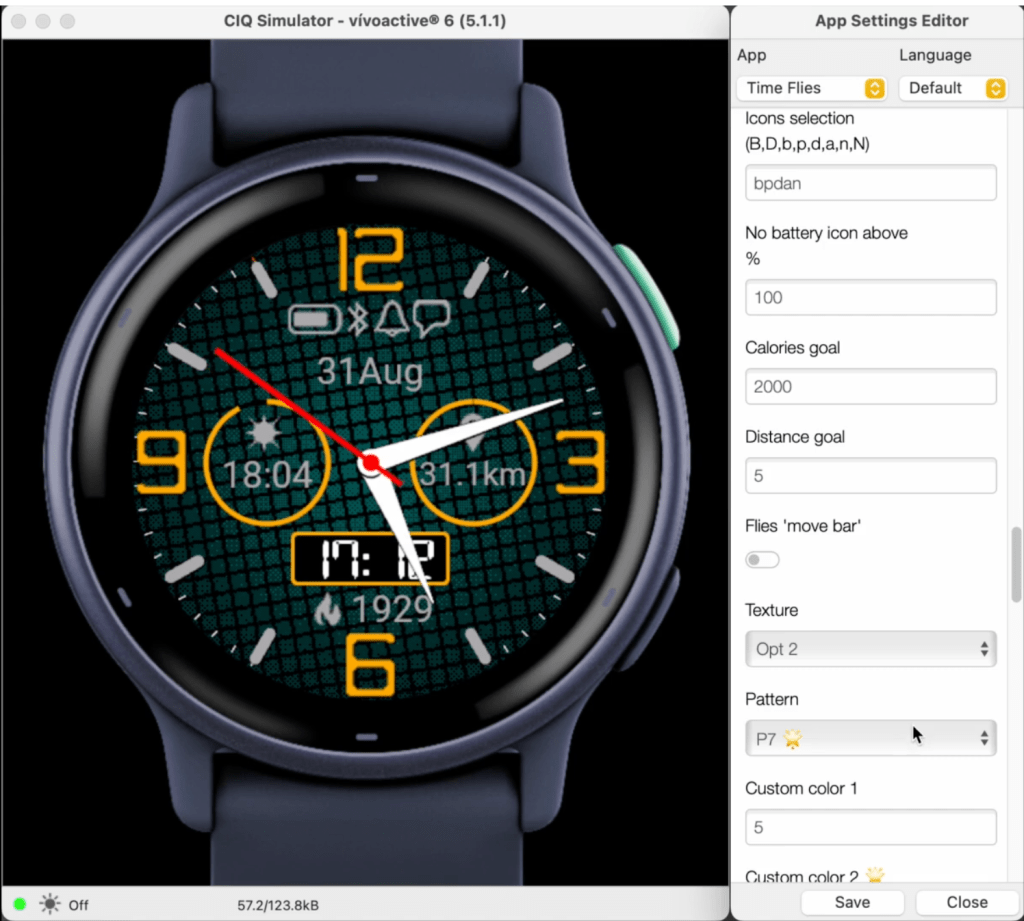
Time Flies background patterns

Ok, this is crude, but this is my first attempt at instruction videos. Thanks for watching 🙂
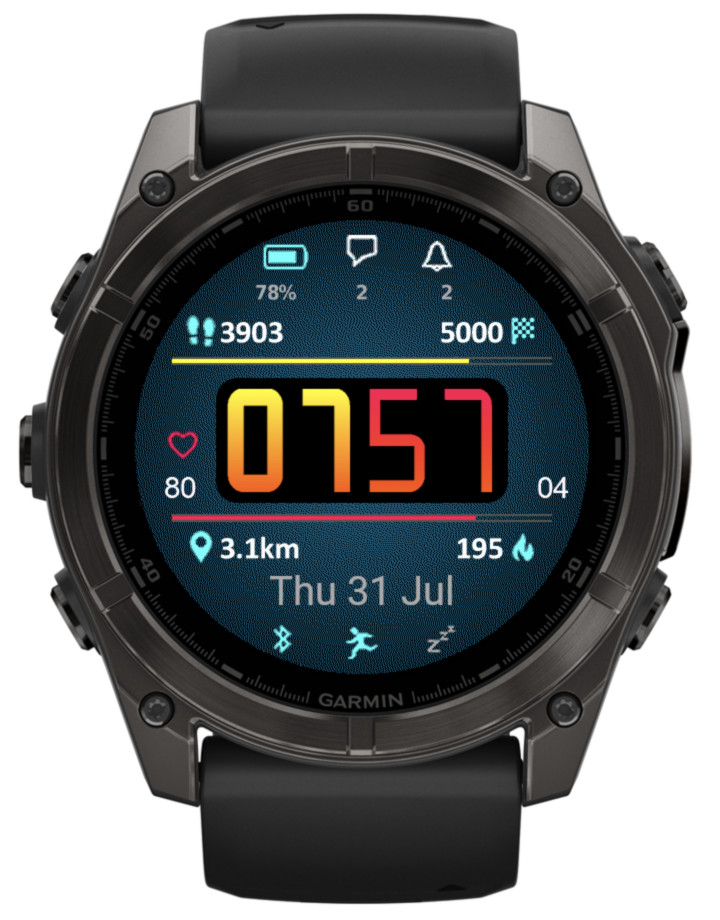
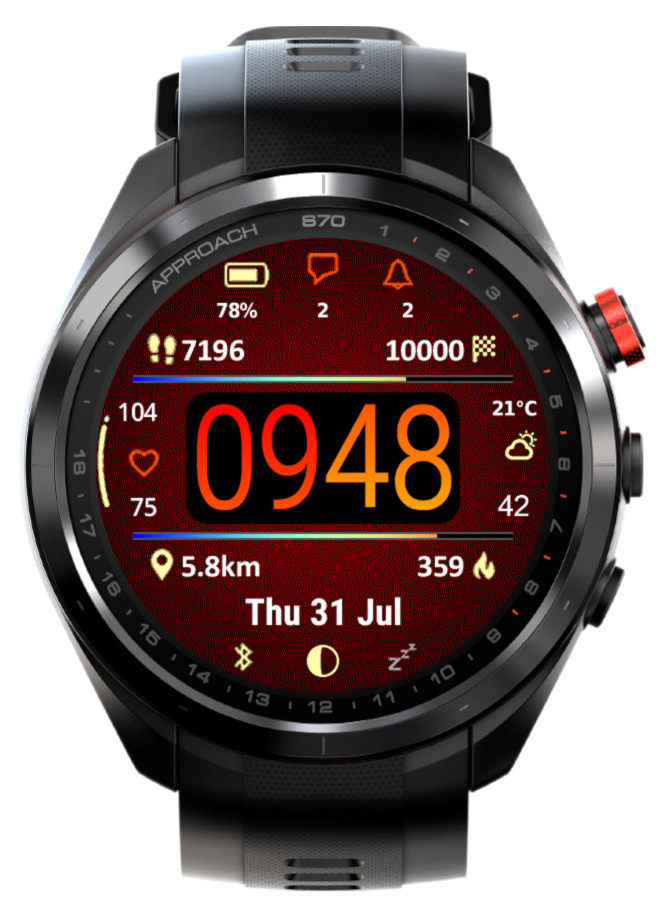
This update mostly focuses on adding great new options to customize and manage color themes:
• Background texture
An additional display element, which can be set to ‘Off’ or to the color of your choice. Note that the enhanced visual appeal brought by the texture comes at a cost of increased battery drain and slightly reduced responsiveness. The impact may be more noticeable on devices with less memory such as fenix 6 or Enduro.
• Time background
Another new display element, you can set it to the color of your choice, or to the background color to hide it when the texture is ‘Off’.
• Custom colors can be entered in RGB 6-digit format allowing access to the full pallette
Now there are two ways in which any of the 4 custom colors can be defined: Either by entering the color number in the 64-color palette (from 0 = black to 63 = white), or by entering a 6-digit hexadecimal RGB color code (from 000000 = black to ffffff = white). The first method allows to access the colors typically supported by most MIP devices, while the latter allows choosing any color that is possible on a given device (65536 colors on AMOLED devices).
• Updated default color themes
If you update from an earlier version of Rails, your existing color themes will be preserved, with the exception of the texture and time background being added to them. To see what a new theme looks like, choose ‘Reset’ from the ‘Theme manipulation’ drop down list and save the settings. If you want to preserve your old theme, now you can do so by using the ‘Export’ option in the list.
• Option to export/import themes
The ‘Reset theme’ option has been removed and instead a new ‘Theme manipulation’ drop down list has been added in the settings, with these options:
Off – inactive
Reset – select and save the settings to bring back the factory defaults for the current theme
Import – select and save the settings to import the theme copied into the ‘Export/import color theme’ field
Export – select and save the settings to export the current theme. When you open the settings again, the theme can be copied from the ‘Export/import color theme’ field. Note that you MUST enter the settings twice to do this, this is a limitation of how Garmin’s settings system works
• In power save modes rails are drawn including their data
Previously only the rails outline was drawn, now it is shown together with the data as in full power mode.
• Weekly steps count
In addition to counting your steps daily, now you have an option to show the count for the whole week. The first day of the week is defined in the user profile in Garmin Connect.
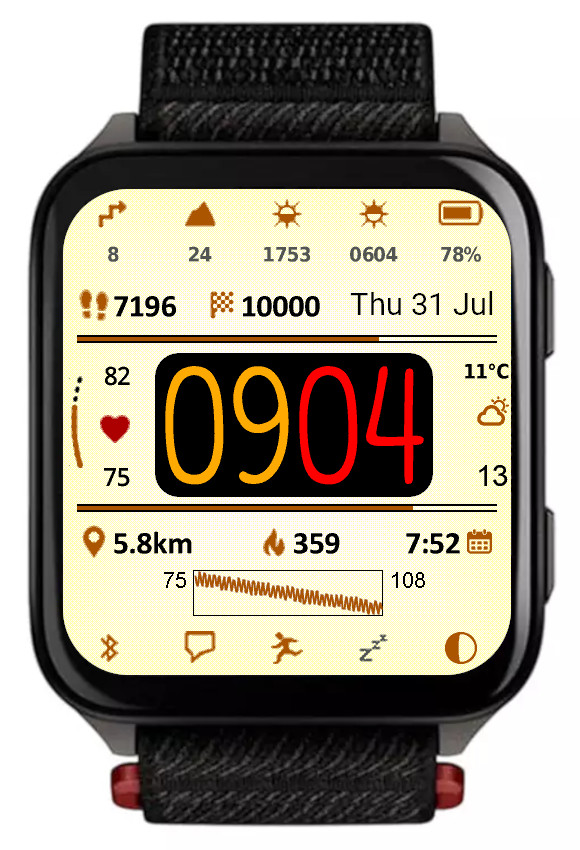
• New device (Venu X1)
Rails takes full advantage of its rectangular screen shape by adding 4 more data fields, in the top and bottom icon rows.
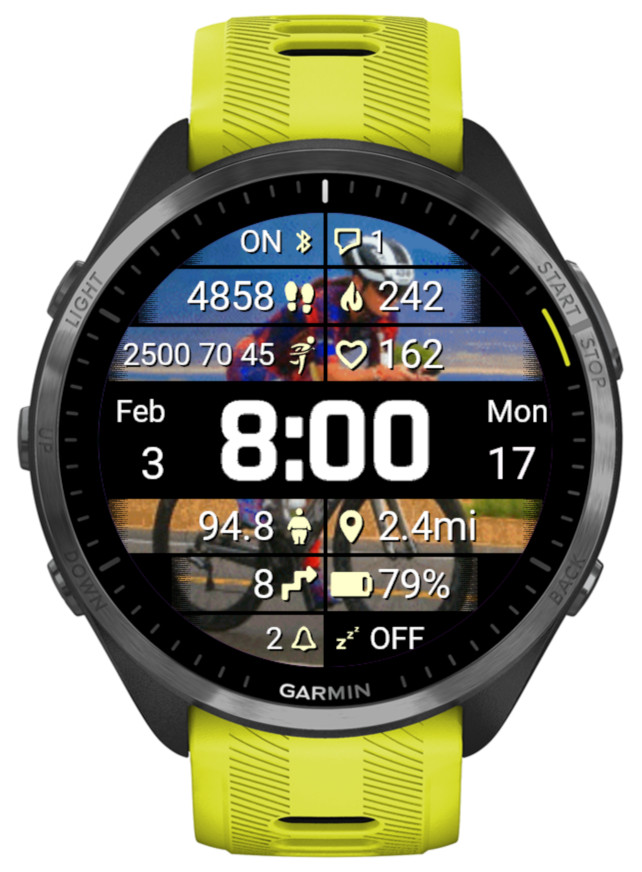
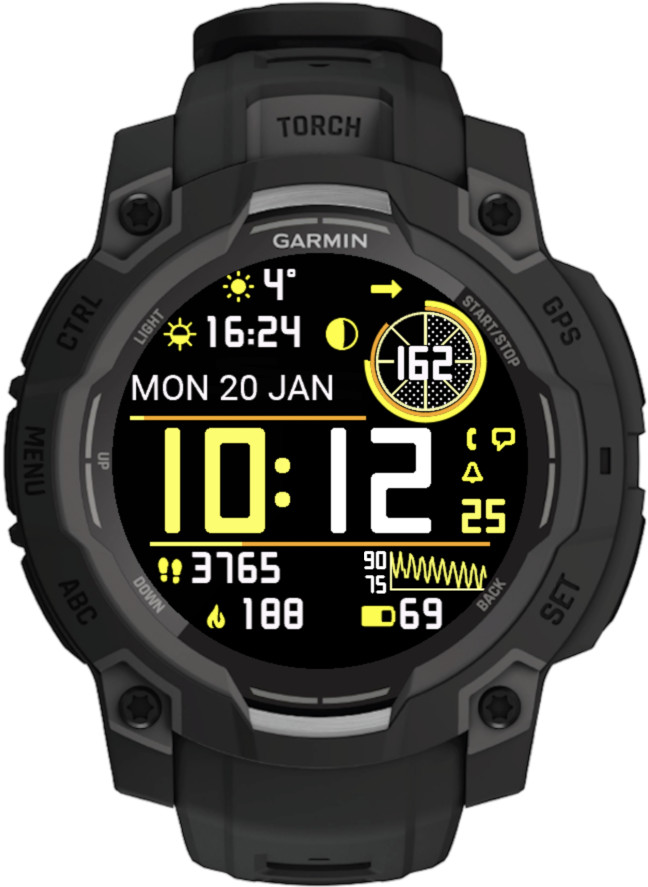
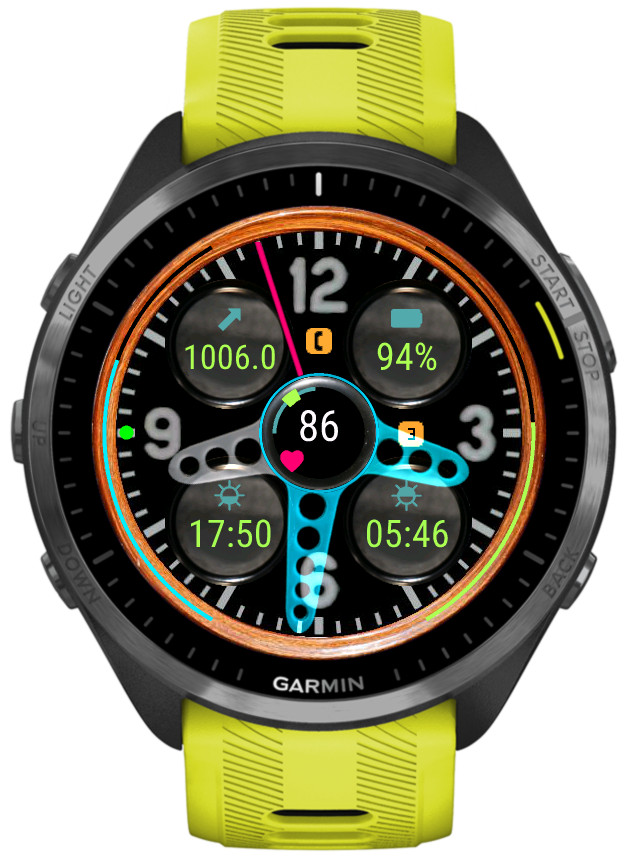
A watch face inspired by a classic car dashboard with wide choice of data options
Data sets
For easy access to more data than can be simultaneously shown on the screen, it is possible to switch between 4 ‘data sets’. Each set contains its own setup of data fields, gauges, icons and extra hand.
Switching between sets can be done in Garmin Connect IQ app, in the watch face ‘Customize’ menu, or by touching the 12, 3, 6, 9 hour marks (if enabled in the settings).
If switching by screen touch is enabled, an indicator dot will appear on the corresponding hour mark to show which data set is currently active.
The 4 sets are predefined with the focus on general, basic health tracking, fitness, weather. But each set can be fully configured to your needs and the configuration will be kept while you switch between sets.
Color themes customization
The colors of different screen elements are customizable, however for the hands the customization color does not replace the basic color but adds to it.
The colors are entered in the RGB hexadecimal format where each two hex digits correspond to the Red, Green and Blue component level.
Weather
The weather source can be either Garmin or Openweathermap (OWM). OWM is generally more accurate and provides some options that Garmin does not. However, in order to use it, you need to provide your own OWM API key (3.0 compatible).
Unlocking
This watch face is fully functional without payment. However, some options will trigger a floating padlock icon if they are used without a valid unlock key. These options are marked with a ‘star icon’ in the settings and include:
-switching data sets
-switching color themes
-changing AOD brightness
-applying hands blending mode
-‘live’ HR and solar charging
-extra hand
You can help the developer and get an unlock key by following this link https://reed.works/rw-rw-unlock/
It can be done directly from the settings by pressing on the link and choosing ‘Open’ from the menu that pops up.
Helpful links
Download: https://apps.garmin.com/apps/c4bd1a0d-a26d-4fbe-80a3-16827c1f8c01
User manual: https://reed.works/rw-retro-wheel-user-manual/

Simple yet sophisticated analog watch face with elegant classic appearance and convenient data options
Data sets
For easy access to more data than can be simultaneously shown on the screen, it is possible to switch between 4 ‘data sets’. Each set contains its own setup of data fields, gauges and icons.
Switching between sets can be done in Garmin Connect IQ app, in the watch face ‘Customize’ menu, or by touching the 12, 3, 6, 9 hour marks (if enabled in the settings).
If switching by screen touch is enabled, an indicator dot will appear on the corresponding hour mark to show which data set is currently active.
The 4 sets are predefined with the focus on general, basic health tracking, fitness, weather. But each set can be fully configured to your needs and the configuration will be kept while you switch between sets.
Color themes customization
The colors of different screen elements can be modified by adding a ‘tint’ color in the settings. Note that this color does not replace the basic color of the element but adds to it. This means that your options to change the screen element colors are limited by the original color of each element.
The ‘tint’ colors are entered in the RGB hexadecimal format where each two hex digits correspond to the Red, Green and Blue component level.
Weather
The weather source can be either Garmin or Openweathermap (OWM). OWM is generally more accurate and provides some options that Garmin does not. However, in order to use it, you need to provide your own OWM API key (3.0 compatible).
Unlocking
This watch face is fully functional without payment. However, some options will trigger a floating padlock icon if they are used without a valid unlock key. These options are marked with a ‘star icon’ in the settings and include:
-switching data sets
-switching color themes
-changing AOD brightness
You can help the developer and get an unlock key by following the link https://reed.works/rw-gold-unlock/
It can be done directly from the settings by pressing on the link and choosing ‘Open’ from the menu that pops up.
Helpful links
Download: https://apps.garmin.com/apps/da37454c-6c51-4e37-b829-92b57e1b533b
User manual: https://reed.works/rw-gold-user-manual/
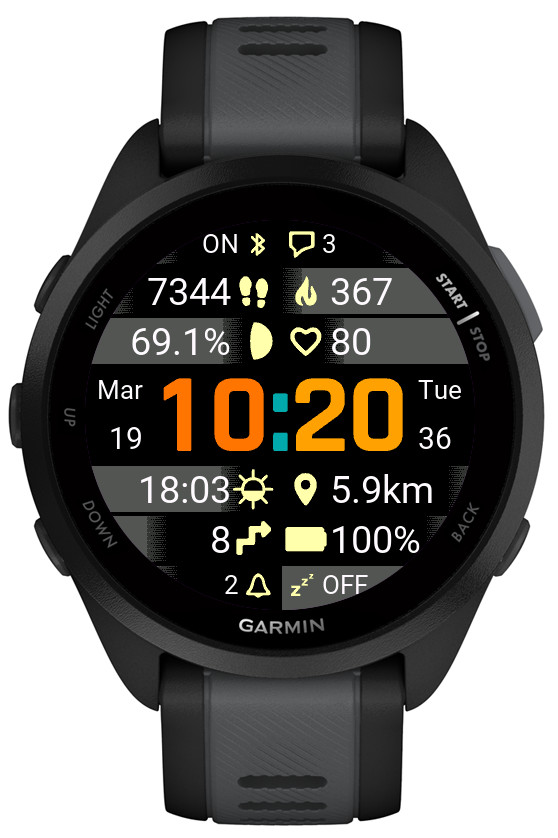
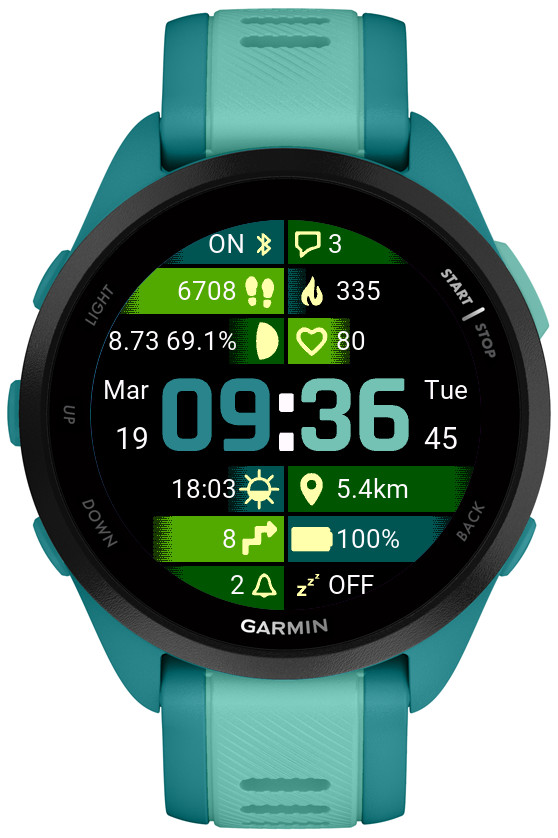
IMPORTANT: This release freezes the development on the older generation of devices that do not have enough onboard memory to allow adding new features.
These include:
* fenix 5 family (all variants plus derivatives like quatix, D2 etc)
* fenix 6s variants
* Forerunners before 255/955
* Venu Sq
* vivoactive 3
* MARQ (1st gen)
There will only be maintenance updates to fix bugs or to adapt to external changes (e.g. OWM policies).
The new features listed below appear only on the devices capable of accommodating them:
Previously there were only two sizes, controlled by the settings option ‘Big data font’ (On or Off).
Now, this option is renamed to ‘Data font size’, and it allows the choice of XS, S, M, L, XL.
This applies to fields 3 – 10, and to 1, 2, 11, 12 if the opposite field is Off.
Note that on some devices your font may increase in size after updating to this version. Don’t be alarmed, just select the size you want again.
It can be selected as an alternative to moon age, with the same moon phase icon, or it can be displayed together with the moon age.
An option was added to show the weekly activity distance for the last 7 days instead of the current week.
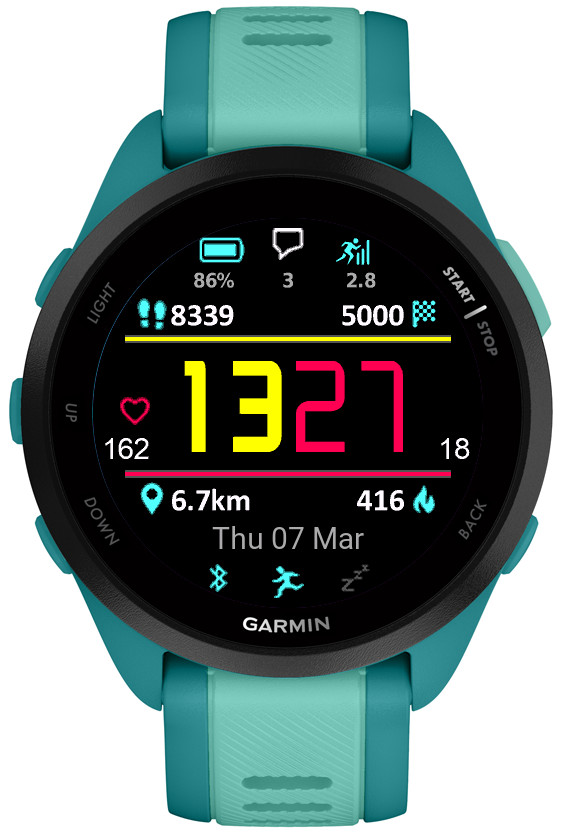
A number of older devices with less memory available cannot accommodate any more additions to this app. These include fenix 6s, anything from the fenix 5/Plus generation, all Forerunners before the 255, etc. This version freezes the development on these devices and in the future only maintenance changes are expected.
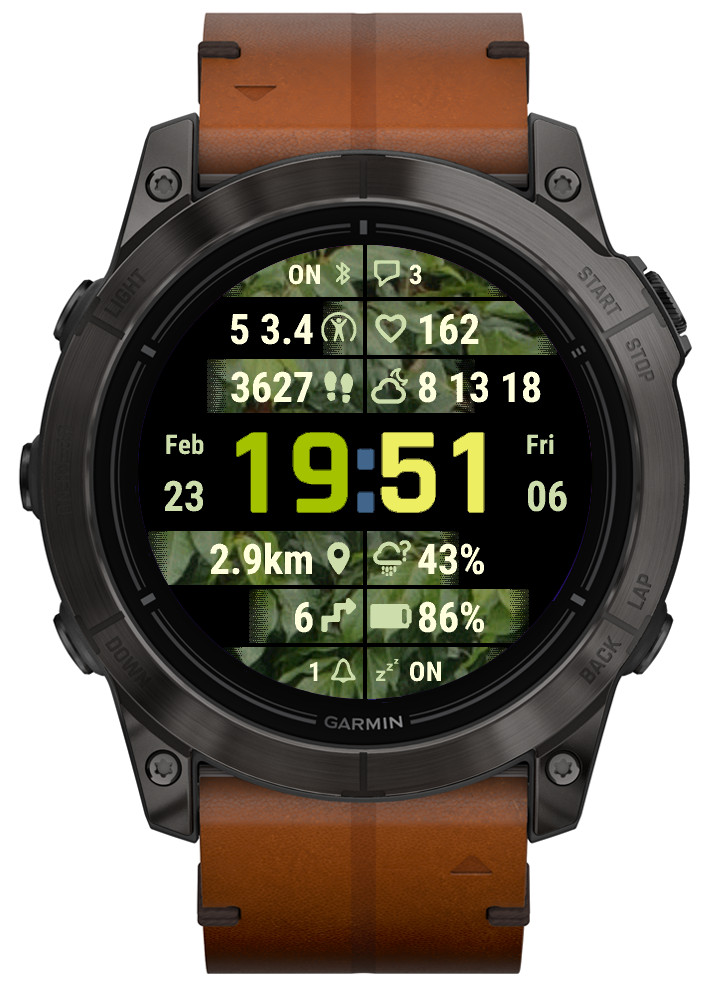
NOTE: This post also covers the new features added in the version 3.3.0.
• Training effect
There is no separate new option for Training Effect, but it is appended to Recovery Time in the data fields 3 – 10, or in the data fields 1, 2, 11, 12 if they are set to occupy the whole width of the screen by switching the opposite field to ‘Off’.
• Launching widgets by screen touch enabled by default
If you prefer them not to be launched, set ‘Widget launch’ to ‘Off’.
• New color mode
The previous ‘Highlight’ mode was renamed to ‘Gradient’. The new ‘Highlight’ mode works pretty much the same as the old one, but it has a sharp edge.
• Options to configure AOD icon and text color
In AOD mode each color theme sets the icon and text color automatically for the active color theme. But if you prefer different colors, now you can define them here.
• New color themes on compatible devices
4 new Color options: Img1 – Img4.
They only make a difference in ‘Highlight’ or ‘Gradient’ color modes.
Instead of color combinations used in other themes, they use wallpaper images (currently Leaves, Flowers, Wood, Sky) for the data level/progress highlight.