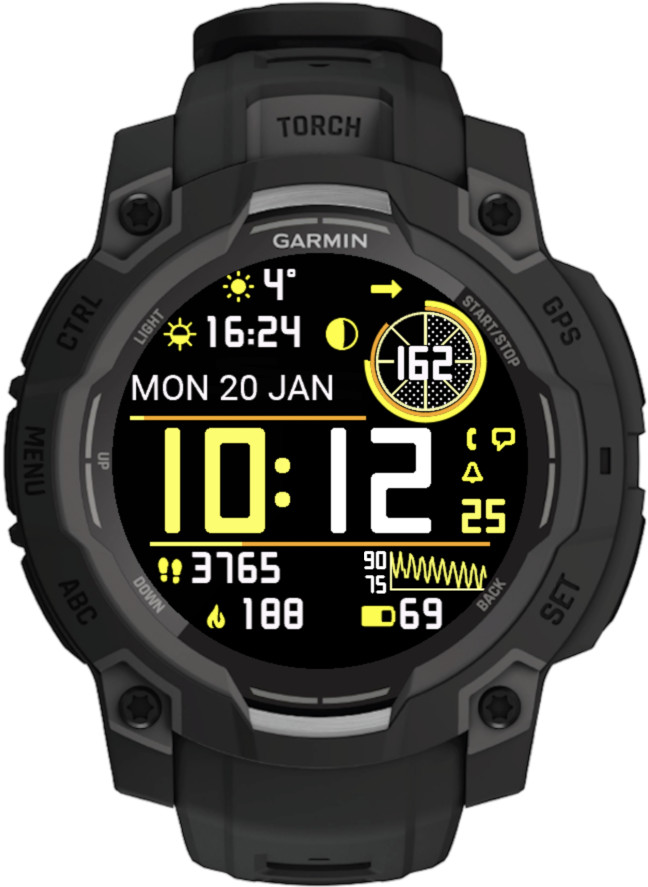
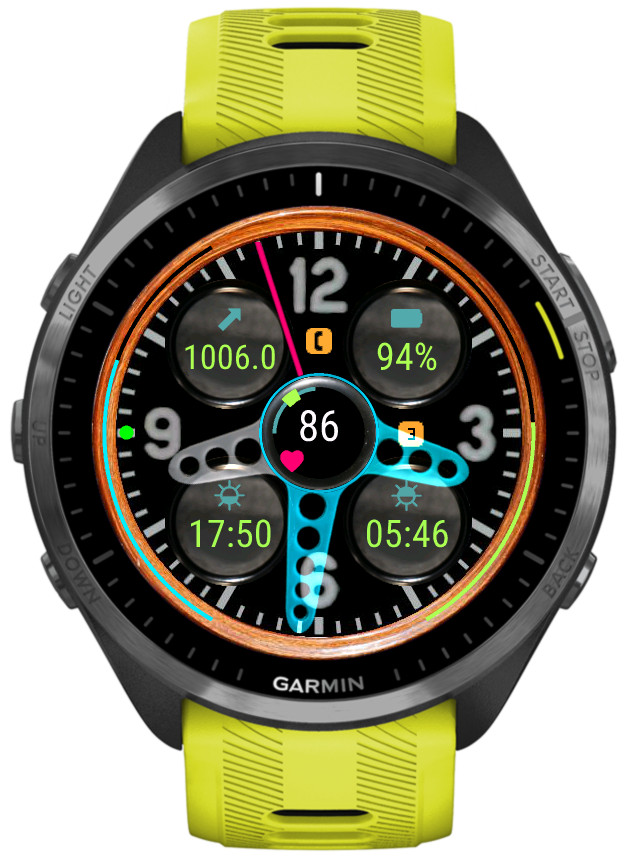
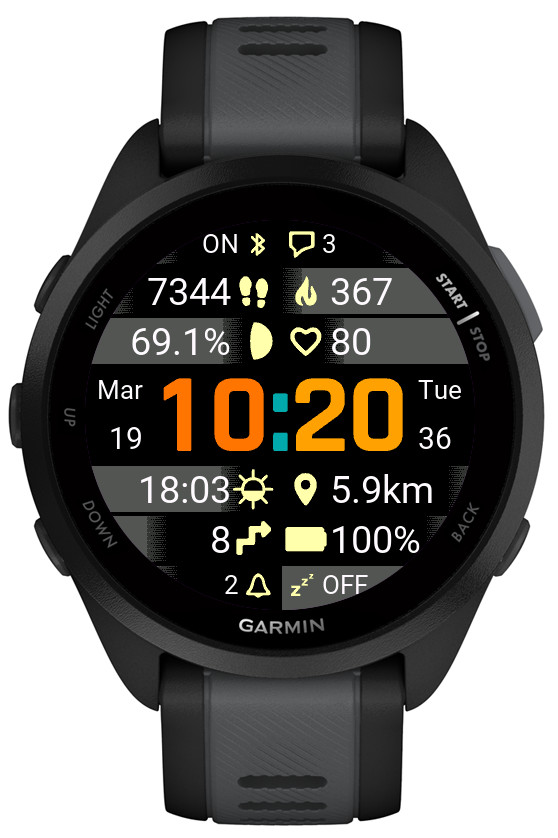
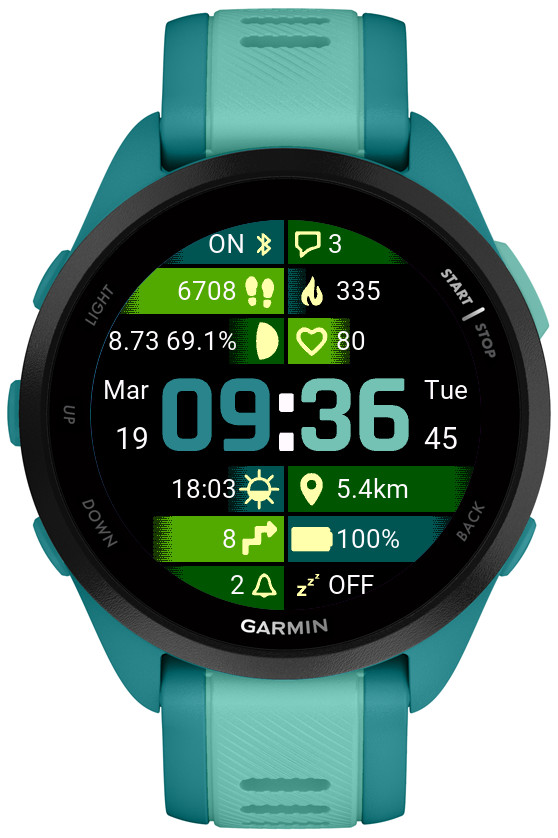
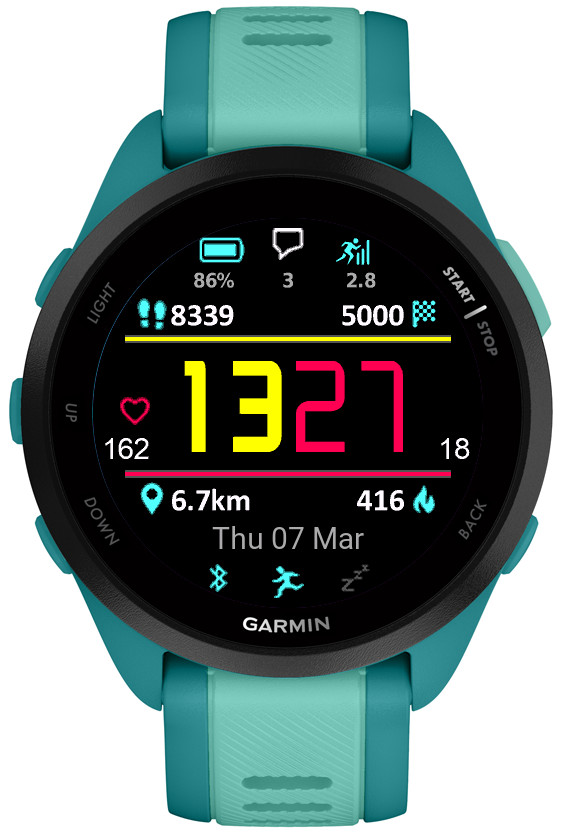
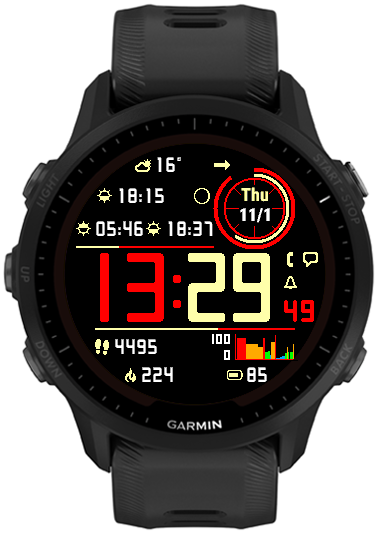
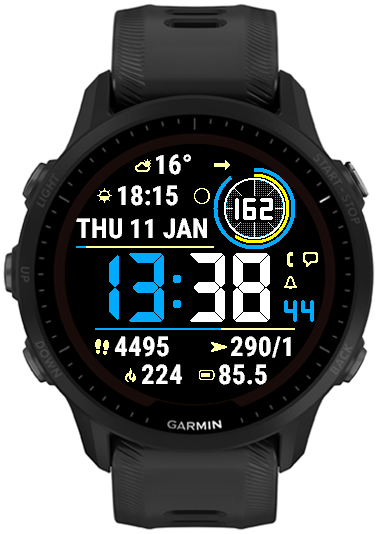
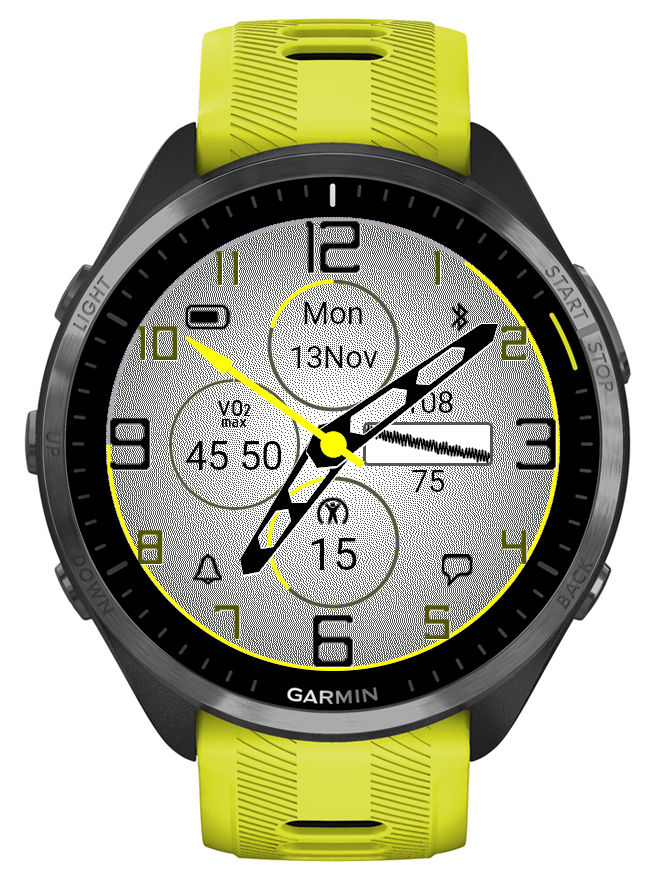
A watch face inspired by a classic car dashboard with wide choice of data options
6 customizable color themes
5 data fields
4 gauges
50+ data points (depending on the device)
4 status icon fields
4 configurable data sets (switchable by touch, on the watch settings or Connect IQ)
Extra hand for UTC or alternate zone time
4 AOD modes with 3 brightness levels
Data sets
For easy access to more data than can be simultaneously shown on the screen, it is possible to switch between 4 ‘data sets’. Each set contains its own setup of data fields, gauges, icons and extra hand.
Switching between sets can be done in Garmin Connect IQ app, in the watch face ‘Customize’ menu, or by touching the 12, 3, 6, 9 hour marks (if enabled in the settings).
If switching by screen touch is enabled, an indicator dot will appear on the corresponding hour mark to show which data set is currently active.
The 4 sets are predefined with the focus on general, basic health tracking, fitness, weather. But each set can be fully configured to your needs and the configuration will be kept while you switch between sets.
Color themes customization
The colors of different screen elements are customizable, however for the hands the customization color does not replace the basic color but adds to it.
The colors are entered in the RGB hexadecimal format where each two hex digits correspond to the Red, Green and Blue component level.
Weather
The weather source can be either Garmin or Openweathermap (OWM). OWM is generally more accurate and provides some options that Garmin does not. However, in order to use it, you need to provide your own OWM API key (3.0 compatible).
Unlocking
This watch face is fully functional without payment. However, some options will trigger a floating padlock icon if they are used without a valid unlock key. These options are marked with a ‘star icon’ in the settings and include:
-switching data sets -switching color themes -changing AOD brightness -applying hands blending mode -‘live’ HR and solar charging -extra hand
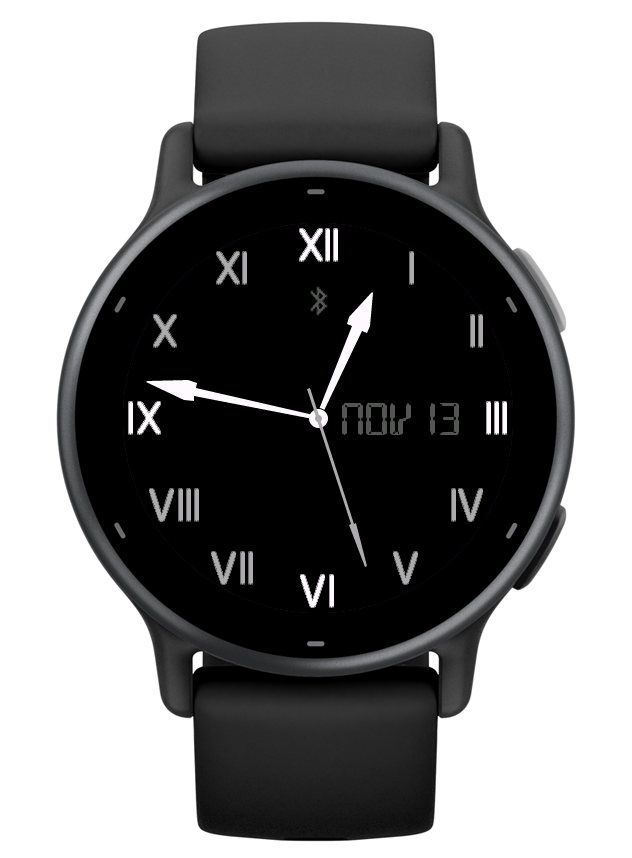
Simple yet sophisticated analog watch face with elegant classic appearance and convenient data options
6 customizable color themes
4 data fields
2 gauges
Up to 50+ data points (depending on device)
4 status icon fields
4 configurable data sets
Data sets
For easy access to more data than can be simultaneously shown on the screen, it is possible to switch between 4 ‘data sets’. Each set contains its own setup of data fields, gauges and icons.
Switching between sets can be done in Garmin Connect IQ app, in the watch face ‘Customize’ menu, or by touching the 12, 3, 6, 9 hour marks (if enabled in the settings).
If switching by screen touch is enabled, an indicator dot will appear on the corresponding hour mark to show which data set is currently active.
The 4 sets are predefined with the focus on general, basic health tracking, fitness, weather. But each set can be fully configured to your needs and the configuration will be kept while you switch between sets.
Color themes customization
The colors of different screen elements can be modified by adding a ‘tint’ color in the settings. Note that this color does not replace the basic color of the element but adds to it. This means that your options to change the screen element colors are limited by the original color of each element.
The ‘tint’ colors are entered in the RGB hexadecimal format where each two hex digits correspond to the Red, Green and Blue component level.
Weather
The weather source can be either Garmin or Openweathermap (OWM). OWM is generally more accurate and provides some options that Garmin does not. However, in order to use it, you need to provide your own OWM API key (3.0 compatible).
Unlocking
This watch face comes in two variants:
1. RW Gold – fully functional without payment. However, some options will trigger a floating padlock icon if they are used without a valid unlock key. These options are marked with a ‘star icon’ in the settings and include:
-switching data sets -switching color themes -changing AOD brightness
IMPORTANT: This release freezes the development on the older generation of devices that do not have enough onboard memory to allow adding new features.
These include:
* fenix 5 family (all variants plus derivatives like quatix, D2 etc) * fenix 6s variants * Forerunners before 255/955 * Venu Sq * vivoactive 3 * MARQ (1st gen)
There will only be maintenance updates to fix bugs or to adapt to external changes (e.g. OWM policies).
The new features listed below appear only on the devices capable of accommodating them:
Wider range of data font size
Previously there were only two sizes, controlled by the settings option ‘Big data font’ (On or Off).
Now, this option is renamed to ‘Data font size’, and it allows the choice of XS, S, M, L, XL.
This applies to fields 3 – 10, and to 1, 2, 11, 12 if the opposite field is Off.
Note that on some devices your font may increase in size after updating to this version. Don’t be alarmed, just select the size you want again.
Moon illumination
It can be selected as an alternative to moon age, with the same moon phase icon, or it can be displayed together with the moon age.
Weekly activity distance period
An option was added to show the weekly activity distance for the last 7 days instead of the current week.
A number of older devices with less memory available cannot accommodate any more additions to this app. These include fenix 6s, anything from the fenix 5/Plus generation, all Forerunners before the 255, etc. This version freezes the development on these devices and in the future only maintenance changes are expected.
New on all devices
New Time font Opt 1
New Theme T1
New on devices with enough memory
Weekly walking activity distance
This is an addition to the already present run, bike and swim activities, and works the same way. The week counts from the first day of the week as defined in Garmin Connect.
Training effect
It can be selected for Top/Bottom icons or central data fields, or for the Top/Bottom rails. On the rails it covers the range from 0 to 5.
Wheelchair pushes support (pushes, goal, distance)
Pushes counter and pushes goal work the same way as steps counter and goal when the watch is in wheelchair mode. In addition, the daily or weekly distance reports the distances covered.
According to Garmin, currently this can only work on Venu 3/3s and Vivoactive 5.
Sensor graphs
Graphs displaying data from the watch sensors can be shown in the Bottom field.
NOTE: This post also covers the new features added in the version 3.3.0.
• Training effect
There is no separate new option for Training Effect, but it is appended to Recovery Time in the data fields 3 – 10, or in the data fields 1, 2, 11, 12 if they are set to occupy the whole width of the screen by switching the opposite field to ‘Off’.
• Launching widgets by screen touch enabled by default
If you prefer them not to be launched, set ‘Widget launch’ to ‘Off’.
• New color mode
The previous ‘Highlight’ mode was renamed to ‘Gradient’. The new ‘Highlight’ mode works pretty much the same as the old one, but it has a sharp edge.
• Options to configure AOD icon and text color
In AOD mode each color theme sets the icon and text color automatically for the active color theme. But if you prefer different colors, now you can define them here.
• New color themes on compatible devices
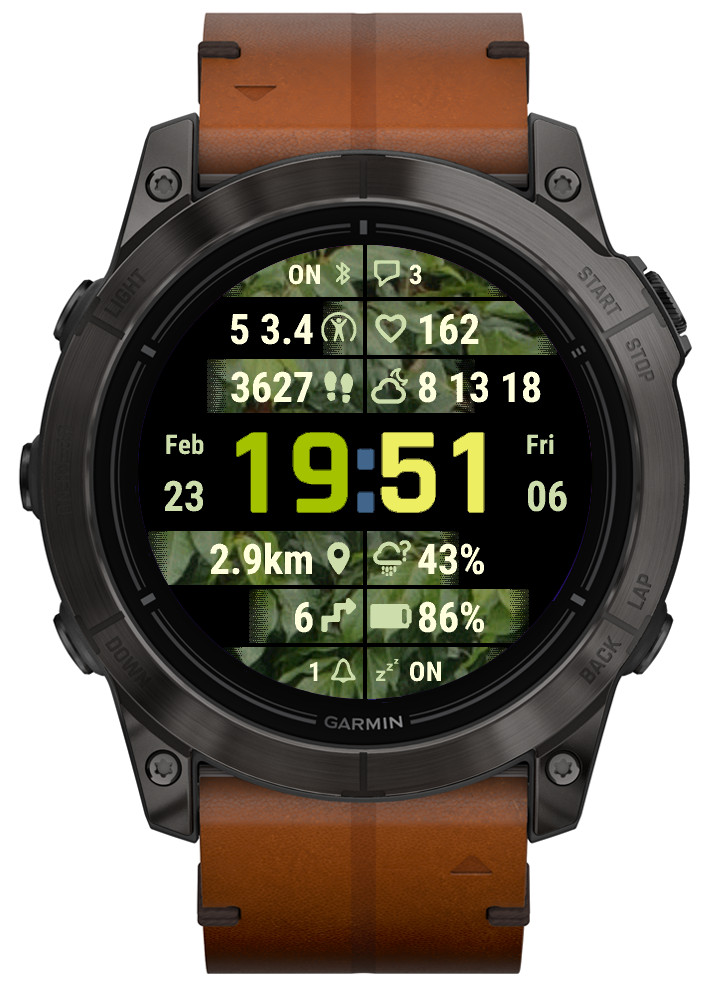
4 new Color options: Img1 – Img4.
They only make a difference in ‘Highlight’ or ‘Gradient’ color modes.
Instead of color combinations used in other themes, they use wallpaper images (currently Leaves, Flowers, Wood, Sky) for the data level/progress highlight.
This release marks the separation of development for Instinct and other devices. No new features are expected on Instinct 2 / Crossover family because unfortunately these watches have very little memory for watch face use, and with the current set of features it is already full.
The development will continue on other devices, taking advantage of the capabilities that the existing Instincts don’t have.
On most devices:
• Separate options for battery % with and without decimal point
This option is only available on some devices, and it will have effect only if the device is capable of displaying the battery level with 0.1% accuracy (e.g. fenix 6, Instinct). If the decimal point always remains .0 that means your device can only provide the battery level with 1% accuracy.
• Option to show the lines permanently at 100% as a separator
When you use ‘On’ option for the top or the bottom line, it will appear as 100% (full length).
On non-Instinct devices only:
• Multiple data font style/size options
For greater flexibility, several data font options are provided:
Custom S Custom L System XS System S System M System L System XL
‘Custom’ fonts are Instinct Pro’s own fonts that look the same on every device.
‘System’ fonts come from the watch and may look very different (both in shape and size) on different device families.
• Launching widgets by touch (if supported by the device)
This works with the Data 1 – 10, Circle number 1 or 2, and Data right 1 and 2.
It will only have effect if a widget corresponding to the displayed data can be found.
• Weekly activity distance (run, bike, swim, walk)
Displays the distance covered with the respective activity since the beginning of the current week. The first day of the week is defined in Garmin Connect settings. Note that as at the time of writing, Garmin does not synchronize the activities recorded on different devices. So for example, if you use either your watch or your bike computer to record cycling activities, those recorded with the bike computer will not be counted.
• Wheelchair pushes (if supported by the device)
Daily pushes and pushes goal can be selected as an option on some devices. Also, if the device is in wheelchair mode, the daily and weekly distance will show the pushes distance.
• Solar charging graph (60 minutes)
Shows the solar charging level on scale from 0 to 100, sampled once every full minute.
Of course it only works on devices with solar charging capability.
• Support for Tempe sensor (requires an activity in the background)
If you have a Tempe sensor paired to your watch and you start an activity, this will show the temperature reading from the sensor. The reading is updated once every 5 minutes – this is the maximum frequency allowed for a watch face.
On some devices it will show the readings from the internal watch sensor when Tempe is not connected, but still only updated at 5 minute intervals.
• Aviation style wind option
This option will show BBB/KK, where BBB is the 3-digit bearing rounded to 10 degrees and KK is the wind speed in knots.
• Day and month name can be displayed in ALL CAPS
Additional date format characters are recognized: ‘c’ will show the day name in all caps, e.g. MONDAY, and ‘C’ will do the same for the month, e.g. MAY.
This feature is controlled by a new setting option ‘Rails mode’. When set to ‘Color’ the rail gauges follow the current color theme. When set to ‘Heat map’, the rail gauges start from blue on the left and progress towards red on the right.
The exact appearance of this feature depends on the number of different colors supported by the device. Generally it is expected to look better on devices with more colors.
• Optional offset for the internal temperature sensor
This in theory could allow to compensate for external factors affecting the internal watch sensor temperature readings.
• Date2
The additional date field that can be used in several ways:
– Two different date formats can be switched easily, without the need to enter the format again
– A long date can be split in two and displayed in different places on the screen (e.g. above and below the time)
– The additional date format can be used to define arbitrary text, with the help of the ‘=’ escape character
The format for Date2 is separated by the ‘|’ symbol from the base Date in the format entry field.
As much as possible, the available options and their behavior are now consistent between all devices regardless of the display technology. Most importantly this brings the gesture related functions such as alternate DBox or dynamic hand style to AMOLED devices (NOTE: it is only applicable if you use the Always On Display).
• 6 configurable layouts defining all visible screen components
It is now possible to quickly change the layout and color theme of your watch face for different occasions. On compatible devices, you can do this very easily without reaching for your phone, by using the watch face ‘Customize’ option on your watch.
The predefined configurations also help you figure out how the available face design options (hands, marks, background, data, etc.) work. All configuration changes are kept but can be reset back to the default if needed.
• 2 more themes
This allows more options to define and switch different color and background themes.
• Data fields Opt1 – Opt4 can be configured as circles
This, together with the changeable DBox position, opens many new ways for creating your favorite watch face style. In addition, in the circle mode you also get a circular data level indicator around the perimeter.
• Alternate time or UTC hand option
If enabled, this extra hand uses ‘Outline’ style if the main hands are ‘Solid’, or ‘Outline’ with a different color when the main hands are shown as ‘Outline’ too. Operates in 12 or 24 hours mode.
• Launching widgets by touch (if supported by the watch)
This works with the Opt 1 – Opt 4 data and the DBox.
If a related widget can be found, it will be launched after a long press. Note that the activation of this feature may depend on your watch system settings and power state.
• DBox can be shown on the right side
Note that it will become visible only when Opt 3 data is set to ‘Off’.
• Date in DBox always in English
DBox uses a custom LCD font which is not suitable for many non-English languages. To avoid unpredictable date appearance in DBox, now the date is always shown in English there, regardless of the system language setting.
• Body battery, stress and temperature graphs
Graph x-axis:
Body battery – 12 hours Stress – 4 hours Temperature – 6 hours
• Extended hand width range
This is to help our friends who like to see the hands really FAT!
Updating from an earlier version
Because this update is a big departure from the version 4.x.x, some of the previously defined settings will be lost after the update – hands, marks, gauges, data.
However the unlock key will be kept, unless some unexpected Connect IQ error occurs.
On older devices like fenix 5 or forerunner 245, this update removes the ‘always on’ second hand and makes premium some features that were free before. For those who would rather have it as it was, there is a new app on the store called ‘Time Flies Legacy’. It is an exact copy of Time Flies 4.12.1, completely free. But it will not be updated except for major bug fixes, if any are found. It is available for download here: https://apps.garmin.com/en-US/apps/eddbbfc5-c98c-49dd-b07d-5da8f3605f5b
The duration of the stress graph is 4 hours (updated every 3 minutes) and altitude graph 6 hours (updated every 2 minutes).
The icon and text in combined fields now centered
Two font sizes for Data 3 – 10
This is controlled by a new setting ‘Big data font’ (by default ‘On’).
On most devices a smaller font option has been added which can be activated by setting ‘Big data font’ to ‘Off’. This allows longer data to fit better on the screen.
However, on some devices which come with enormously large system fonts (Venu family, Forerunner 265 and 965), the smallest available font was used already, so the only possible option was to add a larger font. The effect of this is that after update your fonts will appear bigger, which may be useful for those who want better readability. Otherwise, to revert to the previous size, set ‘Big data font’ to ‘Off’.
Added climb (meters or feet) data option
Fix for status icons (phone connected, do not disturb, notifications, alarms) not updating immediately on some devices